75BDL3050Q
47
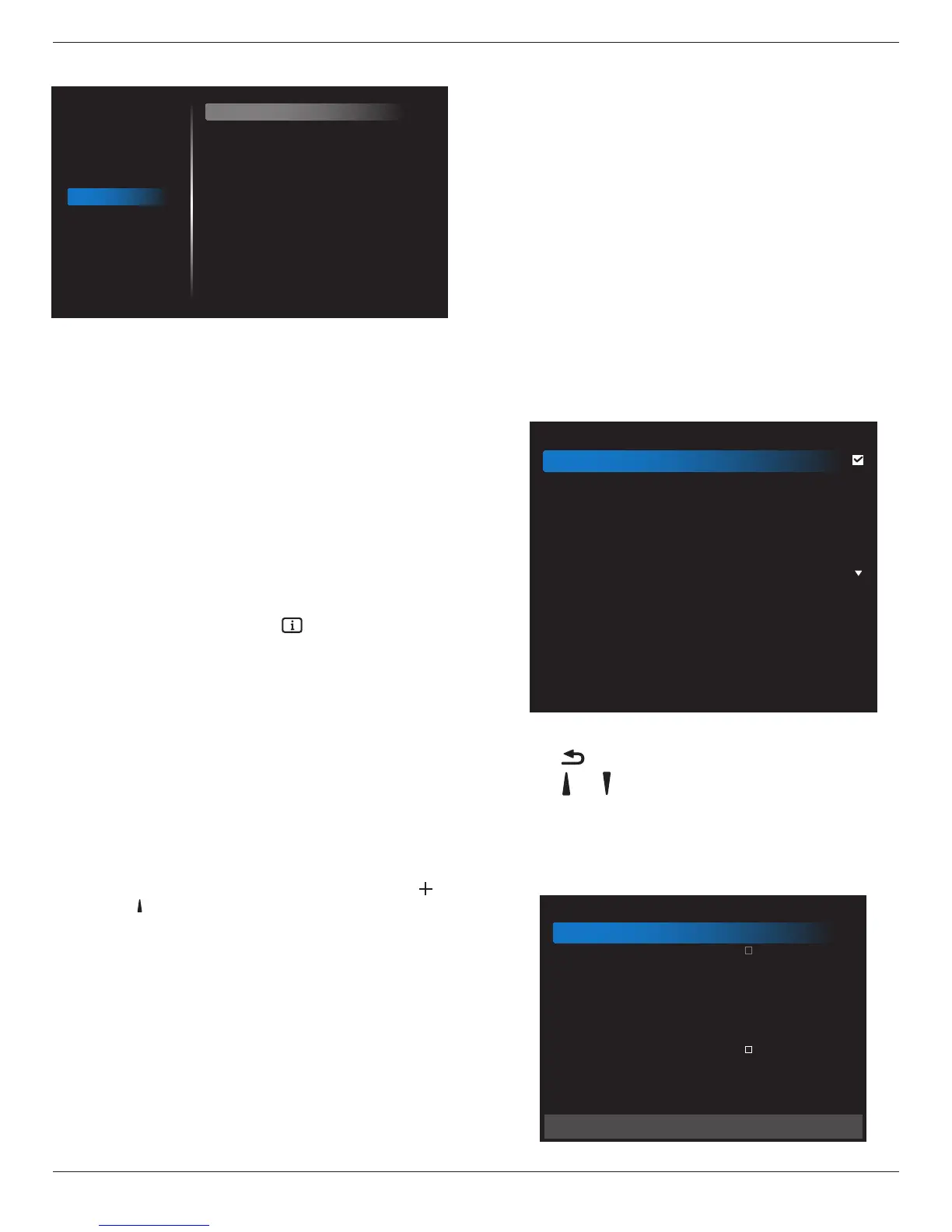
6.2.6. Advanced option menu
Picture
Screen
Audio
Configuration 1
Configuration 2
Advanced option
IR control
Power LED Light
Keyboard control
Tiling
Off Timer
Date and time
Schedule
HDMI with One Wire
Language
OSD Transparency
Power Save
Advanced option reset
Unlock
On
Unlock
Action
Off
Action
Action
Off
English
Off
Mode 1
Action
IR control
Selecttheoperationmodeoftheremotecontrolwhenmultiple
displaysareconnectedviaanRS232Cconnection.
• {Unlock} -Alldisplayscanbeoperatednormallybytheremote
controlunit.
• {Primary}-Designatethisdisplayastheprimarydisplayfor
remotecontroloperation.Onlythisdisplaycanbeoperatedbythe
remotecontrol.(Inprimarymode,IRkeywillalwaysbeprocessed
regardlessthemonitorid/groupsettings).
• {Secondary}-Designatethisdisplayasthesecondarydisplay.This
displaycannotbeoperatedbytheremotecontrol,andwillonly
receivethecontrolsignalfromtheprimarydisplayviatheRS232C
connection.
• {Lock All}/{Lock all but Volume}/{Lock all but Power}/{Lock
all except PWR & VOL}-Locktheremotecontrolfunctionofthis
display.Tounlock,pressandholdthe[ ]INFObuttononthe
remotecontrolfor6(six)seconds.
Power LED light
ChoosetosetpowerindicateLEDonoroff.
Choose{On}fornormaluse.
Keyboard control
Choosetoenableordisablethedisplaykeyboard(controlbuttons)
function.
• {Unlock}-Enablethekeyboardfunction.
• {Lock All}/{Lock all but Volume}/{Lock all but Power}/{Lock
all except PWR & VOL}-Disablethekeyboardfunction.
NOTE: “KeyboardControlLockMode”Thisfunctioncompletely
disablestheaccesstoallKeyboardControlfunctions.To
enableordisablethekeyboardcontrollock,pressboth[ ]
and[ ]buttonsandholddowncontinuouslyformorethan3
seconds.
Tiling
Withthisfunctionyoucancreateasinglelarge-screenmatrix(video
wall)thatconsistsofupto150setsofthisdisplay(up to 10-sets on
the vertical and 15-sets on the horizontal sides).Thisfunctionrequires
adaisy-chainconnection.
• Switch on delay:Setthepower-ondelayingtime(inseconds).The
defaultoption{Auto}allowsasequentialpowering-onforeach
displaybytheirIDnumberwhenmultipledisplaysareconnected.
Theoptionsare:{Off(0)/Auto(1)/2-255}
• Brightness:{Normal}/{ACS}
• {Normal}:Adjusttheoverallimageandbackgroundscreen
brightness(backlight).
• {ACS}:Applybrightnessvalue(backlight)whichisadjustedby
MICtool.Thedefaultvaluebeforeadjustmentisthesameas
OSDbrightnessvalue,e.g.,70)
• Type:{Off}(Default)/{SWTool}/{OSDOnly}
• Source resolution:{FullHD}(Default)/{4K}
• H monitors-Selectthenumberofdisplaysonthehorizontalside.
• V monitors-Selectthenumberofdisplaysontheverticalside.
• Position-Selectthepositionofthisdisplayinthescreenmatrix.
• Frame comp. -Choosetoturntheframecompensationfunction
onoroff.Ifselected{Yes},thedisplaywilladjusttheimageto
compensateforthewidthofthedisplaybezelsinorderto
accuratelydisplaytheimage.
NOTE: Doesn’tsupportscreenformatfunctionintilingusingcascade
mode.
Off Timer
Setautomaticallypowerofftime(inhours).
Date and time
Adjustthecurrentdateandtimeforthedisplay’sinternalclock.
Date and time
Auto Sync
Set date
Set time
Choose time zone
London, Dublin
GMT+1:00
NTP Server
Current date time
2.android.pool.ntp.org
2017/06/27 13:17:33
1. Press[OK]buttontoenterorchoose
2. Press[ ] backbuttontoreturn.
3. Press[ ]
or[ ]buttontoadjustthem.
*Cannotsettimetodateafteryear2037.
Schedule
Thisfunctionallowsyoutoprogramupto7(seven)differentscheduled
timeintervalsforthedisplaytoactivate.
Schedule
Schedule list
Enable
Start time
End time
Input
Playlist
Days of the week
Every week
1
Back SAVE







 To Next Page