75BDL3050Q
29
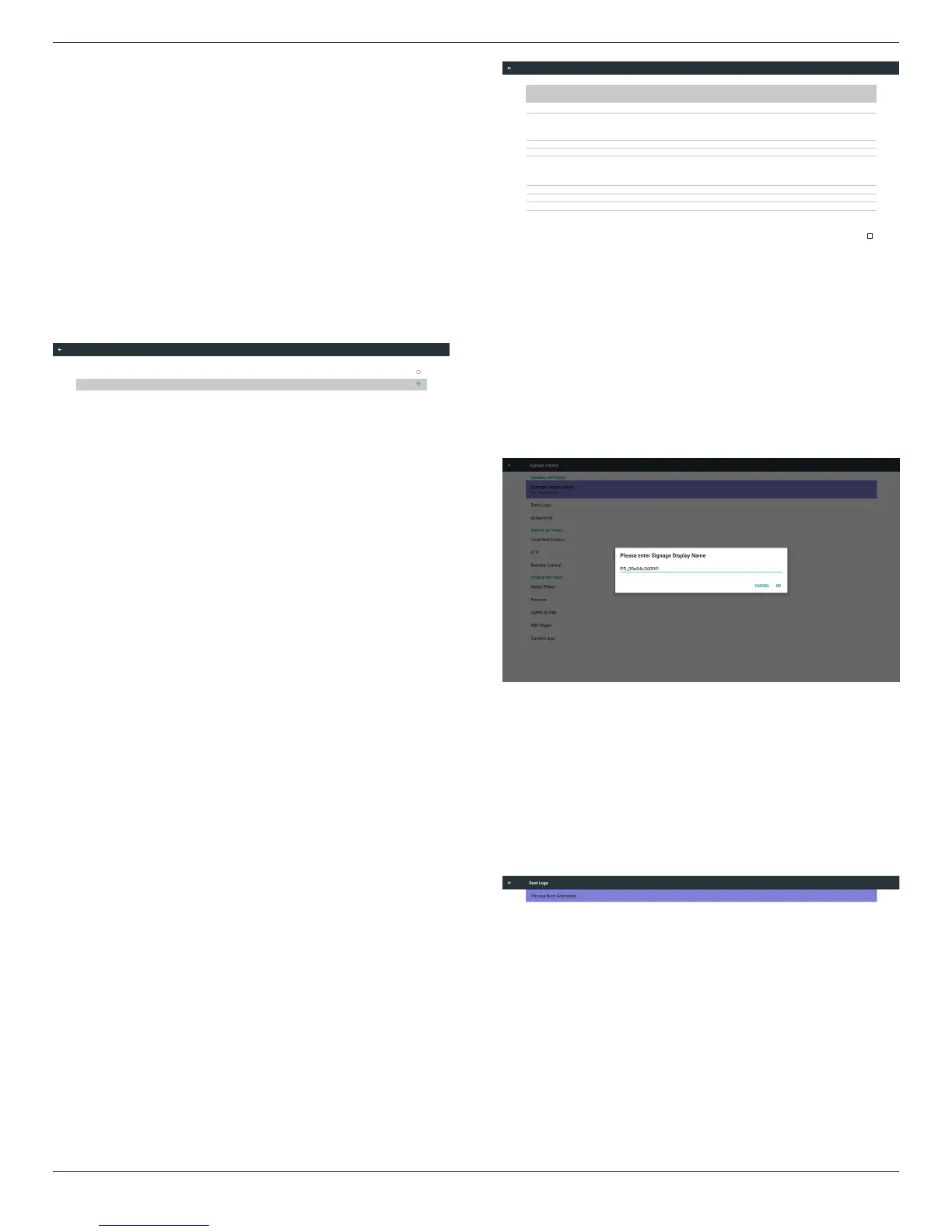
5.4. Proxy
BrowserconnecttoProxyserverandaskProxyservertoconnect
somewebsiteonInternet.
Enable/Disabletoturnon/offProxyserver.
• Click“Enable”toswitchproxyfunction“ON”
• Inputthe“Proxyhostname”.(ProxyserverIPaddress)
• Inputthe“Proxyport”.(Proxyserverportnumber)
• Selectan“Type”.(Proxyservertype.)
• Done.
- Iftheproxyserverisneedanauthenticationtoconnect,please
“checkon”theAuthenticationandinputUsername&Password.
- Iftheproxyserverisnotneedanauthenticationtoconnect.
Proxy hostname
Proxy port
Type
HTTP
Proxy settings
Authentication
Username
Password
Authentication
Main Switch
Disable
Enable
Proxy
Note:
• ProxytypeinHTTP,HTTPS,SOCKS4,SOCKS5aresupport.
• Onlysupporttheconnectionthroughtheproxyserverwith
TCPport80&443&5228.
• ProxyserverwithauthenticationonWindowsSeverSeriesis
notsupport.
5.5. Signage Display
Divideinto4groups:GeneralSettings/ServerSettings/SourceSettings
/Security
(1)GeneralSettings
A. SignageDisplayName
B. BootLogo
C. Screenshot
(2)ServerSettings
A. EmailNotication
B. FTP
C. RemoteControl
D. SICPNetworkPort
(3)SourceSettings
A. MediaPlayer
B. Browser
C. CMND&Play
D. PDFPlayer
E. Customapp
(4)Security
A. ExternalStorage
(5)Other
A. TeamViewerSupport
B. PlatformWebAPI
Email Notification
FTP
Remote Control
SCIP Network Port
Server settings
Media Player
Browser
CMND & Play
PDF Player
Custom App
Source settings
General settings
Signage Display Name
PD_0024672157ea
Security
External Storage
SD card/USB External Storage Unlock
Boot Logo
Screenshot
Signage Display
5.5.1. General Settings
1. SignageDisplayName
SetupPDname“PD_”+EthernetMacAddress.
Note:
Inputlimitation:
(1)length:Max36characters
(2)format:nolimit
2. BootLogo
1)ScalarOSDmenutocontrolAndroidbootlogoenable/disable
ScalarOSDmenuoperation
RCU:Home->Conguration2->Logo->On/Off/User
Inusermode,usercanchoosetheirownbootlogoanimationle.
Note:
(1)Bootanimationlename:bootanimation.zip
(2)Willpop-upawindowforusertoselectUSBandSDcard.No
priorityissue.





 To Next Page