65BDL3052E/75BDL3052E/86BDL3052E
38
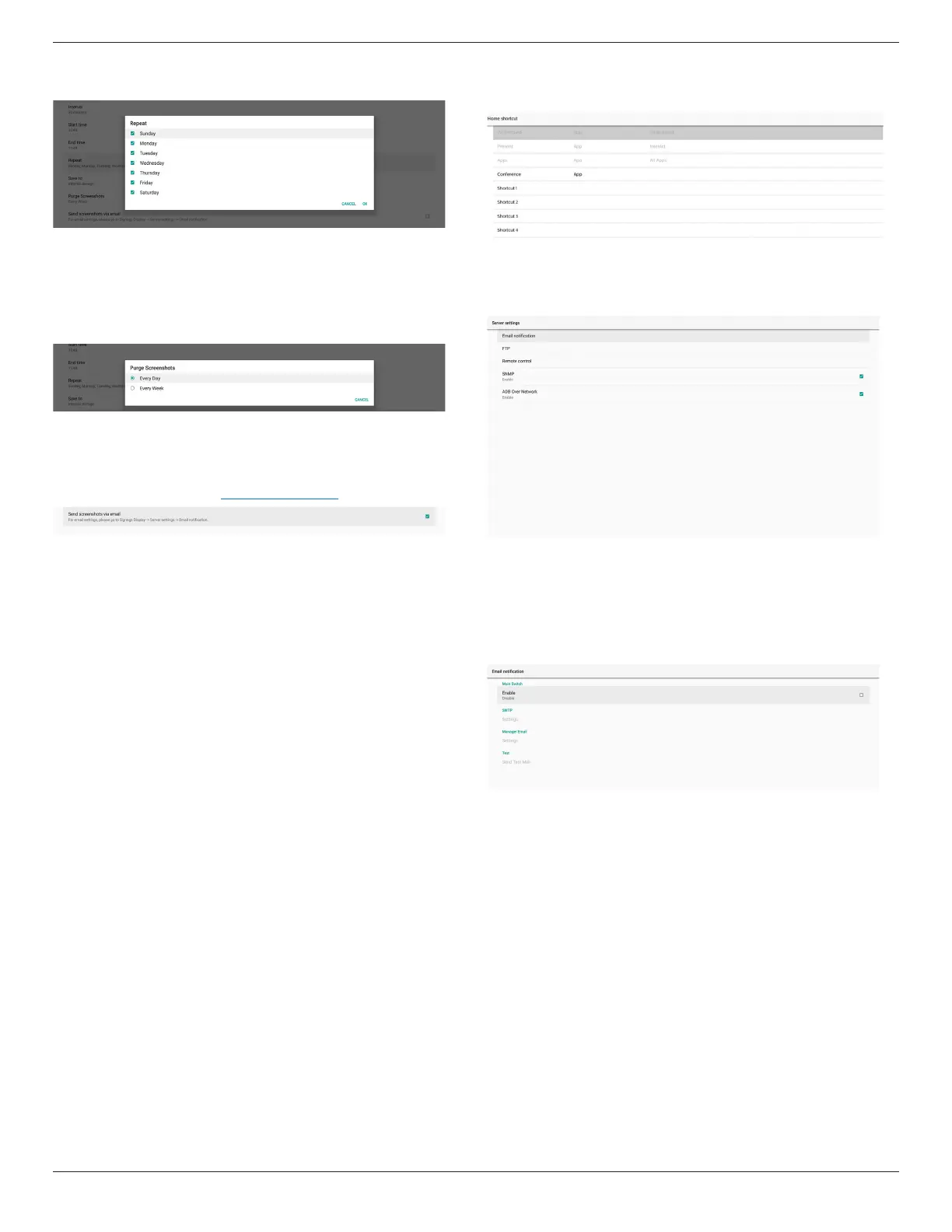
(4). Repeat
Set the repeat mode for auto screenshot.
(5). Save to
The screen images will be saved under the folder named
“philips/screenshot” of the internal storage.
(6). Purge Screenshots
Set the interval time for deleting the screenshot images.
The available options are “Every day” and “Every week”.
(7). Send screenshots via email
You can send every screenshot image as an e-mail
attachment. User must set up mail information rst in
“Settings -> Signage Display -> Server Settings -> Email
notication” (Refer to Email Notication section).
Navigation bar
Denition support sidebar of source
Android source:
65”/75”/86” Will show sidebar except Kiosk source, and follow
the navigation bar setting
External source:
65”/75”/86” Will not show sidebar,and follow the navigation
bar setting
Denition of option
1. Always on: sidebar will stay on both sides of the screen
except external source
2. Always o: sidebar will not appear on the screen
3. Auto hide: sidebar will disappear in 10 seconds
The way to appear after disappearing
A. Gesture swipe from left or right to center, the sidebar will
be show on the screen, and disappear again after 10 seconds
B. If source support sidebar, the sidebar will be show on the
screen when change source,and disappear again after 10
seconds
Denition of arrows on both sides of the screen
a. click arrows on both sides can open sidebar menu, click the
arrow at the top or waiting for 15 seconds, the sidebar menu
will be disappear
b. long press arrows on both sides, it can move the sidebar
position
Home shortcut
Add APP/ Source shortcut to the Home launcher.
6.1.2.2. Server Settings
Settings -> Signage Display -> Server Settings
Email Notication
Settings -> Signage Display -> Server Settings -> Email
Notication
Click checkbox to enable/disable E-mail notication feature.
Set SMTP and manager E-mail after enabling the E-mail
notication feature.






 To Next Page