65BDL3052E/75BDL3052E/86BDL3052E
42
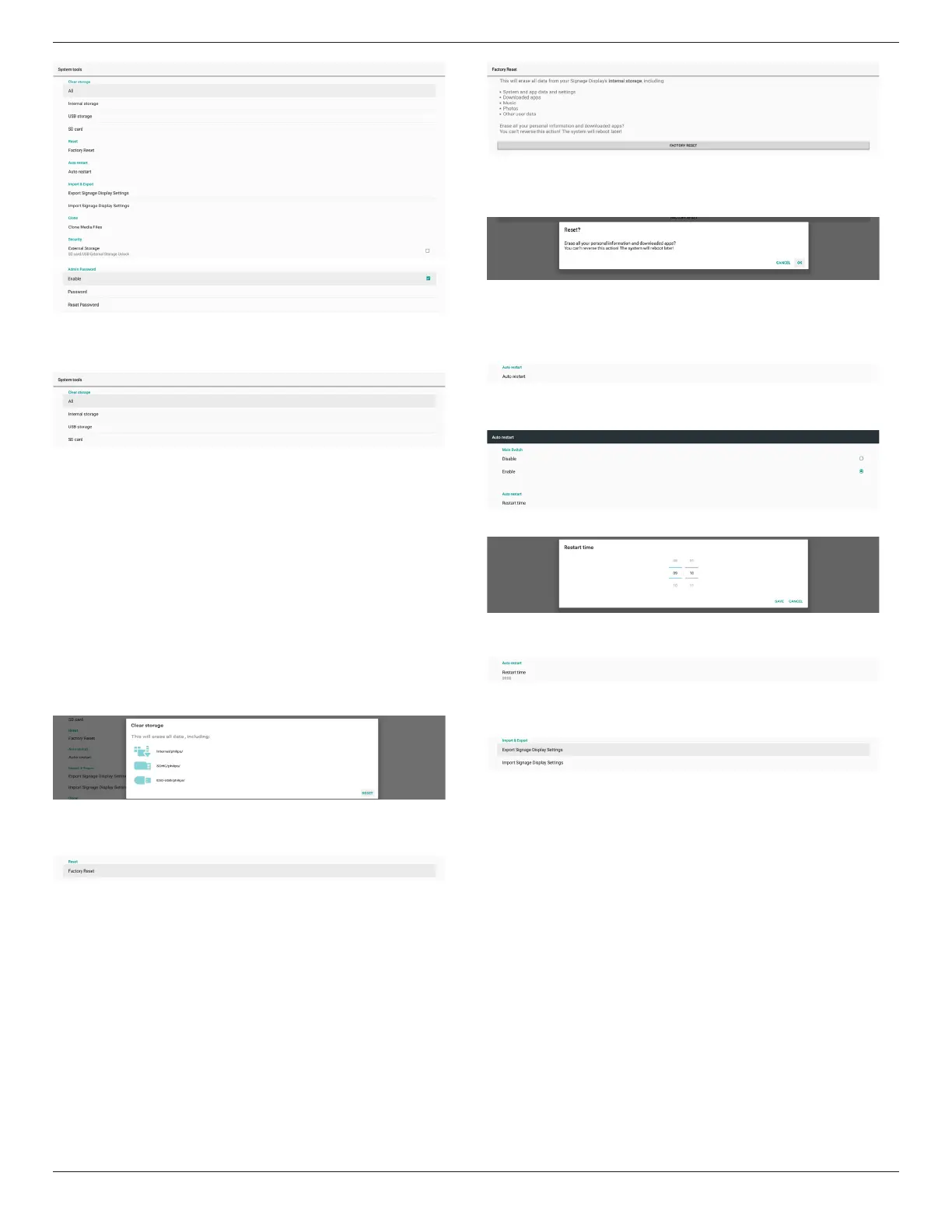
Clear Storage
Settings -> Signage Display -> System Tools -> Clear Storage
Clear data under {storage}/philips/folder of the internal and
external storage.
(1). All
Clear the folder “Philips” from the internal storage, USB and
SD card.
(2). Internal Storage
Clear the folder “Philips” from the internal storage only.
(3). USB Storage
Clear the folder “Philips” from the USB storage only.
(4). SD Card
Clear the folder “Philips” from the SD card only.
A dialog box lists all folders that the system is going to clear.
Press “RESET” to clear all data under the listed folder, or press
back key to quit without saving.
Reset
Settings -> Signage Display -> System Tools -> Reset
Factory Reset
This function allows you to clear all user data and settings. The
system will auto reboot and jump to OOBE after rebooting.
Important Note:
1. Only the data stored in the internal storage will be cleared
and cannot be recovered, the data includes the device
settings, installed APPs, APPs’ data, downloaded les, music,
photos and all data under”/data”. However, the data stored
on the USB and SD card will not be cleared.
2. Make sure that the AC adapter and power are always
present during the factory reset process. User can only
power o after seeing OOBE on the screen.
Click “Factory Reset” to perform factory reset. Press “OK” to
conrm when the dialog box appears. Please note this action
clears all data in the internal storage and it is not recoverable.
Auto Restart
Auto Restart function allows the device to restart automatically
at the time you specify.
Select Disable/Enable auto restart feature from the Main
Switch.
Use the time picker to set auto restart time.
Click “Save” button and the time you set for auto restart will
display.
Import & Export
Settings -> Signage Display -> System Tools -> Import & Export
This function allows you to import/export the settings and 3rd
party APK from/to other device. Please note that:
(1). Export data to BDL3052E-clone.zip le under {storage}/
philips/clone folder.
(2). Support old clone les method, and put les under
{storage}/philips/sys_backup:
AndroidPDMediaPlayerData.db
AndroidPDPdfData.db
menu_settings.db
settings_global.xml
settings_secure.xml
settings_system.xml
signage_settings.db
smartcms.db
Note that latest export data will archive all les into ZIP
le.
(3). “Signage Display Name” will not be imported/exported.
Export Signage Display Settings
System exports database data and third party APKs into
{storage}/philips/clone/BDL3052E-clone.zip le of the selected
storage (internal storage, SD card or USB storage).






 To Next Page