65BDL3052E/75BDL3052E/86BDL3052E
43
Note:
If the selected storage (internal storage, USB or SD card)
does not contain Philips/folder, then the system will create it
automatically.
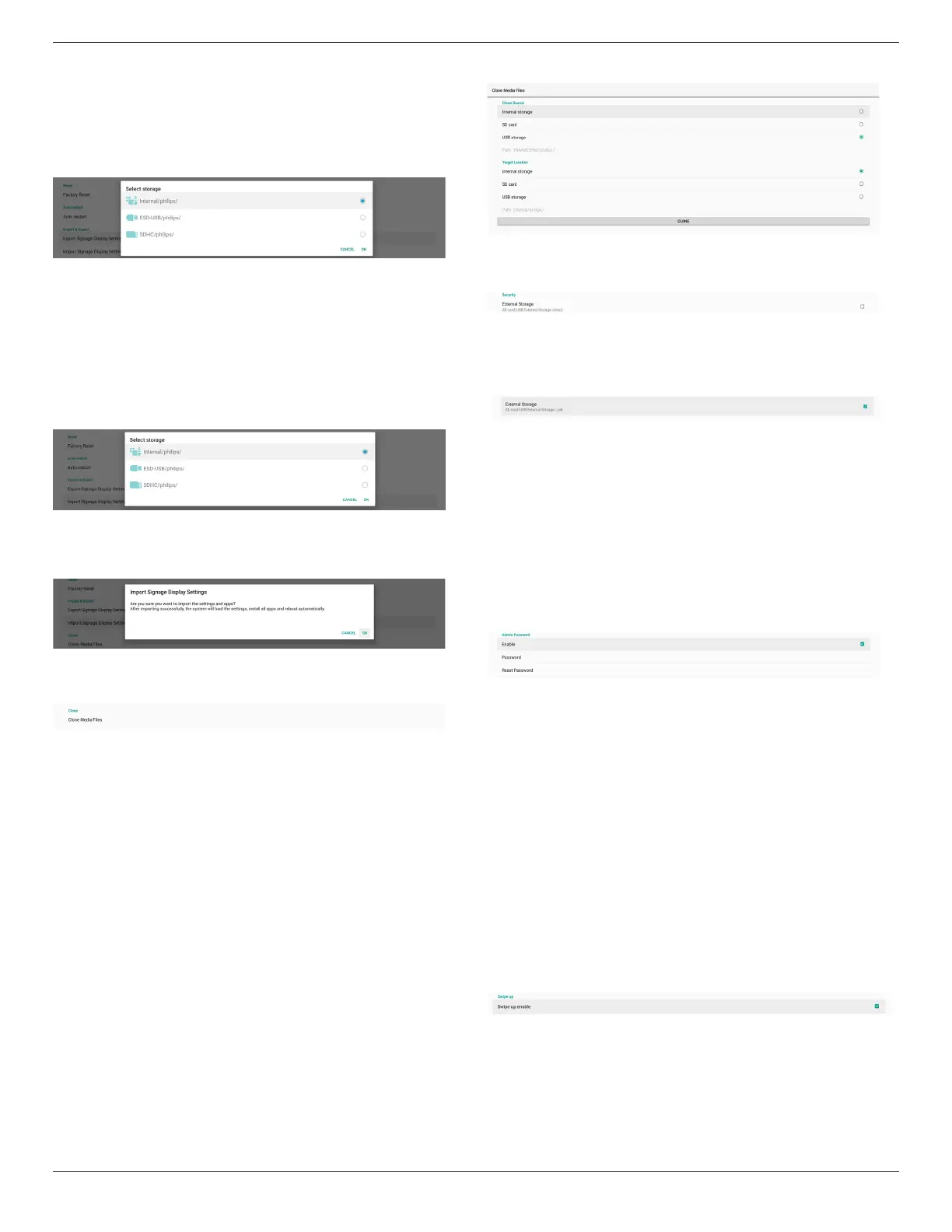
A list of all available storage (internal storage, SD card and USB
storage):
Import Signage Display Settings
Import database data from philips/clone/BDL3052E-clone.zip
le of the selected storage (internal Storage, SD Card or USB
storage). System imports following data in ZIP le:
(1). Import Database in BDL3052E-clone.zip
(2). Import 3
rd
party APK in BDL3052E_clone.zip
A list of all available storage (internal storage, SD card and USB
storage):
A conrmation dialog box is displayed before importing the
settings and APKs. Click the “OK” button to start importing the
data.
Clone
Settings -> Signage Display -> System Tools -> Clone
Clone Media Files
This function allows you to copy the media les from the
selected source storage to the target storage.
(1). System clone les are under the following folder:
philips/photo
philips/music
philips/video
philips/cms
philips/pdf
philips/browser
(2). Clone CMS les (le extension is “.cms”):
Source storage
Source is internal storage
Check if there is CMS le on the FTP server.
If there is no CMS le on the FTP server, check philips/
folder in source storage
Source is external storage (SD card or USB storage)
Check CMS le in root directory of storage
Target storage
Target is internal storage
CMS le will be saved to philips/ folder
Target is external storage (SD card or USB storage)
CMS le will be saved to root directory of storage
Security
Settings -> Signage Display -> System tools -> Security
External Storage
Click the checkbox to lock or unlock external storage (SD card
and USB storage). Default is unlocked.
(1). Unchecked (Disable): SD card/USB External Storage
Unlock.
(2). Checked (Enable): SD card/USB External Storage Lock.
Note:
When you disable external storage lock to enable state,
please unplug and plugin external storage again (for both
SD card and USB storage). After that, system can detect
external storage again.
Admin Password
Settings -> Signage Display -> System tools -> Admin Password.
Enable:
Click the checkbox to enable or disable Admin Password.
Default is disable.
Once it is enabled, you will need a password to login into
Admin mode. Default password is “1234”.
Password:
Change the password if needed.
Reset Password:
Reset the password to its default value which is “1234”. If reset
is successful, it shows a message as “Successful”.
Touch lock password
The default password is 123., You also can change touch
password by this option.
Swipe up
Enable/disable up slide to turn on source menu.






 To Next Page