Direction for Use
EN 6 A02U AA3.
3. Direction for Use
2
H
OOKING
U
P THE
T
ELEVISION
A
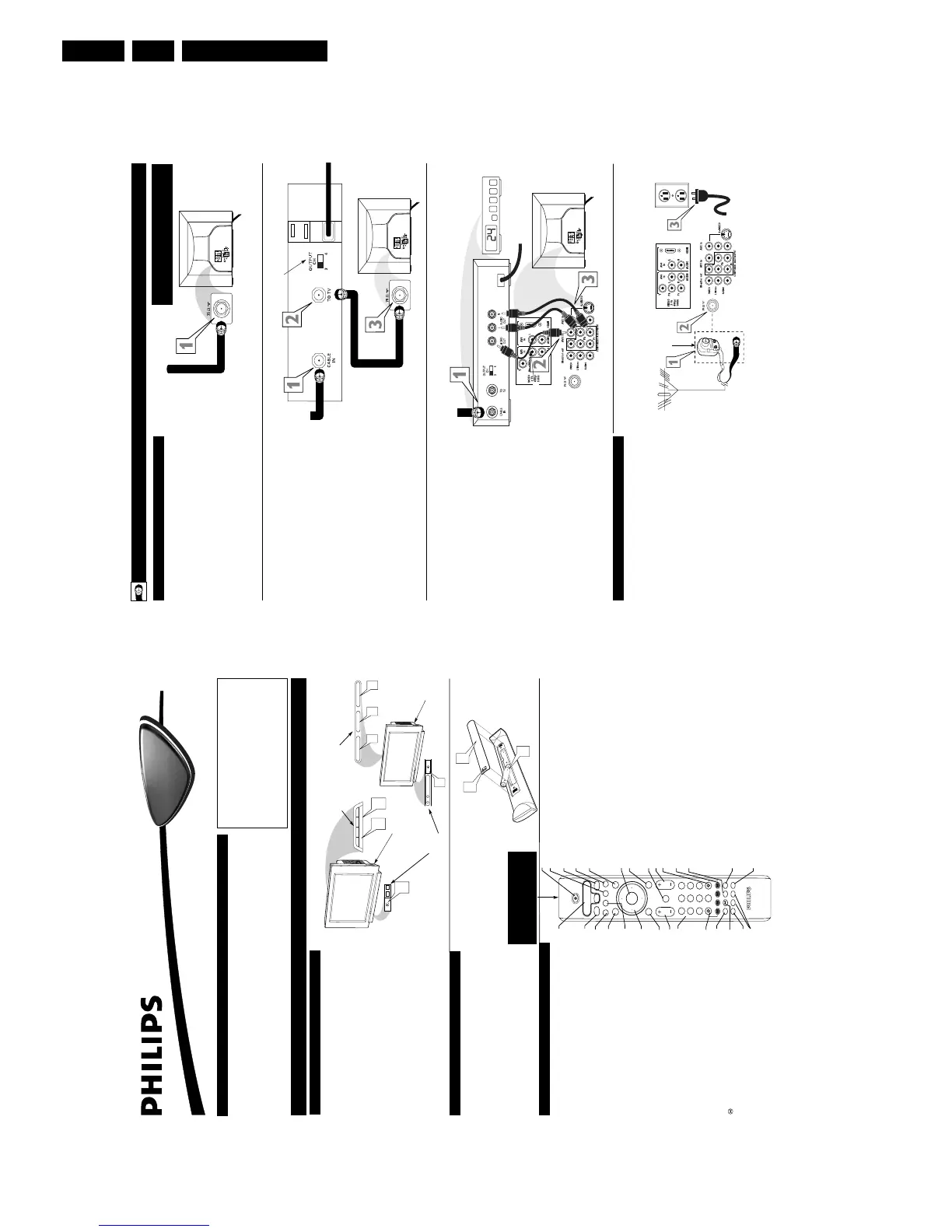
combination antenna receives normal broadcast chan-
nels (VHF 2–13 and UHF 14–69). Your connection is
easy because there is only one 751 (ohm) antenna plug on
the back of your TV, and that’s where the antenna goes.
1
If your antenna has a round cable (75 ohm) on the end,
then you're ready to connect it to the TV.
If your antenna has flat, twin-lead wire (300 ohm), you
first need to attach the antenna wires to the screws on a
300- to 75-ohm adapter.
2
Push the round end of the adapter (or antenna) onto the
751 (ohm) plug on the back of the TV. If the round end of
the antenna wire is threaded, screw it down finger tight.
3
Plug the television in to the wall outlet and turn the TV
on.
Refer to the TUNER and AUTOPROGRAM features
within the Directions for Use. TUNER should be set to the
ANTENNA option. AUTOPROGRAM can be set to program
all the available channels on your antenna signal into the tele-
vision’s memory.
A
NTENNA
TV
Antenna Connection:
Jack Panel
Back of TV
Power Plug
from back of TV
AC Power
Wall Outlet
Round 751
Coaxial Cable
from Antenna
Twin
Lead Wire
300 to 75-ohm
Adapter
Outdoor or Indoor Antenna
(Combination VHF/UHF)
The combination antenna receives normal
broadcast channels 2-13 (VHF) and 14-69 (UHF).
Y
our Cable TV input into your home may be a single (75 ohm)
cable or use a cable box decoder. In either case the connec-
tion is very simple. Follow the steps below to connect your cable
signal to your new television.
Direct Cable Connections:
This connection will supply Stereo sound to the TV.
1
Connect the open end of the round Cable Company sup-
plied cable to the 751 input on the TV. Screw it down finger
tight.
Cable Box (w/RF In/Outputs):
This connection will NOT supply Stereo sound to the TV. The sound
from the cable box will be mono.
1
Connect the open end of the round Cable Company sup-
plied cable to
the cable signal IN(put) plug on the back of
the Cable Box.
2
Using a separate round coaxial cable, connect one end to the
OUT(put) (TO TV) plug on the back of the Cable Box.
3
Connect the other end of the round coaxial cable to the
751 input on the back of the television. Screw it down finger
tight.
NOTE: Be sure to set the OUTPUT CHANNEL SWITCH on the
back of the cable box to CH 3 or 4, then tune the cable box on the
TV to the corresponding channel. Once tuned, change channels at
the cable box, not the television.
Cable Box (w/Audio/Video Outputs):
This connection will supply Stereo sound to the TV.
1
Connect the open end of the round Cable Company sup-
plied cable to
the cable signal IN(put) plug on the back of
the Cable Box.
2
Using a RCA type Video Cable, connect one end of the
cable to the Video (or ANT, your cable box may be labeled
differently) Out jack on the cable box and the other end to the
AV1 Video Input on the TV.
3
Using a RCA type Audio Left and Right Cable, connect one
end to the left and right Audio Out L& R jacks on the
cable box. Connect the other end to the AV1 Audio L & R
Input jacks on the TV.
NOTE: Use the AV button on the TV remote control to tune to the
AV1 channel for the cable box signal. Once tuned, change channels at
the cable box, not the television. Pressing the AV button repeatedly
will scroll all the AV Input channels, including the presently tuned
channel.
C
ABLE
/C
ABLE
B
OX
TV
Direct Cable Connection:
Cable Box with RF Inputs and Outputs Connection:
Cable signal
coming from
Cable Company
(Round 751
coaxial cable)
Jack Panel Back of TV
Jack Panel Back
of Cable Box
Cable Signal
IN from the
Cable
Company
Round 751
Coaxial Cable
Jack Panel Back of TV
Cable Box with Audio/Video Outputs Connection:
Cable Signal IN
from the Cable
Company
Jack Panel Back
of Cable Box with A/V Outputs
Jack Panel Back of TV
Audio Cables
L & R (Red, White)
Video Cable (Yellow)
Output Channel Switch
Model 26PW8402/37 will not have HDMI Inputs, it is
only available in the 30PW8402/37, 34PW8402/37,
30PW8502/37, and the 34PW8502/37.
3121 233 45861
Quick Use and Hookup Guide
Important Notice/Warning . . . . . . . . . . . . . . . . . . . . .1
Basic TV Operation . . . . . . . . . . . . . . . . . . . . . . . . . .1
Remote Battery Installation . . . . . . . . . . . . . . . . . . .1
Remote Control Button Descriptions . . . . . . . . . . . .1
Hooking up the Television
Basic Cable/Cable Box TV Connections . . . . . . . . .2
Basic Antenna TV Connections . . . . . . . . . . . . . . . .2
AV1 Input Connections . . . . . . . . . . . . . . . . . . . . . .3
AV2 Input Connections . . . . . . . . . . . . . . . . . . . . . .3
S-Video Input Connection . . . . . . . . . . . . . . . . . . . .3
Component Video Input Connections . . . . . . . . . . .3
AV4 Input Connection . . . . . . . . . . . . . . . . . . . . . . .4
Monitor Output Connections . . . . . . . . . . . . . . . . . .4
Side (AV3) Audio/Video Input Connection . . . . . . .4
IMPORTANT
NOTE: This owner's manual is used with several
different television models. Not all features (and
drawings) discussed in this manual will necessarily
match those found with your television set. This is
normal and does not require that you contact your
dealer or request service.
WARNING: TO PREVENT FIRE OR SHOCK
HAZARD DO NOT EXPOSE THIS UNIT TO
RAIN OR EXCESSIVE MOISTURE.
Color TV
Color TV
C
ONTENTS
B
ASIC
TV
AND
R
EMOTE
O
PERATION
Y
our television has a set of controls located on the top and front
of the cabinet for use when the remote control is not needed.
1
Press the POWER button on the front of the TV cabinet to turn
the TV ON.
Note: With AutoChron ON, the TV will search for a PBS chan-
nel to set the clock before powering itself on. This can take sev-
eral seconds.
2
Press the VOLUME + button to increase the sound level or the
VOLUME - button to lower the sound level.
Pressing both buttons at the same time will display the
onscreen menu for models 26PW8402/37, 30PW8402/37, and
34PW8402/37. Press the menu button on top of the set for mod-
els 30PW8502/37 and 34PW8502/37. After you are in the menu,
use the Volume + or - buttons to make adjustments or selections.
3
Press the CHANNEL + (Up) or - (DOWN) button to select
TV channels. Use these buttons to make adjustments or selec-
tions in the onscreen menu.
There is also a set of Audio and Video Input jacks located on the side of
the television cabinet. Refer to the Side AV3 Input section on page 4 of
this Quick Use and Hookup Guide.
T
ELEVISION
POWER
3
+
–
VOLUME
+
–
CHANNEL
2
1
Remote Sensor
Window
Audio, Video, S-Video
and Headphone Jacks
located on the side of
the television.
Volume and Channel buttons are located
on the top of the television cabinet.
T
o load the supplied batteries into the remote:
1
Remove the battery compartment door on the back of
the remote.
2
Place the batteries (2-AA) in the remote. Make sure the (+)
and (–) ends of the batteries line up correctly (the inside of
the case is marked).
3
Reattach the battery compartment door.
Be sure to point the remote at the Remote Sensor window on the
front of the television when using it to operate the television.
R
EMOTE
C
ONTROL
B
ATTERIES
3
2
1
OK
1
2
3
4
5
6
7
8
0
9
H
Select
SLEEP
ACTIVE
CONTROL
CC
AV
CLOCK
MENU
EXIT
PICTURE
SOUND
STATUS
SELECT
4
PIC SIZE
MAIN
FREEZE
QuadraSurf
TM
PROGRAM
LIST
TV/VCR
REC
SAP
A/CH
SATVCR AMP ACCDVD
VOL CH
MUTE
POWER
8
7
3
4
R
EMOTE
C
ONTROL
B
UTTONS
Select (VCR DVD SAT AMPACC) -
Press to set the TV
this button to cycle
across the accessory mode dial. Stop pressing when the mode you desire is lighted. The
light will stay on for 2 seconds and then begin blinking to indicate the remote is in your
desired mode. Once the mode is selected, you must press a button within 60 seconds
for the remote to remain in the selected mode or it will default back to the TV mode.
SLEEP Button -
Press to set the TV to automatically turn itself OFF at a given amount
of time.
AV
(
4
)
Button -
Press repeatedly to select the different signal sources connected to the
A/V inputs on the TV.
SOUND Button -
Press to select an AutoSound™ control. Choose from four factory-set
controls (Speech, Music, Movie, and Multimedia) and a PERSONAL to tailor the TV
sound to enhance the particular type of program you are watching.
ACTIVE CONTROL
(
7
)
Button -
Press repeatedly to toggle the Active Control to
ON , Display Logo, Display On, and Off. When ON, the sharpness and noise reduction
will be continuously monitored.
Cursor Buttons (Left, Right, Up, Down) -
Press these buttons to highlight, select,
and adjust items on the TV's onscreen menu. Also, press the left or right cursor buttons to
adjust the picture format.
Menu (Select) Button -
Press for the onscreen menu to appear. Pressing the menu but-
ton after menu selections are made will eliminate the menu from the display.
Volume (+) or (–) Buttons -
Press to adjust the TV sound level.
Number Buttons -
Press the number buttons to select TV channels. When selecting sin-
gle-digit channels, press the number of the desired channel. The TV will pause for a few
seconds and then tune to the selected channel. (Note: You can press 0, then the number
also.) For channels 100 and above, first press 1 then the next two numbers of the desired
channel.
SMILEY Button -
Press to add channels in the “QuadraSurf” lists. Works with all col-
ored buttons.
Rec(ord)/SAP Button -
Press to start the recording of a videotape. Also, this button
activates or deactivates the SAP feature (if available).
(Virtual Dolby) Button -
Press to set various factory Surround Sound listening
modes.
PIC(TURE) SIZE Button -
Press to adjust the picture format.
NOTE:
These buttons are dedicated to the PIP feature within certain models. This TV
does not contain these PIP features, therefore these buttons will have no functionality when
pressed.
Power Button -
Press to turn the TV ON and OFF.
CC/
2
Button -
Press to select Closed Captioning options within the menu. Also, press
this button to being playback of a prerecorded video.
8
(Pause) Button -
Press to pause the viewing of a prerecorded video. The picture
will freeze on the screen until the Play or Pause buttons are pressed again.
Clock/
¢
Button -
Press the CLOCK button to access the onscreen Clock menu.
Also, press this button to Fast Forward a prerecorded tape.
Picture Button -
Press to select an AutoPicture™ control. Choose from four factory-
set controls (MOVIES, SPORTS, WEAK SIGNAL, and MULTI MEDIA) and a PER-
SONAL control that you set according to your own preferences through the onscreen
PICTURE menu. The four factory-set controls will tailor the TV picture so as to
enhance the particular type of program you are watching, or to improve the picture of a
program that has a weak signal.
OK Button -
Press to activate selection when programming remote control.
Status/Exit Button -
Press to see the current channel number on the TV screen. Also
press to clear the TV screen after control adjustments.
Mute Button -
Press to turn the TV sound OFF. Press again to return the sound to its
previous level.
Channel (+) or (–) Buttons -
Press to change the tuned channel.
FROWNIE Button -
Press to delete channels in the “QuadraSurf” lists. Works with all
colored buttons.
QuadraSurf™ Buttons -
(Red, Green, Yellow, Blue) Allows you to store and surf
up to 10 channels you choose for each colored button.
Program List Button -
Press to display a list of channel numbers and their names
(See pages 26 for proper setup). Each channel will appear as a selectable menu item.
The current channel will be highlighted by default. Only five channels will be shown
onscreen at one time; press the CURSOR UP or CURSOR DOWN button to scroll the
list and highlight a channel. Press the CURSOR RIGHT button to tune to the highlight-
ed channel. Channels marked “Skipped” in the “Channel Edit” control will not appear in
the list. Each channel that is being blocked by AutoLock™ will appear with a padlock
icon to indicate that the channel is not viewable.
TV/VCR (A/CH) Button -
TV/VCR – Press while in the VCR mode (the VCR
indicator on the front of the VCR will light) to view the playback of a tape. Press again
to place in the TV position (the VCR indicator light will go off) to view one program
while recording another program. A/CH – Press to toggle between the currently viewed
channel and the previously viewed channel.
FREEZE Button -
Press to freeze the picture on the TV screen. Press a second time to
resume normal viewing. The signal being received during the time the picture is frozen will
be lost. When the picture is unfrozen, the video will return to real time broadcast.
Remote Control
(shown from the bottom)
A
C
T
I
VE
C
O
N
T
R
O
L
MENU
+
CHANNEL
–
+
VOLUME
–
POWER
ACTIVE CONTROL
2
2
1
3
Audio, Video, S-Video
and Headphone Jacks
located on the side of
the television.
Example Models:
26PW8402/37
30PW8402/37
34PW8402/37
Example Models:
30PW8502/37
34PW8502/37
Note: Some models may show the
remote control with the PIP feature
buttons labeled, there is no need to
call the call center or to return the
product to the store.






 To Next Page