9
English
EN
4 Connect
AW2000 to
your home Wi-
Fi network
To connect AW2000 to your existing home Wi-
Finetwork,youneedtoapplyyourhomeWi-Fi
settings to AW2000.
Choose your best setup method based on the
preconditions listed below.
Platform
of your
mobile
device
Type
of your
Wi-Fi
router
Other
require-
ment
Setup method
iOS Non-WPS No Choose option
1 (see 'Option 1:
Set up wireless
connection to a
non-WPS router
through an iOS
device' on page
9).
Android Non-WPS No Choose option
2 (see 'Option 2:
Set up through
a non-WPS
Wi-Fi router and
Android device'
on page 11).
Either
iOS or
Android
WPS No Choose option
3 (see 'Option 3:
Set up wireless
connection to a
WPS router' on
page 14).
Either
iOS or
Android
Either
non-
WPS or
WPS
You
have an
Eth-
ernet
cable.
Choose option 4
(see 'Option 4: Set
up wired connec
-
tion through an
Ethernet cable' on
page 15).
Before connection of AW2000 to your home
Wi-Finetwork,makesurethat:
a your Wi-Fi router is powered on and
working properly.
b AW2000 has been powered on and
booted up successfully (see 'Connect
powerandswitchon'onpage7).
c you have jotted down your Wi-Fi
password.
Onceconnectedsuccessfully,AW2000will
remember your home Wi-Fi settings. Then you
can play music or listen to Internet radio via
Philips AirStudio+ Lite whenever AW2000 is
powered on and connected to your home Wi-
Fi network automatically.
Option 1: Set up wireless
connection to a non-WPS
router through an iOS device
1
Beforesetup,makesurethatyouriOS
device is connected to your home Wi-Fi
network.
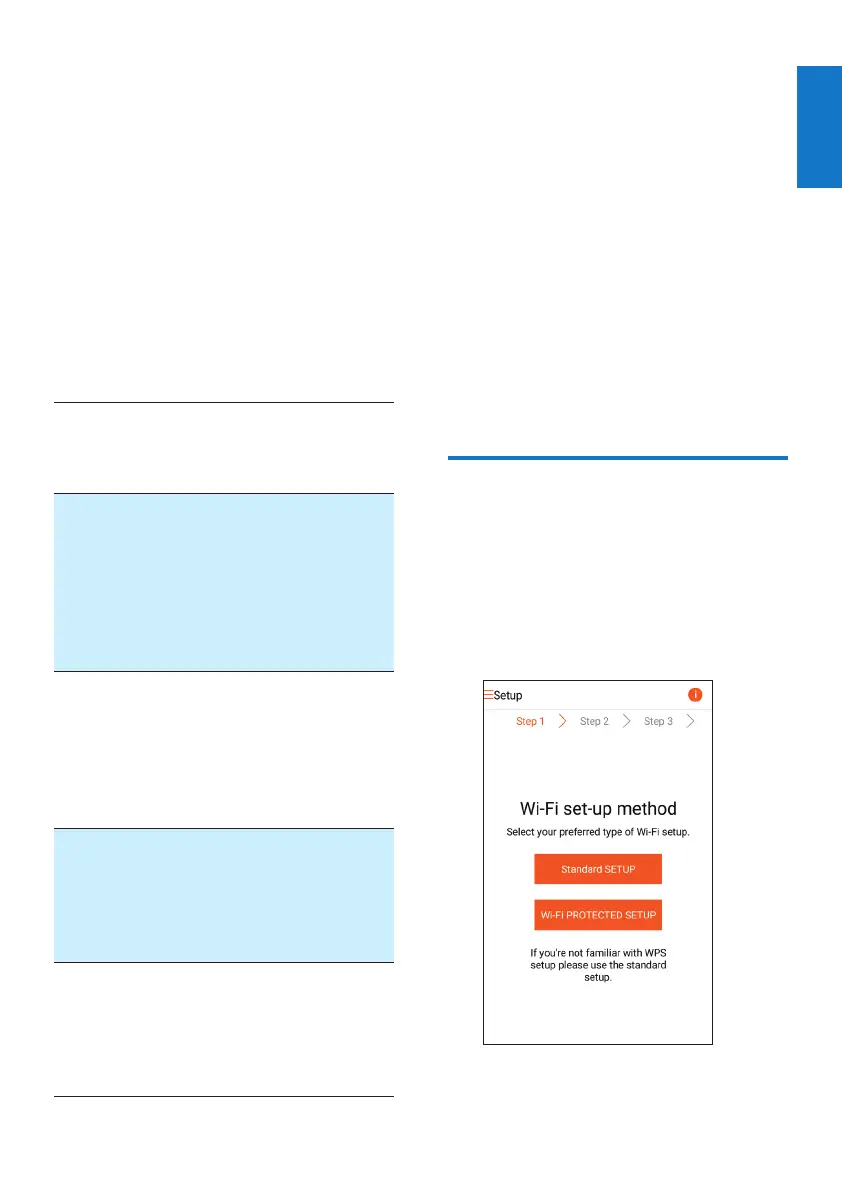
2 Select Standard SETUP and tap Next.



 To Next Page