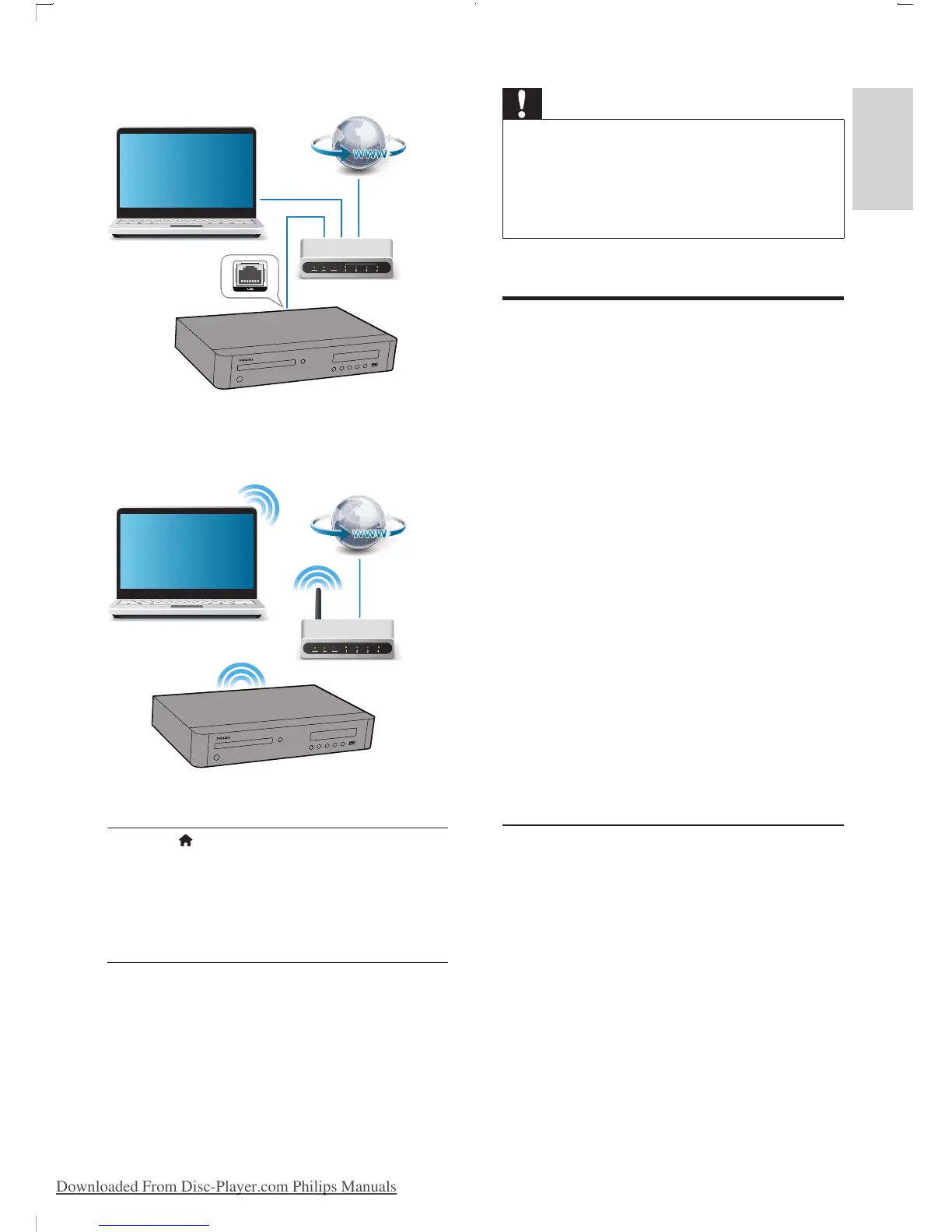
• This player has a built-in Wi-Fi for a
wireless connection.
2 Perform the network installation.
1) Press .
2) Select [Setup], and press OK.
3) Select [Network] > [Network
installation], and press OK.
4) Follow the instructions on the TV screen to
complete the installation.
PC (DLNA)
PC (DLNA)
Caution
• Before you connect to a network, familiarize yourself
with the network router, media server software for
DLNA, and networking principles. If necessary, read
documentation accompanying network components.
Philips is not responsible for lost, damaged, or corrupt
data.
Smartphone control
Use a smartphone to browse, control and play
media les from this player.
What you need
• An iPhone (iOS 3.1.3 and above) or
Android based device (Android 2.1 and
above)
• On your smartphone, download Philips
MyRemote application
• For iPhone, search for the application
in App Store
• For Android based device, search for
the application in Android Market
Before you start
• Connect this player to a home network
(see "Set up a network").
• Connect your smartphone to the same
home network (see the user manual of the
smartphone for details).
• Turn on this player
Control your player
Use a smartphone to browse, control and play
media les from this player.
1 Insert a data disc or USB storage device
into this player.
2 On your smartphone, tap the MyRemote
icon from the home screen.
» The name of this player is displayed on
the smartphone.
3 Select this player from the smartphone
screen.
BDP9700_98_UM_V1.0.indb 15 2012/9/27 16:48:28
Downloaded From Disc-Player.com Philips Manuals


 To Next Page