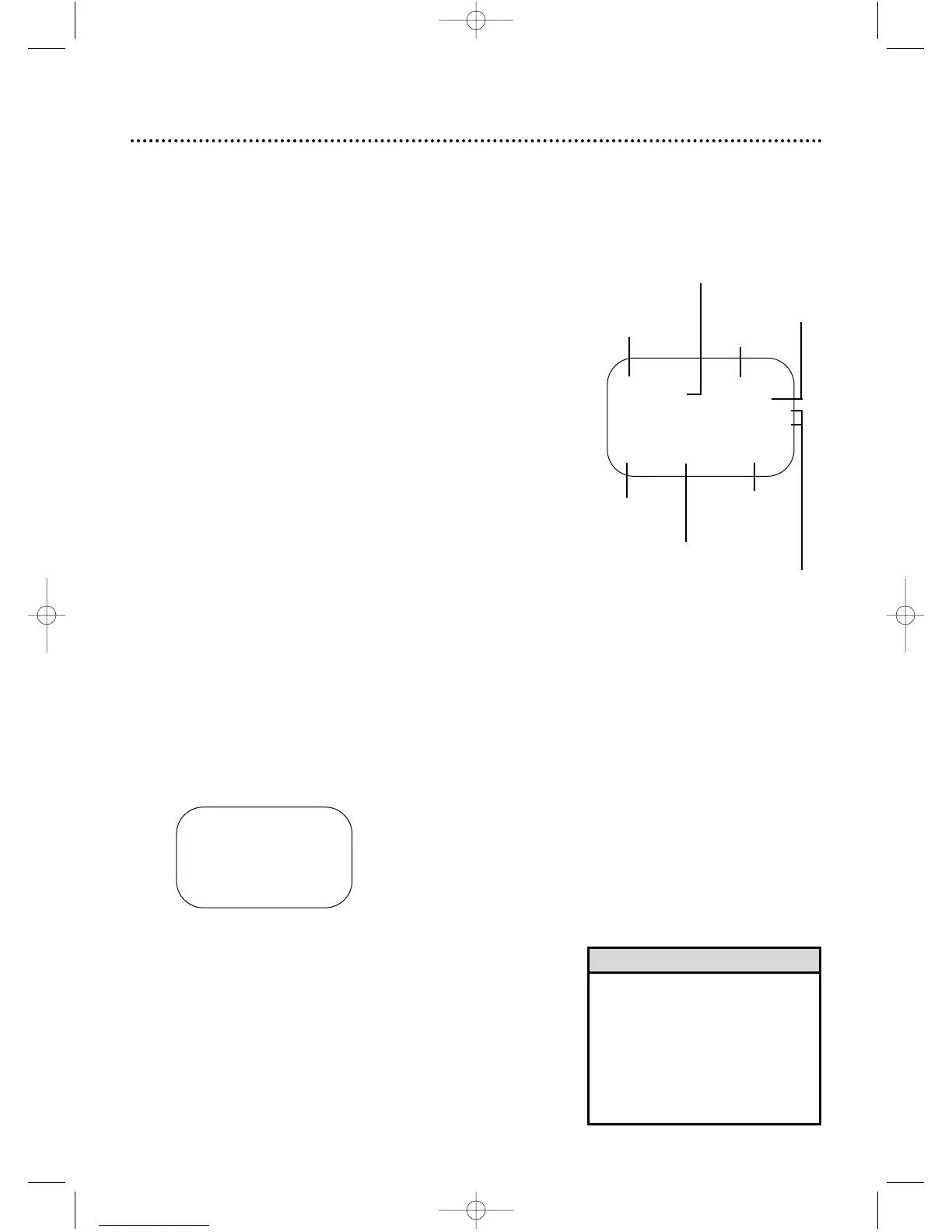
Tape
status
Time
Counter,
Counter
Memory
Tape
Speed
STOP 12:00 AM
TV STEREO CH10
STEREO
2ND AUD
SLP M 1:23:45 HIFI
Channel
SELECT op CHOOSE B
→ STATUS [ON]
COUNTER ONLY [OFF]
TO END PUSH EXIT
30 VCR On-Screen Status Displays
• You may not access a status display
when viewing a still picture, during
slow motion playback, or during for-
ward or reverse searching.
• The status display may not appear
if a weak channel is selected and
BLUE BACKGROUND is OFF.
Details are on page 47.
Helpful Hints
A status display will appear when you press
DISPLAY/STATUS/EXIT or certain function buttons. The contents
of the status display will vary. To choose the status display mode,
follow the steps below.
● Before you begin, place the DVD/VCR in VCR mode. Press
OUTPUT SELECT so the green VIDEO light appears on the
front of the DVD/VCR. Press VCR/TV so the green VCR/TV
light appears on the front of the DVD/VCR.
If you select STATUS ON and COUNTER ONLY ON:
● Whenever you press STOP C (p) or PLAY B (o) to stop or
start tape playback, the status display will appear for five sec-
onds. After five seconds, only the real-time tape counter will
remain on the screen. You must press DISPLAY/STATUS/EXIT
to remove it. Portions of the status display also may appear
when you press other function buttons.
If you select STATUS ON and COUNTER ONLY OFF:
● Whenever you press STOP C (p) or PLAY B (o) to stop or
start tape playback, the status display will appear for five sec-
onds. Portions of the status display also may appear when you
press other function buttons.
If you select STATUS OFF:
● The status display will not appear when you press function but-
tons. You must press DISPLAY/STATUS/EXIT to see the status
display.
1
Press VCR, then press DISC/MENU.
2
Press PLAY B (o) or STOP C (p) to select VCR
SET UP, then press FF g (B).
3
Press PLAY B (o) or STOP C (p) to select ON
SCREEN MODE, then press FF g (B).
4
Press PLAY B (o) or STOP C (p) to select STA-
TUS, then press FF g (B) so ON or OFF appears
beside STATUS.
5
If you set STATUS to OFF, go to step 6. If you set
STATUS to ON, press PLAY B (o) or STOP C
(p) to select COUNTER ONLY, then press FF g
(B) so OFF or ON appears beside it.
6
Press DISPLAY/STATUS/EXIT.
MTS
Broadcast
Available
Receiving,
Recording
Mode
Audio
Out
Mode



 To Next Page