32 Recording One Channel/Watching Another
• If you use a Cable Box or Direct
Broadcast System hookup, you
may not be able to watch one
channel while recording another.
See pages 9-10 for details.
Helpful Hint
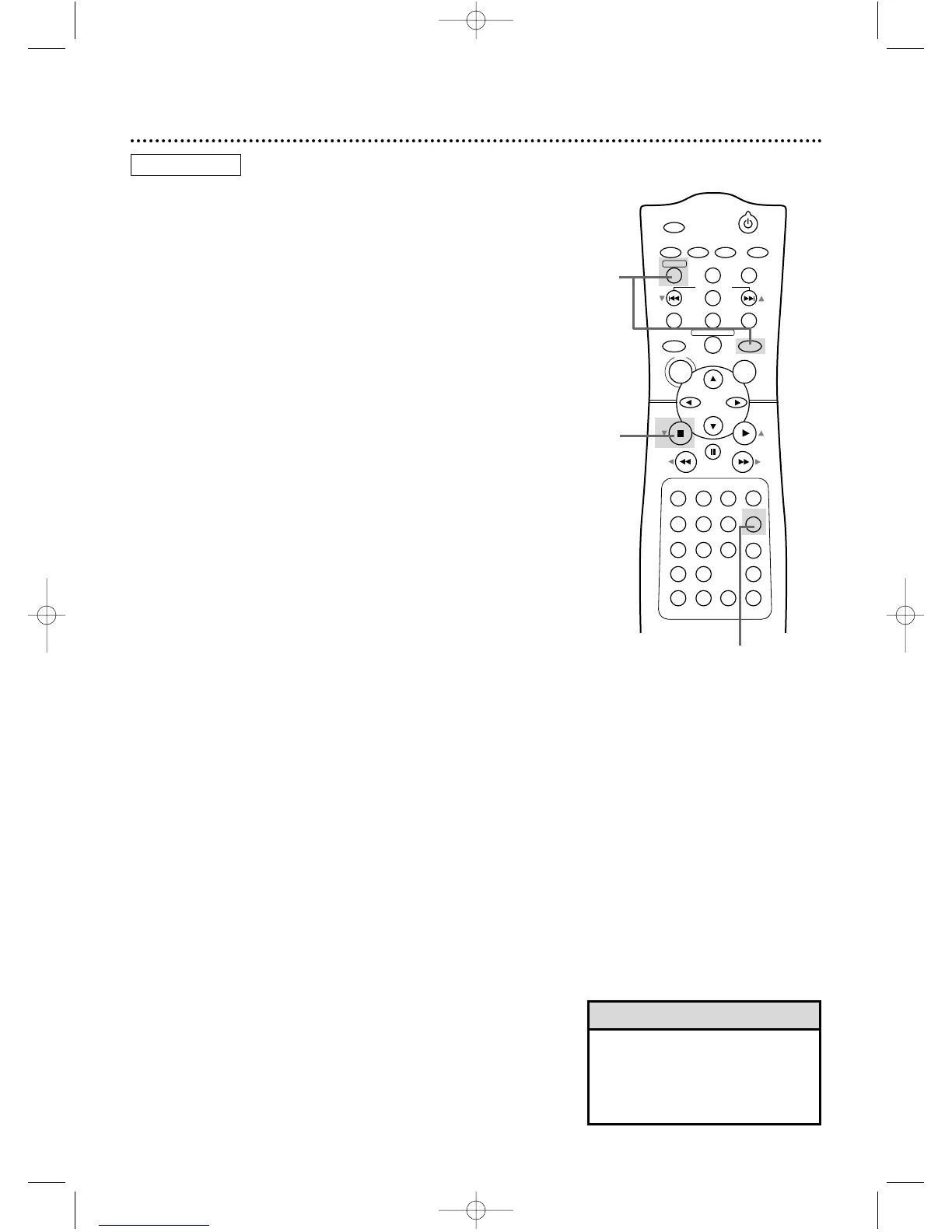
2,5
1
3
4
Select the channel you
want to watch at the TV.
Select channel 03
or 04 at the TV.
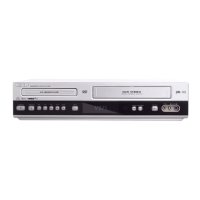
● Before you begin, place the DVD/VCR in VCR mode. Press
OUTPUT SELECT so the green VIDEO light appears on the
front of the DVD/VCR. Press VCR/TV so the green VCR/TV
light appears on the front of the DVD/VCR.
1
Press VCR, then press REC/OTR to record the cur-
rent TV channel. Details are on page 31.
2
Press VCR/TV once to put the DVD/VCR in TV
position. The VCR/TV light will disappear from the front
of the DVD/VCR.
3
Use the TV remote control to select the channel
you want to watch at the TV.
4
To return to the channel being recorded, use the
TV remote control to select channel 03 or 04 at
the TV (the channel to which the CH3/CH4 switch on the
back of the DVD/VCR is set). Or, if you connected the
DVD/VCR to the TV using audio and video cables, select
the correct audio and video in channel at the TV. Details
are on page 11.
5
Press VCR/TV on the DVD/VCR remote control to
put the DVD/VCR in VCR position. The VCR/TV light
will appear on the front of the DVD/VCR. The channel
being recorded will appear on the TV screen.
6
Press STOP C (p) to stop the recording.
6
VCR



 To Next Page