14
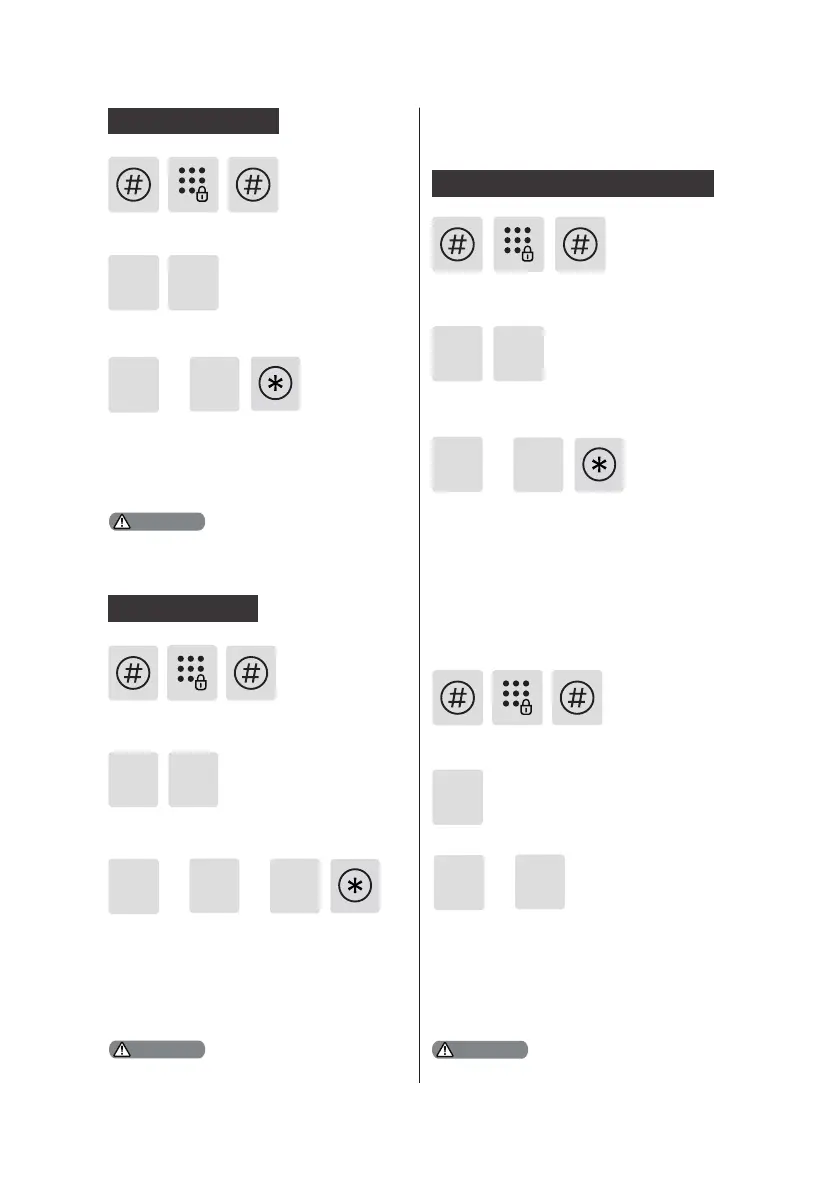
Press [#], enter master PIN code and
conrm with [#].
The extended functions are optional.
or
2
1
5
Press [5] to enter extended functions.
To join a network, press [1]. To exit a
network, press [2]. Before setting up the
extended functions, please download
and open the Philips EasyKey APP via
your mobile phone.
4
or
2
1
1
Language Settings
Press [#], enter master PIN code and
conrm with [#].
Press [4] to enter system settings, then
press [1] to enter language settings.
Adjust the language to needed: For
Chinese, press [1]; for English, press
[2]. After hearing a voice prompt of
“Succeeded”, press [*] several times until
you exit master mode.
The default language is English.
Attention
2
4
3
or or
2
1
Volume settings
Press [#], enter master PIN code and
conrm with [#].
Press [4] to enter system settings, then
press [2] to enter volume settings.
Adjust the volume as needed: For higher
volume, press [1]; for lower volume,
press [2]; for mute mode, press [3]. After
hearing a voice prompt of “Succeeded”,
press [*] several times until you exit
master mode.
The default volume is “higher volume”.
Attention
or
2
1
Press [#], enter master PIN code and
conrm with [#].
Press [4] to enter system settings, then press [3]
to choose verification method.
For single verification, press [1]; for dual
verification, press [2]. After hearing a voice
prompt of “Succeeded”, press [*] several times
until you exit master mode.
4
System settings
Extended Functions
Switch to dual verication mode
3
Attention





 To Next Page