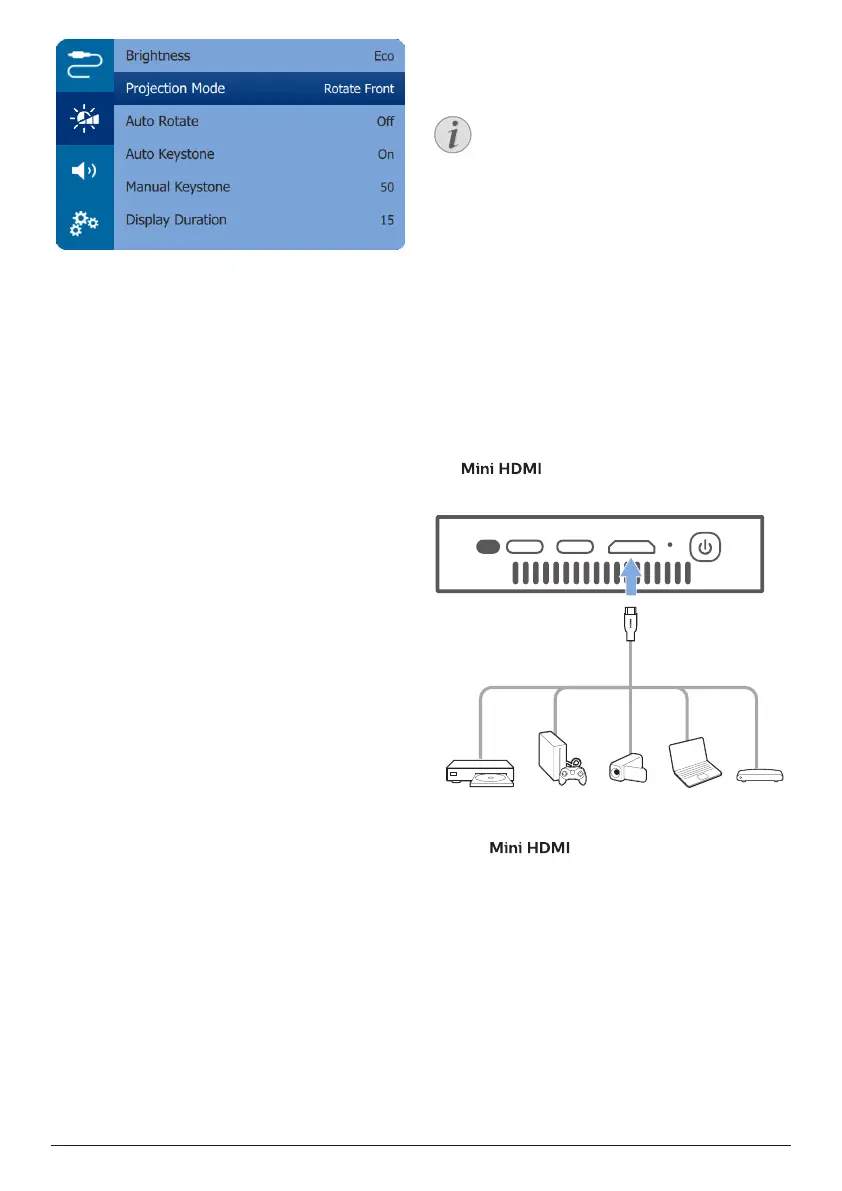
Connect 9
Using tripod
The projector comes with a tripod which allows
more choices for placing the projector.
Locate the tripod socket on the bottom of the
projector, then mount and secure the projector
on the tripod.
4 Connect
Notice
You need to connect the projector to
an HDMI or USB-C device, so that the
projection screen can show images.
Make sure all devices are disconnected
from the power outlet before establishing
or changing any connections.
Connect to devices through
HDMI
Connect a playback device (e.g. a Blu-ray
player, gaming console, camcorder, digital
camera or PC) to the projector through HDMI
connection. With this connection, images are
shown on the projection screen, and audio is
played on the projector.
1 Using the HDMI cable, connect the
connector on the projector to
the HDMI output on the playback device.
USB-C
Power
USB-C
Video
Mini
HDMI
You can also connect an iPhone to the
projector. Using the HDMI cable, connect
the connector on the projector
to the HDMI port on the Apple Digital AV
Adapter (not included). Then connect the
lightning connector of the adapter to your
iPhone.



 To Next Page