EasyManua.ls Logo

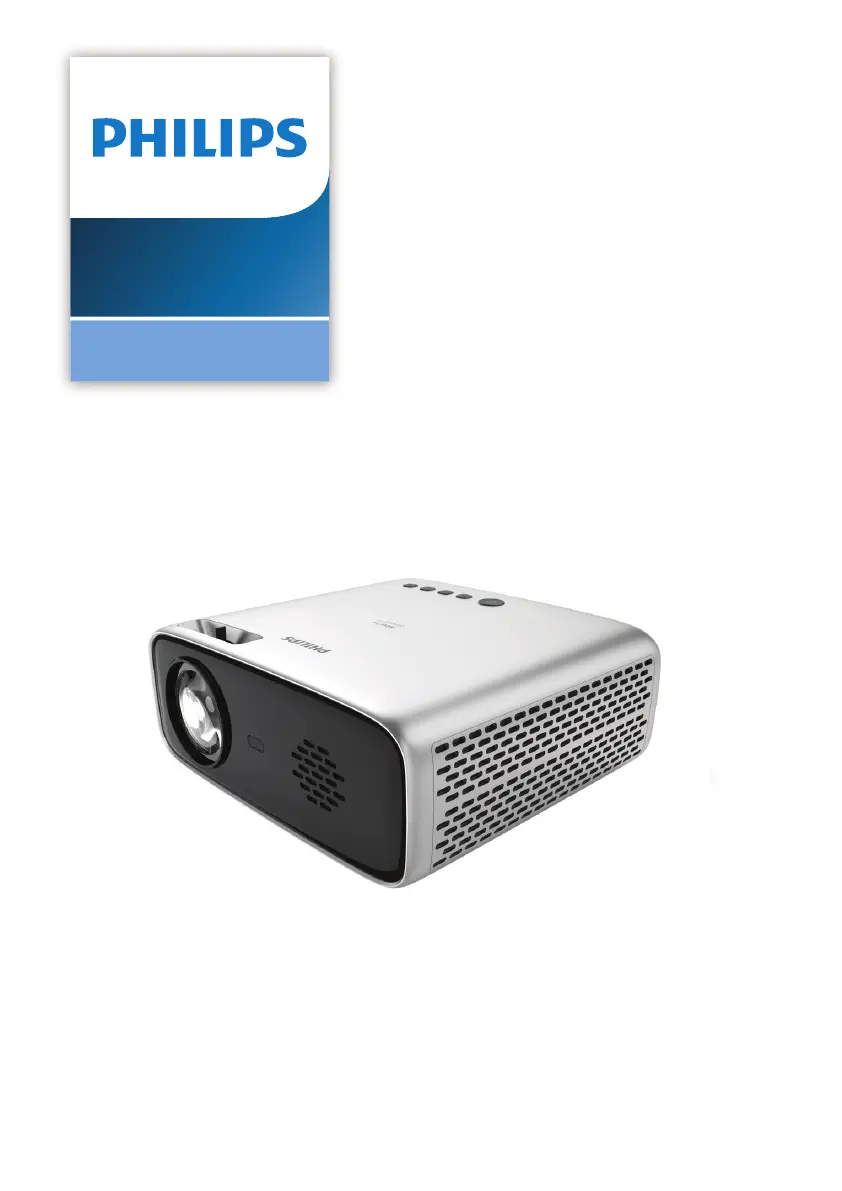
Philips NeoPix Ultra 2TV+ - User Manual

Philips NeoPix Ultra 2TV+
24 pages
Print Icon
To Next Page IconTo Next Page
Loading...
User Manual
Register your product and get support at
www.philips.com/support
NeoPix Ultra 2
TV+
Home projector

Questions and Answers

Summary

Introduction

Dear customer

Greeting and thank you for purchasing the projector.

About this user manual

Explains the purpose and structure of the user manual.

Symbols used

Explains warning symbols like DANGER and CAUTION.

Whats in the box

Lists all items included in the projector package.

Customer service centre

Provides contact information for support and online resources.

General safety information

Setting up the product

Provides guidelines for safe product placement and handling.

Repairs

Advises against self-repair and directs to authorized service centers.

Overview

Top view

Identifies buttons and controls on the top of the projector.

Front view

Identifies projection lens and IR sensor on the front.

Rear view

Details the various ports and connections on the rear of the projector.

Remote control

Explains the functions of buttons on the remote control.

Initial setup

Place the projector

Instructs on how to position the projector on a flat surface.

Connect to power supply

Guides on connecting the projector to a power source.

Prepare the remote control

Instructions for inserting batteries into the remote control.

Screen size adjustment

Explains how screen size is determined by distance.

Screen height adjustment

Details how to adjust the projector's height using the adjustment foot.

Power on and set up the projector

Guides on turning on the projector and initial setup.

Image focus adjustment

Image shape adjustment

Placement

Front table

Describes projector placement on a table facing the screen.

Front ceiling

Describes ceiling mounting with the projector upside up.

Rear table

Describes projector placement on a table for rear projection.

Rear ceiling

Describes ceiling mounting for rear projection.

Set up Android TV

What you need

Lists requirements for Android TV setup, like Wi-Fi and Google account.

Step 1: Pair the remote control with the projector

Instructions to pair the remote control with the projector.

Step 2: Select the display language

Guide to selecting the preferred display language for Android TV.

Step 3: Set up your Android TV

Options for setting up Android TV, including Quick Start.

Use Android TV

Navigate Android TV

Explains how to navigate the Android TV interface using the remote.

Configure Android TV

Use a wired keyboard;mouse

Instructions for connecting and using a wired keyboard or mouse.

Use a Bluetooth device

Guide to pairing and using Bluetooth devices with the projector.

Cast content to Android TV

Casting Content Process

Instructions on how to cast content from mobile devices to the projector.

Connect to playback devices

Connect to devices through HDMI

How to connect devices using an HDMI cable.

Connect to devices through USB-C

How to connect devices using a USB-C cable.

Connect to devices through AV

How to connect devices using an AV cable.

Connect to devices through SPDIF

Connect to external speakers or headphones

How to connect audio devices for external sound output.

Change settings

Android TV Settings

Manage Android TV network, accounts, display, sound, and apps.

Projector Settings

Adjust image options, sound, scheduled shutdown, input sources, and projector configuration.

Maintenance

Cleaning

Instructions for cleaning the projector exterior and lens.

Update software

How to check for and update the projector's software.

Update software through USB

Troubleshooting

Power cycling

Basic troubleshooting step for power-related issues.

General Troubleshooting Guide

Table listing common problems and their solutions.

Appendixes

Technical data

Lists detailed technical specifications of the projector.

Package content

Lists the items included in the product package.

Warranty card

CE statement

Declaration of product compliance with EU directives and RF specifications.

FCC statement

FCC compliance information, including labeling and interference guidelines.

Canada regulatory compliance

Compliance information for Canadian regulations (ICES, RSS).

RF Radiation Exposure statement

Other notice

Information on environmental preservation, packaging, and battery disposal.

Trademarks

Lists trademarks and disclaimers of liability.

Summary

Introduction

Dear customer

Greeting and thank you for purchasing the projector.

About this user manual

Explains the purpose and structure of the user manual.

Symbols used

Explains warning symbols like DANGER and CAUTION.

Whats in the box

Lists all items included in the projector package.

Customer service centre

Provides contact information for support and online resources.

General safety information

Setting up the product

Provides guidelines for safe product placement and handling.

Repairs

Advises against self-repair and directs to authorized service centers.

Overview

Top view

Identifies buttons and controls on the top of the projector.

Front view

Identifies projection lens and IR sensor on the front.

Rear view

Details the various ports and connections on the rear of the projector.

Remote control

Explains the functions of buttons on the remote control.

Initial setup

Place the projector

Instructs on how to position the projector on a flat surface.

Connect to power supply

Guides on connecting the projector to a power source.

Prepare the remote control

Instructions for inserting batteries into the remote control.

Screen size adjustment

Explains how screen size is determined by distance.

Screen height adjustment

Details how to adjust the projector's height using the adjustment foot.

Power on and set up the projector

Guides on turning on the projector and initial setup.

Image focus adjustment

Image shape adjustment

Placement

Front table

Describes projector placement on a table facing the screen.

Front ceiling

Describes ceiling mounting with the projector upside up.

Rear table

Describes projector placement on a table for rear projection.

Rear ceiling

Describes ceiling mounting for rear projection.

Set up Android TV

What you need

Lists requirements for Android TV setup, like Wi-Fi and Google account.

Step 1: Pair the remote control with the projector

Instructions to pair the remote control with the projector.

Step 2: Select the display language

Guide to selecting the preferred display language for Android TV.

Step 3: Set up your Android TV

Options for setting up Android TV, including Quick Start.

Use Android TV

Navigate Android TV

Explains how to navigate the Android TV interface using the remote.

Configure Android TV

Use a wired keyboard;mouse

Instructions for connecting and using a wired keyboard or mouse.

Use a Bluetooth device

Guide to pairing and using Bluetooth devices with the projector.

Cast content to Android TV

Casting Content Process

Instructions on how to cast content from mobile devices to the projector.

Connect to playback devices

Connect to devices through HDMI

How to connect devices using an HDMI cable.

Connect to devices through USB-C

How to connect devices using a USB-C cable.

Connect to devices through AV

How to connect devices using an AV cable.

Connect to devices through SPDIF

Connect to external speakers or headphones

How to connect audio devices for external sound output.

Change settings

Android TV Settings

Manage Android TV network, accounts, display, sound, and apps.

Projector Settings

Adjust image options, sound, scheduled shutdown, input sources, and projector configuration.

Maintenance

Cleaning

Instructions for cleaning the projector exterior and lens.

Update software

How to check for and update the projector's software.

Update software through USB

Troubleshooting

Power cycling

Basic troubleshooting step for power-related issues.

General Troubleshooting Guide

Table listing common problems and their solutions.

Appendixes

Technical data

Lists detailed technical specifications of the projector.

Package content

Lists the items included in the product package.

Warranty card

CE statement

Declaration of product compliance with EU directives and RF specifications.

FCC statement

FCC compliance information, including labeling and interference guidelines.

Canada regulatory compliance

Compliance information for Canadian regulations (ICES, RSS).

RF Radiation Exposure statement

Other notice

Information on environmental preservation, packaging, and battery disposal.

Trademarks

Lists trademarks and disclaimers of liability.

Philips NeoPix Ultra 2TV+ Specifications

General IconGeneral
Light SourceLED
Smart FeaturesAndroid TV
Aspect Ratio16:9
Focus AdjustmentManual
Integrated Media PlayerYes
Resolution1920x1080 (Full HD)
ConnectivityHDMI, USB
Built-in SpeakersYes
Wi-FiYes (802.11 b/g/n)
BluetoothYes
ConnectionsHDMI, USB
Power SourceAC Input

Related product manuals