SORTING OF TV CHANNELS AUTOMATICALLY (FOLLOW TV) ENGLISH
16
16
SSoorrttiinngg ooff TTVV cchhaannnneellss aauuttoommaattiiccaallllyy ((FFoollllooww TTVV))
After you have performed the automatic channel search you may
not agree with the sequence in which the individual TV channels
have been allocated to the programme positions of the video
recorder.You can use this function to sort the TV channels found
exactly in the same order they are stored on your TV set.
1 Switch on the TV set and - if necessary -
select the programme number set for video
recorder operation
3 Use
==PP--
or
;;PP++
to select the option
FOLLOW TV and confirm with
OOKK
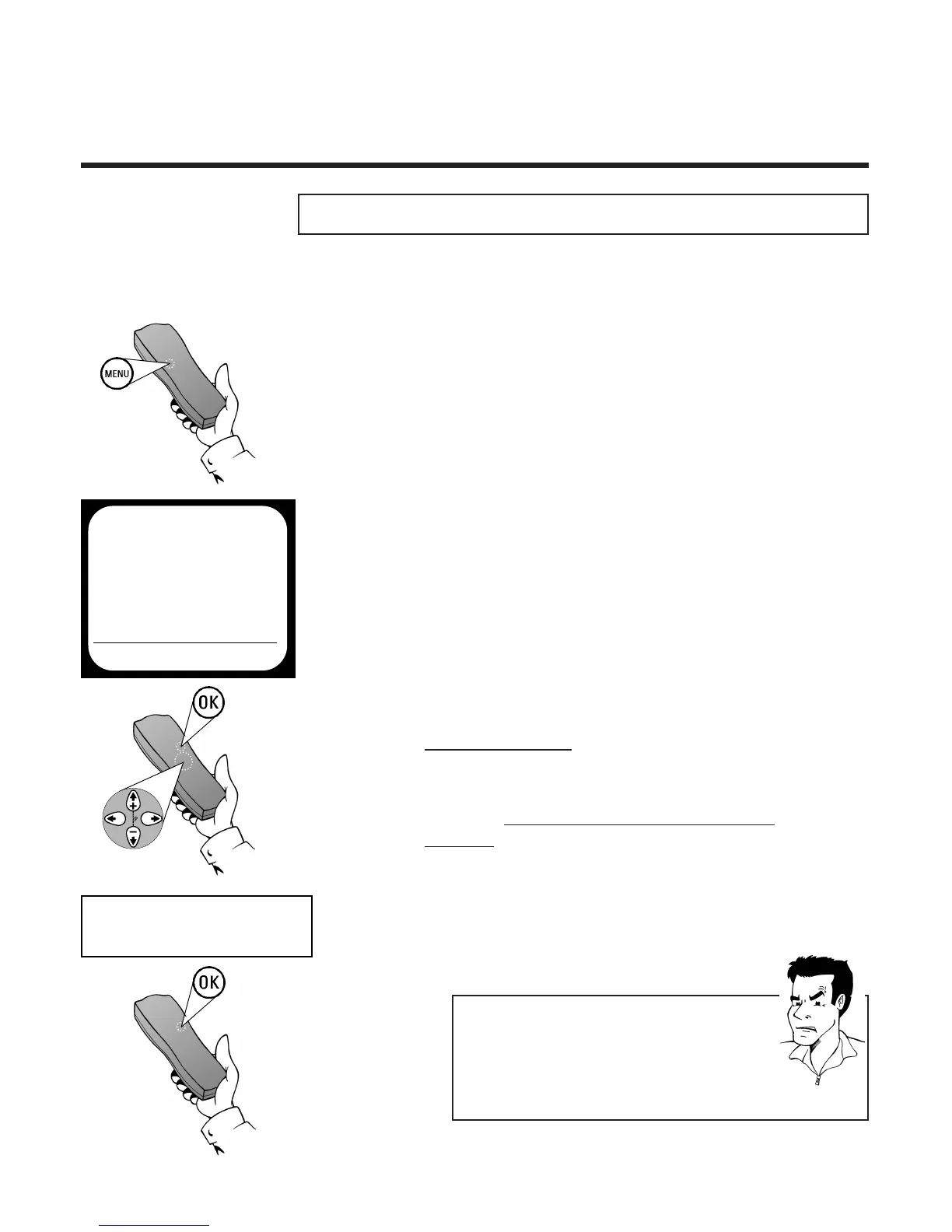
2 Press the
MMEENNUU
button on the remote
control.The on-screen menu appears
4 Press
OOKK
to start the automatic TV channel
sorting. The display of the video recorder
shows TV01
6 Press
OOKK
on the r
emote control of the video
recorder. The video recorder compares the
channels stored with the one currently
chosen on the TV set.When the matching TV
channel has been found, the video recorder
stores it on P01.
5 On y
our TV set select the programme
number 01
88 TThhee ddiissppllaayy ooff tthhee vviiddeeoo rreeccoorrddeerr sshhoowwss NNOOTTVV
44
Unfortunately your TV set and the video recorder
are not able to exchange data. If you still want to
change the order of the stored TV channels,
please read the section Sorting and clearing of
TV channels manually in this chapter.
PPRROOBBLLEEMM
MAIN MENU
CLOCK
AUTO INSTALL
MANUAL SEARCH
FOLLOW TV
TV CHANNEL ALLOC.
RECORD SPEED
AUTO STANDBY
TV SYSTEM
SPECIAL SETTINGS
EXITPMENU OK
TV01



 To Next Page