28 EN EN 29
English
5 Recording
1 In the stop state of voice mode, press STOP button to
select the folder you prefer. You can select folder A, B, C, D.
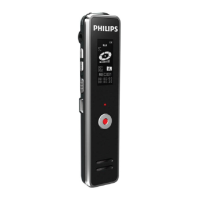
2 Press REC button to start recording,
the red indicator light will be on and the display will
show “REC”; please point the top of the device towards
the source of sound.
3 Press REC button to pause recording,
the red indicator light will flicker, and the display will
show “Pause”.
4 Press REC button again to resume recording.
5 Press STOP button to save recording,
red indicator light is turned off, and the device will
return to the Stop interface of current recorded file.
6 Long-press menu button to realize lock screen which can
avoid hitting pause or exit button. Long-pres menu button
to release the lock.
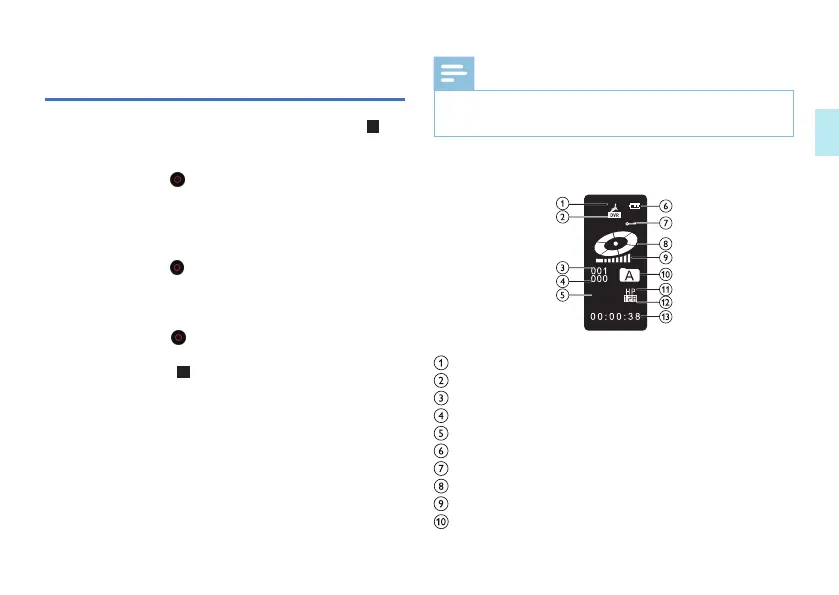
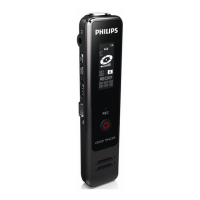
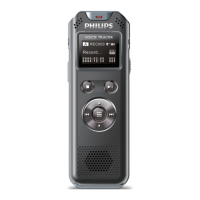
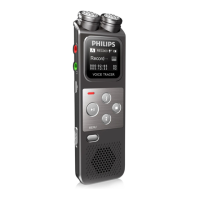
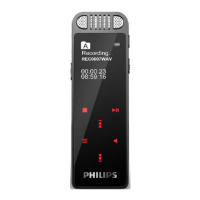
Illustration of recording interface:
When the device is in a dormant state, long press REC
button to start recording.
Note
•
•
•
•
Record icon
Voice mode
Current file
The total files of the current directory
Record status
Battery
Lock status
Status indicator
Volume
Voice folder
REC




 To Next Page