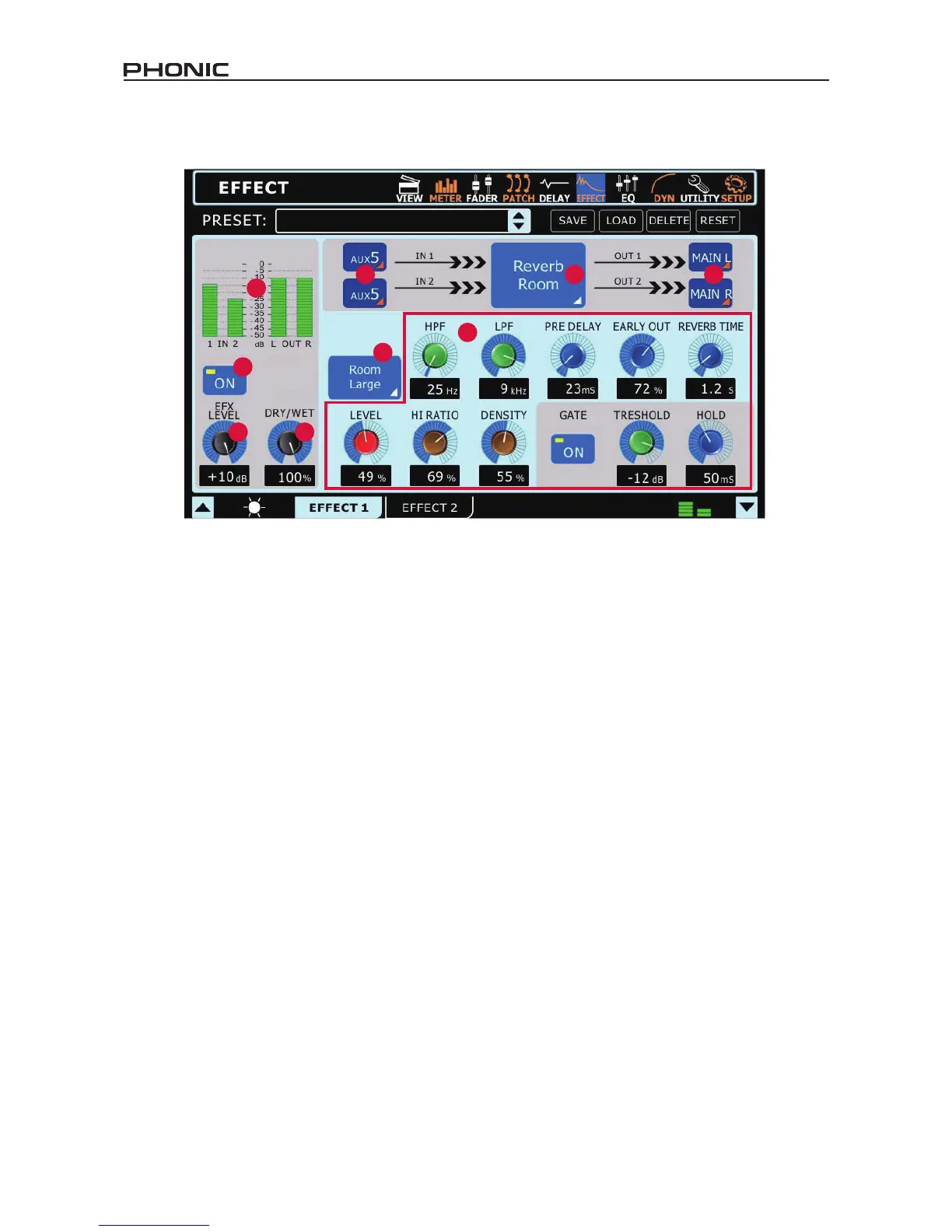
6.1 Input Selection
Here users can select which of the sixteen input channels or eight
AUX mixes they wish to apply the digital effect to. Two inputs can
be selected in total for stereo effects. Users are also able to select
EFX1_1, EFX1_2, EFX2_1 or EFX2_2. These are, in essence,
the already processed signals from the digital effect processors.
For example, EFX1_1 is the rst effect channel from the rst effect
processor; EFX1_2 is the second channel from this very same
processor. This allows for the signal to be processed multiple
times (by same or different effects). Naturally the output for the
channel you are currently selecting the source for CANNOT be
selected, as this would cause an endless loop.
6.2 Effect Type
There are at least 8 built-in effects to select from. Available effect
types on EFFECT 1 are: Reverb Room, Reverb Hall, Reverb
Plate, Tap Delay, Flanger, Chorus, Echo, Auto Pan, Tremolo,
Vibrato and Phaser. On EFFECT 2, users are able to select the
following effects: Ping Pong Delay, Flanger, Chorus, Echo, Auto
Pan, Tremolo, Vibrato and Phaser.
6.3 Output Destination Selection
Users can select where to send the stereo effect signal once
processed. The effect signal can be sent to the Main stereo mix,
as well as any of the MULTI outputs. Note that when an output
destination is selected for the EFX signal, an EFX on/off button
will appear in the view menu for that particular mix.
6.4 Level Meters
These level meters show the input and stereo output signal
levels of the SUMMIT’s digital effect processor. Adjusting the
level control of your EFX’s input signal can affectively adjust the
incoming audio signal, and the EFX level control (6.6) will input
and output gain controls on the selected effect can help adjust
these levels as necessary.
6.5 On/Off Button
This button will turn the effect processor on and off. When set to
“Off“, the currently selected effect processor will be effectively
bypassed.
6.6 EFX Level Control
This control adjusts the nal output level of the currently selected
Effect Processor.
6.7 Dry/Wet Control
Offered on every effect, the dry/wet control adjusts the effect
saturation of the chosen input source.
6.8 Parameters
Each of the built-in effects has a number of parameters that can be
adjusted by the user to better rene their sound. These parameters
can be adjusted by users using any one of the onscreen rotary
controls (adjusted using the jog wheel). The number of parameters
available for each effect may depend on the effect itself. For a
list of parameters, and their user-adjustable ranges, please see
the digital effects table. Reverb Effects, on EFX 1, offer a Gate
function with Threshold and Hold controls. When the tap delay
effect is selected, a tap button will appear on screen and users
can use this to adjust their tap delay time. Users can also opt to
use the enter button to adjust their tap delay time.
6.9 Reverb Select (Effect 1 only)
When one of the three reverb effects is selected, this menu will
allow users to select from 8 further rened reverb effects. For
example, if Reverb Hall is selected, users can then choose from
Hall Large, Hall Medium, Hall Small, Hall Concert, Hall Dark, Hall
Wonder, Hall Jazz, and Hall Vocal, each with their own unique
spin on the Hall Reverb and with their own unique parameters.
More detail on these reverb effects can be found within the digital
effect table.


 To Next Page