8
Network uses a time signal sent from the Internet radio portal when in any
network-connected mode.
1. Select Update from DAB, Update from FM, Update from Network or No
update.
2. If you are updating from the network, set your time zone.
3. If your country uses daylight saving, the automatically updated time from the
network may be wrong by one hour. When daylight savings are in effect
(during the winter), turn on the Daylight savings option to rectify this.
Note that if you are updating the time from DAB or FM, the Daylight savings
option has no effect on the clock’s time.
Supersound 101 will auto-update from the selected Mode when time information
is available.
Network
Supersound 101 is compatible with all common network protocols and encryption
methods, including Wi-Fi Protected Setup (WPS).
To connect Supersound 101 to your network, you need a Wi-Fi wireless router,
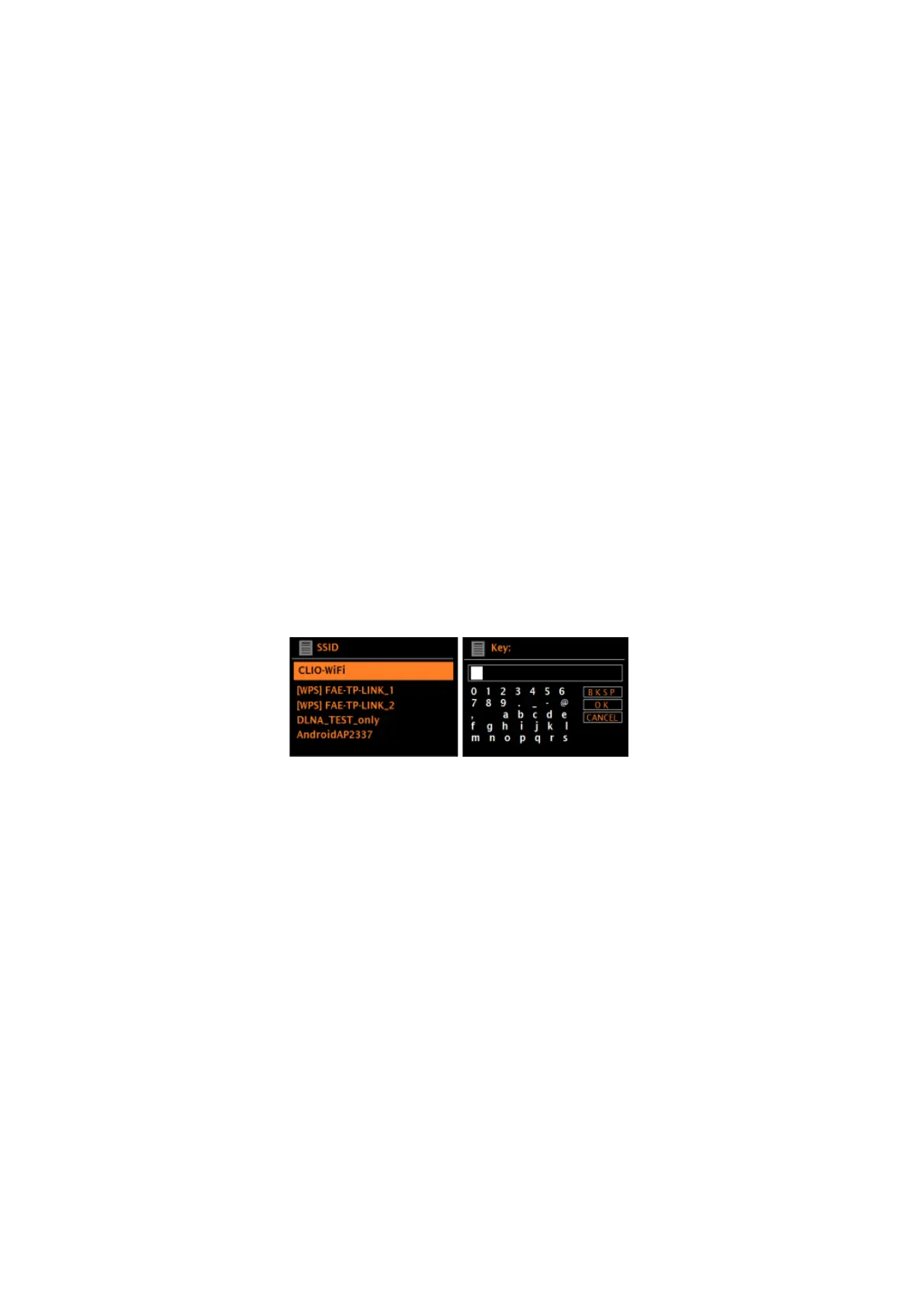
together with password key if set. Select WLAN region/country >Wi-Fi network
(SSID), and then select a network from the list.
If the network is open (non-encrypted), Supersound 101 connects and no further
details are required; see Completion below.
Standard encrypted network
To enter the network’s key (password), use the SELECT control to highlight the
next relevant character and press to select each character in turn. As each
character is selected, the key is built up near the top of the display.
The three options – Backspace, OK and Cancel are included in the election loop.
These can be accessed just using the SELECT control, or, a short cut is
available, pressing INFO, which moves the selection highlight to the Back Space
option.


 To Next Page