Need help?
Do you have a question about the Pinell supersound II + and is the answer not in the manual?
Key safety instructions to reduce electrical shock and fire hazards.
Device compliance statement for FCC Rules, Part 15.
Warning about unauthorized modifications affecting user authority.
Limits for Class B digital devices and interference mitigation.
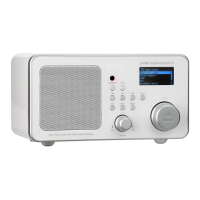
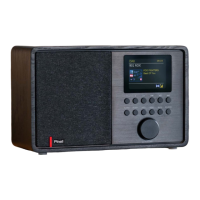
Illustrates the main unit of the Pinell Supersound II radio.
Shows the instruction manual included in the package.
Lists prerequisites for using the Internet Radio, focusing on wireless LAN setup.
Identifies controls on the front panel of the unit.
Identifies ports and connections on the back of the unit.
Describes the 3.5mm headphone socket and its function.
Explains the AUX IN socket for connecting external audio devices.
Instructions for powering up the radio and initiating the setup wizard.
Guides through initial setup steps like time format and timezone.
Steps to connect the radio to a wireless network.
Advice on resolving common network connection problems.
Guide to finding and selecting local radio stations.
How to select radio stations based on geographical location.
How to choose radio stations based on their content genre.
Steps to access the Internet Radio mode.
Steps to configure the radio for wireless network connection.
Guide to selecting radio stations from the Podcasts section.
Steps to get an access code, likely for registration.
Instructions for adding a radio station to the 'My favourites' list.
Instructions for adding a station to the 'My Added Stations' list.
How to cycle through and view station information like description, signal, etc.
Information on how the radio receives updated station lists.
How to play music from shared media sources.
How to enable or disable repeat and shuffle playback modes.
Initial setup and scanning for DAB radio stations.
Steps to switch to a different DAB+ station.
Information about scrolling text from DAB stations.
How to manually tune to specific DAB channels and frequencies.
How to remove invalid DAB stations from the list.
Setting the dynamic range compression level for stations.
Options for changing the order of displayed stations.
Basic operation procedures for FM radio mode.
How to configure FM station scanning options.
Adjusting audio settings for FM reception, like mono playback.
Steps to save the currently tuned station as a preset.
How to recall and play a previously stored preset station.
Instructions for using the AUX IN port for audio input.
How to set the sleep timer for automatic power-off.
Steps for manually setting the current time and date.
Using automatic updates for time and date settings.
How to choose between 12-hour and 24-hour time formats.
Setting the correct timezone for accurate time display.
Enabling or disabling daylight saving time adjustments.
Guides on setting up alarms, including frequency, time, and mode.
How to turn off an active alarm.
How to use the snooze function for alarms.
Steps to completely disable or cancel an alarm.
How to navigate back to the main menu from any screen.
How to adjust the audio volume.
How to view detailed information about the current radio station.
Adjusting the audio equalizer settings for different sound profiles.
Configuring network connection settings like Internet Wizard and Wi-Fi.
Changing the display language of the radio.
How to restore the radio to its original factory settings.
Instructions on how to check for and install software updates.
Guide to re-accessing the initial setup wizard.
How to find the device's software version and radio ID.
Adjusting the display brightness when the unit is powered on.
Adjusting the display brightness when the unit is in standby mode.
Guide to setting up media sharing using Windows Media Player 11.
How to play music files from a computer via the internet radio.
Instructions for setting up media sharing on a MAC computer.
Common issues and solutions for wireless network connectivity.
Technical specifications of the Pinell Supersound II radio.
Steps to download the Pinell remote control application.
How to control the radio using the Pinell app.


 To Next Page
 General