Page 19 Page 20
Turn the Flashlight on and off
1. Open the Sengs app on your PinGo Watch.
2. Scroll down and tap on Torch.
3. Tap on the power icon on the torch to turn the flashlight on and off which
is on the side of yur PinGo Watch.
Some PinGo Watch models have a small flashlight that helps to light on dark
spaces.
Launcher style
1. Open the Sengs app on your PinGo Watch.
2. Scroll down and tap on Launcher style.
3. Tap on One or Four.
You can change how the apps are shown on your PinGo Watch, one by one or
in a mosaic of four. This funcon is available on W3 and W4 models.
Clear tools
1. Open the Sengs app on your PinGo Watch.
2. Scroll down and tap on Clear tools.
3. Tap on the opon that you want to clear:
- Clear tasks
- Clear cache
- File Explorer (for audio, images, video, documents, local)
To free up memory in your PinGo Watch, you can clear tasks, cache or files.
Device informaon
1. Open the Sengs app on your PinGo Watch.
2. Scroll down and tap on Device Info.
To know the informaon of your PinGo Watch, like de model, version or IMEI:
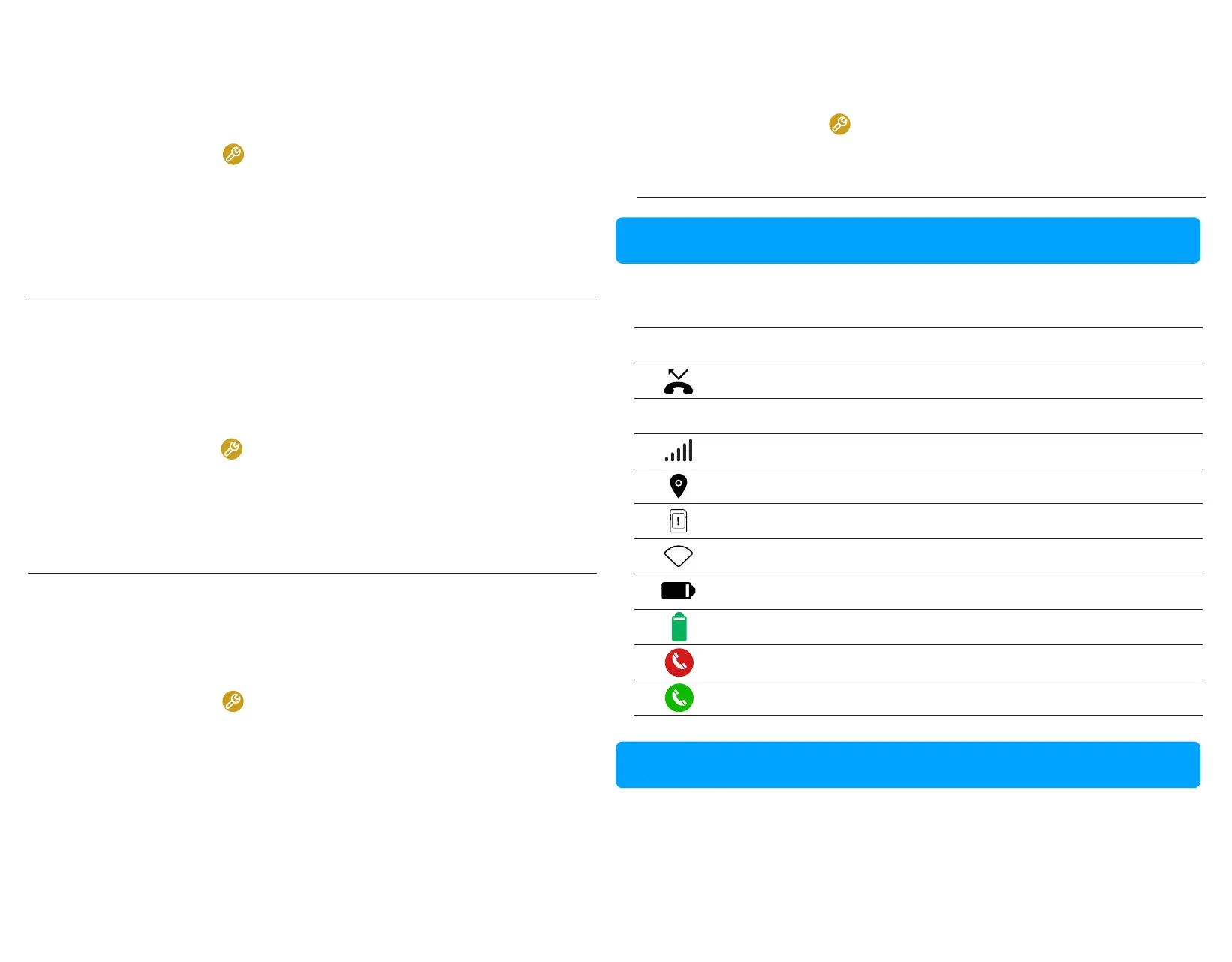
Status icons at the top of the screen give you informaon about your PinGo
Watch.
Status icon
What it means
Missed phone call or spam call diverted
4G
The type of network your PinGo Watch is connected to
The strength of the cellular connecon
PinGo Watch is sending its locaon
PinGo Watch does not recognize a SIM card
PinGo Watch can’t connect to a cellular network
Level of baery charge
PinGo Watch is charging
End a call
Answer a call
Your PinGo Watch comes with a variety of watch faces. You can change your
PinGo Watch face from those available.
The PinGo Watch status icons
PinGo Watch faces



 To Next Page