Page 11 Page 12
Register more than one PinGo Watch
You can register mulple PinGo Watches in the same way you registered your
first one. Scan or type the QR code that comes with your PinGo Watch in the
PinGo GPS app. Or follow these steps:
1. Press and hold the side buon of your PinGo Watch unl you hear a sound
and the screen is on. It’s recommended to do it outdoors or close to a
window for a faster connecon.
2. Open the PinGo GPS app on your smartphone, and register your PinGo
Watch by scanning the QR code or typing the numbers under the QR code
that is aached to the watch or in the box. Then follow the onscreen
instrucons.
3. See the PinGo Support arcle Add your PinGo Watch, on the PinGo GPS
app secon.
Your PinGo Watch was successfully registered if you are able to see its name
and current locaon your PinGo GPS app.
Only one person is able to register a PinGo Watch. However, you may share
its visibility to other PinGo GPS app users.
Use the PinGo Watch app on your smartphone to customize watch sengs
and noficaons, and more.
Open the PinGo GPS app
Set up the charger
1. In a well-venlated area, place the included PinGo Watch Magnec
Charging Cable on a flat surface.
2. Plug it into the power adapter (not included).
3. Plug the adapter into a power outlet.
Begin charging PinGo Watch
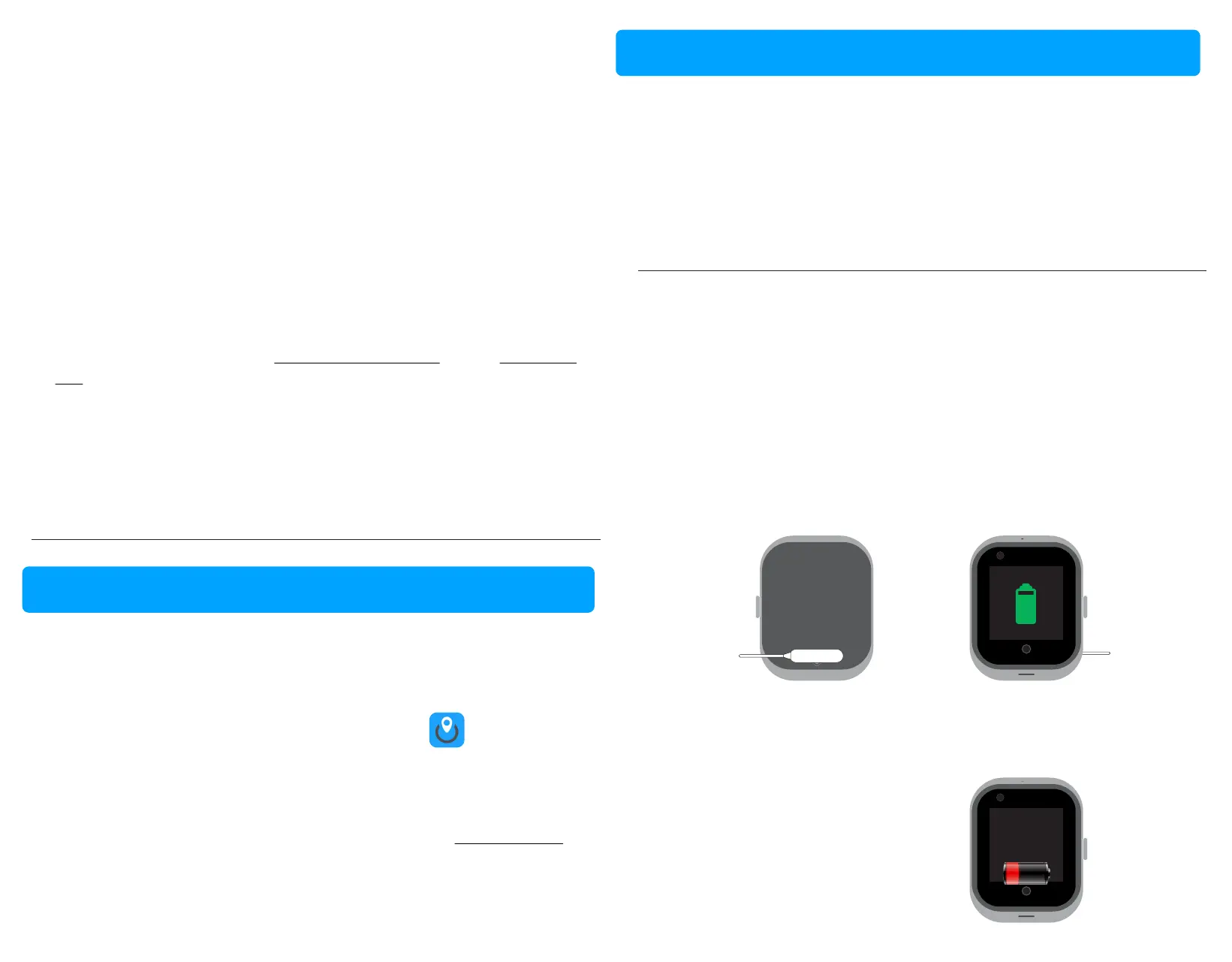
Place the PinGo Watch Magnec Charging Cable on the back of your PinGo
Watch on the Magnec port. The end with the charging cable terminals
magnecally snaps to the back of your PinGo Watch and aligns it properly.
In case you feel you are unable to properly aach it, turn the cable’s direcon.
You see a charging symbol on the watch screen a few seconds aer charging
begins. The symbol is red when PinGo Watch needs power and turns green
when PinGo Watch is charging.
• If your baery is very low, you will see the low baery symbol on the
screen and the message “too low to work”. The screen will be blocked to
reduce baery consumpon, and you will be able to use your PinGo
Watch aer the baery is charged again.
Invalid touch
in low baery
14:04
The PinGo GPS app
Charge PinGo Watch
1. On your smartphone, tap the PinGo GPS app icon.
2. On the device list, tap on the desired device to see the locaon of that
PinGo Watch.
For informaon about how to use the PinGo GPS app, see PinGo GPS app
secon of this manual.



 To Next Page