(3."#$%&'(%()*+","B.&7*%/9"
The PS4’s keyboard is where users input information including usernames, email addresses, and
passwords. Knowing how to navigate the keyboard allows users the skills to later access
PlayStation Network.
"
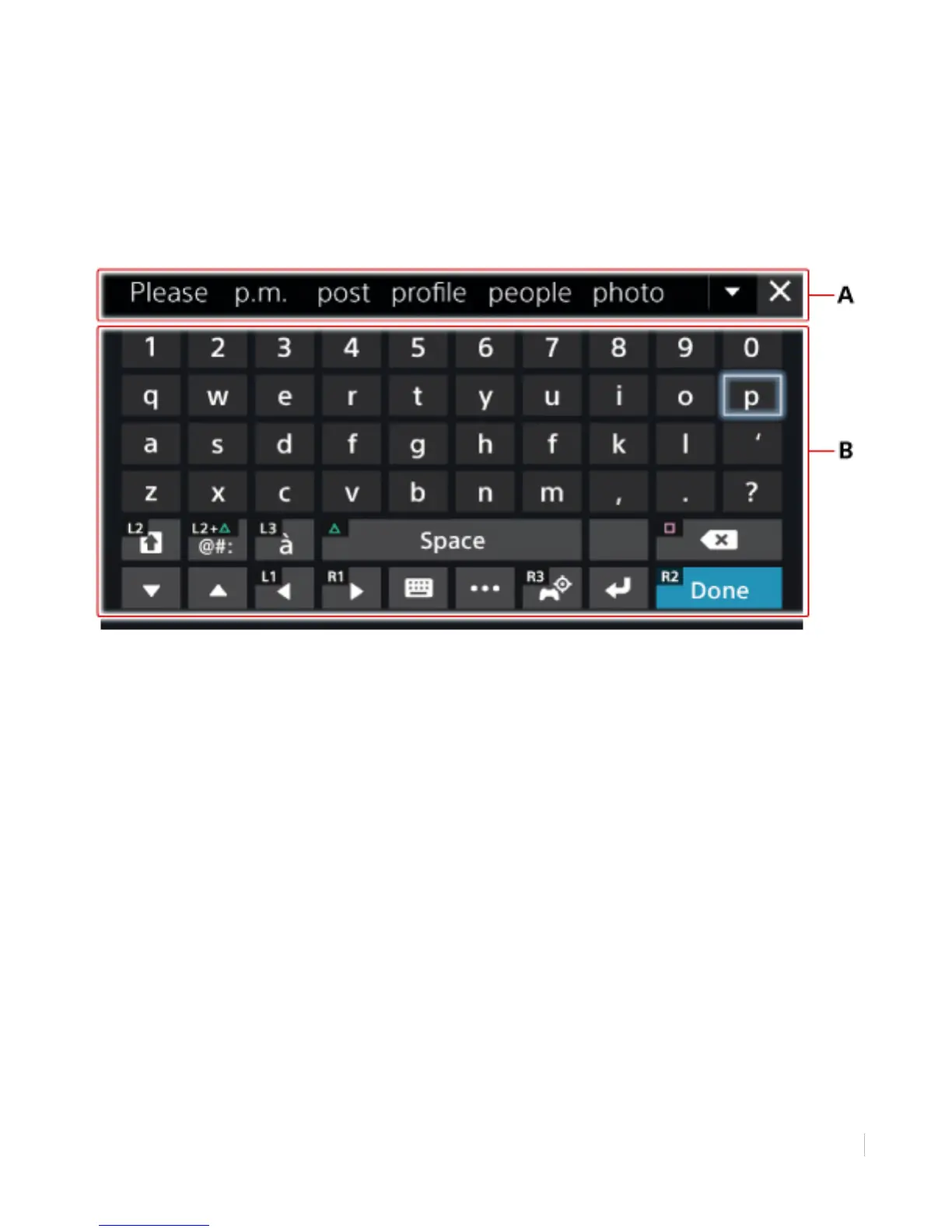
Figure 7: PlayStation 4 Onscreen Keyboard
A) Word suggestions
B) Main keyboard body
(*"+%F)2%(."(3."B.&7*%/9"
1. Pressing the Directional Buttons, navigate to each character in your wireless access point’s
password. Press X to enter each character.
• If you enter the wrong character, press the Square button to backspace and delete the
most recent character. If required, continue pressing Square to delete more characters.
• To access an uppercase letter, press L2. Press L2 twice to lock the keyboard to display
uppercase letters only. Press L2 to return to the lowercase keyboard.
• To enter a space between characters, press the Triangle button.
• To access symbols (punctuation, etc.), press a combination of L2 + Triangle.
2. When finished entering your wireless access point password, press R2.
3. Wait for the PlayStation 4 to connect to your wireless access point.
Your PS4 should now be connected to an available wireless access point and therefore
connected to the Internet. The following setup step is to enter the date and time on your PS4.



 To Next Page