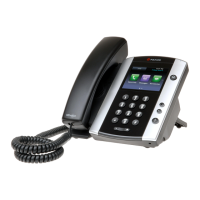
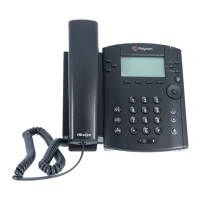
POLYCOM vvx300 & vvx310
Technical Support: Support@NthoNet.com
CONFERENCE
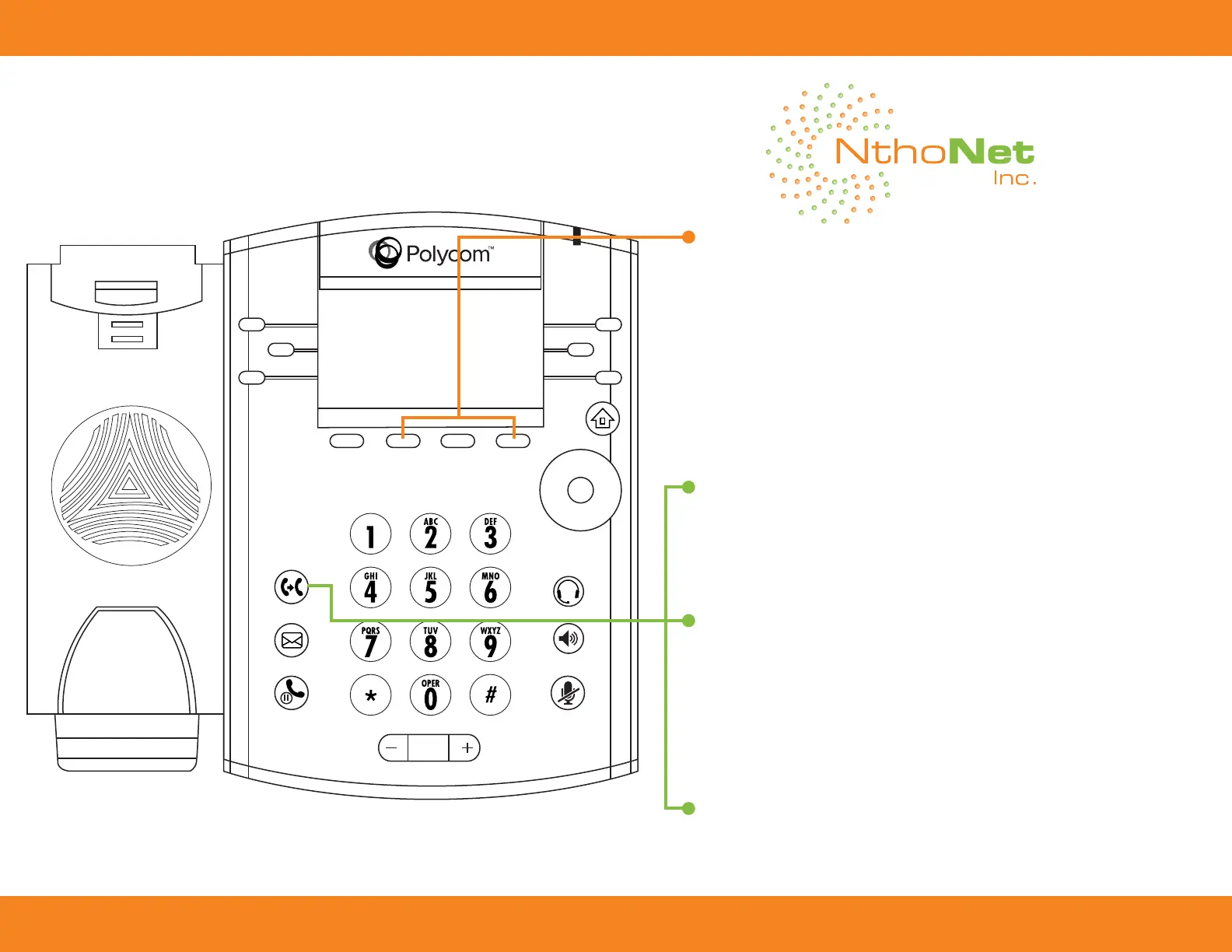
• Select the “More” Soft Key, then the “Confrnc” Soft Key.
(This will put your call on hold so you can grab a new line)
• Dial the extension* or 11 digit number you wish to conference.
*You must press the “Send” Key when dialing an extension.
• Select the “More” Soft Key, then the “Confrnc” Soft Key to
conference both parties.
• You can use the “Split” Soft Key to break a conference.
TIP: If your phone has an active call and one held call—on the same or a
different line—press the More Soft Key and then the Join Soft Key to auto-
matically create a conference call. The conference call takes place on the
line from which you handled the last active call.
BLIND TRANSFER
This option will transfer a call without consulting the receiving party.
(The calling parties Caller ID will be sent to the receiving party.)
• Select the “BlindXfer” softkey
• Dial the extension* or 11 digit number and the call is sent instantly.
*You must press the “Send” Soft Key when dialing an extension
CONSULT TRANSFER
(The calling parties Caller ID will not be sent to the receiving party.)
Select the “Transfer” Key
• Dial the extension followed by # or 11 digit number you wish to
transfer to.
Select the “Transfer” Key to transfer the call.
• Select the “Cancel” Key to hang-up on the requested person and the
caller on hold will come back on.
TRANSFER TO VOICEMAIL
Select the “BlindXfer” Softkey.
• Press the *125 and the extension and # you wish to transfer the
call.





 To Next Page