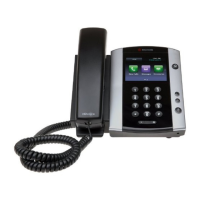
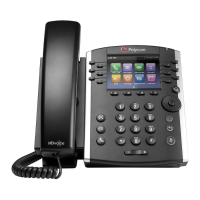
Quick User Guide Polycom VVX400
ImpactConnect Hosted PBX
About Calls
Only one call can be acve at one me.
You can use the handset, speakerphone, or headset for
calls. During a call, you can change modes by picking up
the handset, or by pressing or .
If you navigate away from your call(s), press to see
Acve Call or Calls view again.
Tip: Switching Between Lines and Calls View
When in Calls view, switch to Lines view by
pressing More > Lines.
Switch back to Calls view by pressing More >
Placing Calls
Pick up the handset, or press or . Enter the
phone number, and press Send.
Or enter the phone number first, then press Dial, pick up
the handset, or press or .
From Lines view: Press the phone Line key, enter the
phone number, and press Send.
From Home view: Select New Call using the le and right
arrow keys. Enter the phone number, and press Send.
Timesaver: Placing Calls Quickly
Select a recent call or Favorite, or select a
contact’s phone number in the Contact
Answering Calls
To answer with the speakerphone, press or tap
Answer. To answer with the handset, pick up the
handset. To answer with a headset, press .
To answer a new call while on an acve call, press
Answer. The current call will be held.
Ending Calls
To end an acve call, replace the handset, press , or
press . Or, press End Call.
To end a held call, navigate to Calls view and highlight
the held call. Press Resume, and press End Call.
Holding Calls
From Calls view, press Hold or . Remember to
highlight the call first.
To resume a held call, press Resume or again.
Transferring Calls
From Calls view, press Transfer or , and call the
other party. When you hear the ringback tone, or aer
you talk with the other party, press Transfer or
again. Press Blind to complete a transfer without waing
for the ringback tone.
Forwarding Calls
To enable call forwarding, press Forward from Home or
Lines view. Select the forwarding type to enable, enter a
forwarding number, and press Enable.
To disable call forwarding, press Forward from Home or
Lines view, select the forwarding type to disable, and
press Disable.
To enable per-call forwarding: As your phone rings, press
Forward, enter the
forwarding number, and press
Forward.
Placing Conference Calls
Call the first party, and aer the call connects, press
More, and select Confrnc. Then, dial and connect with
the second party and press Confrnc again.
From Lines or Calls view, you can:
• Press Hold to hold all parcipants.
• Press End Call to remove yourself from the call, but
keep the other parcipants connected.
• Press Manage (if available) to manage each
parcipant.


 To Next Page