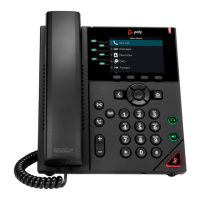
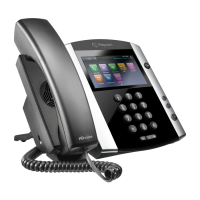
Additional icons include:
Settings- Tap Settings to access features and settings to customize your phone
Applications- Not applicable at this time
Calendar- Not applicable at this time
From Home view, tap the phone line to display your phone lines and favorites. From this screen tap a phone line to
open the Dialer, or tap a favorite to dial the favorite. To go back to the Home view icons, tap Close.
Lines View
Lines view is your phone’s default display. Lines view displays all your phone lines, your favorites, and soft keys.
If your phone is idle, you can:
Tap a phone line to access the Dialer
Swipe to switch between Lines view and the Idle Browser (if available)
If your phone has calls, the phone line indicates the number of calls you have, and if they’re active or held. If the
phone line has an active call, a green bar displays. If the phone line has one or more held calls, a flashing red bar
displays.
Note: If your phone has calls, you can’t access the Idle Browser. To access the Main Browser, tap Applications
from Home View. For information about the Browser, see Using the Browser.




 To Next Page