12
3. Controls, Indicators, and External Ports
3.1 Front Panel
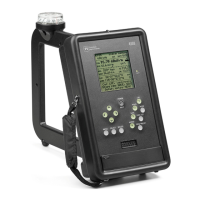
Refer to Figure 1 or to the PI4100 itself for the following discussion. Each control is described
below, starting with the Power/Bklt key, and moving counterclockwise aound the panel to the other
keys..
Figure 1. PI 4100 Front Panel Controls and Indicators
POWER/BKLT: Turns the 4100 on (press until screen text appears) and off (press until screen text
disappears). Turns the display backlight on and off, a short press for both.
UP and DOWN arrowhead keys: These keys (1) move a reverse video cursor to step through the
choices available in the menu and submenus, and (2) step through the available values of a digit or
character, 0-9 and/or A-Z.
LEFT and RIGHT arrowhead keys: These keys (1) for some menu items, move an underline cursor to
select options; (2) for some menu items, move a reverse video cursor to select a number or character to
change; and (3) for FREQ SET, move an underline cursor to select digits to change.
MENU: When in the field strength screen or a spectrum screen, press to display the menu of operational
and setup options; press again to go back to the previous screen. For details see Sec. 4.3, p. 24.
SELECT: Used in menu operations to confirm a selection from a list, to confirm the choice of an item to
modify, and to confirm that the modification is complete, all in accordance with on-screen instructions.
DELETE: Used to review the data records stored in the PI 4100, and (using SELECT) to delete selected
data records. For details see Sec. 4.5.2, p. 27.
AUDIO/F4: Turns audio in the speaker or headphones on and off, a short press for on and a long press
for off. For audio on, short presses step the sound level through four steps. For F4 see FREQ PRESET.


 To Next Page