© 2016 by Proceq SA 26
3. Using the Piccolink Software
3.1. Application Examples
• Testing of special materials using customer-specific hardness conversions.
• Documented testing incl. statistics.
• Professional evaluation of hardness tests incl. export of data to quality management systems.
• Remotely controlled hardness tests e.g. for automatic measurements during serial production.
• Updating the hardness tester firmware.
3.2. Launching Piccolink
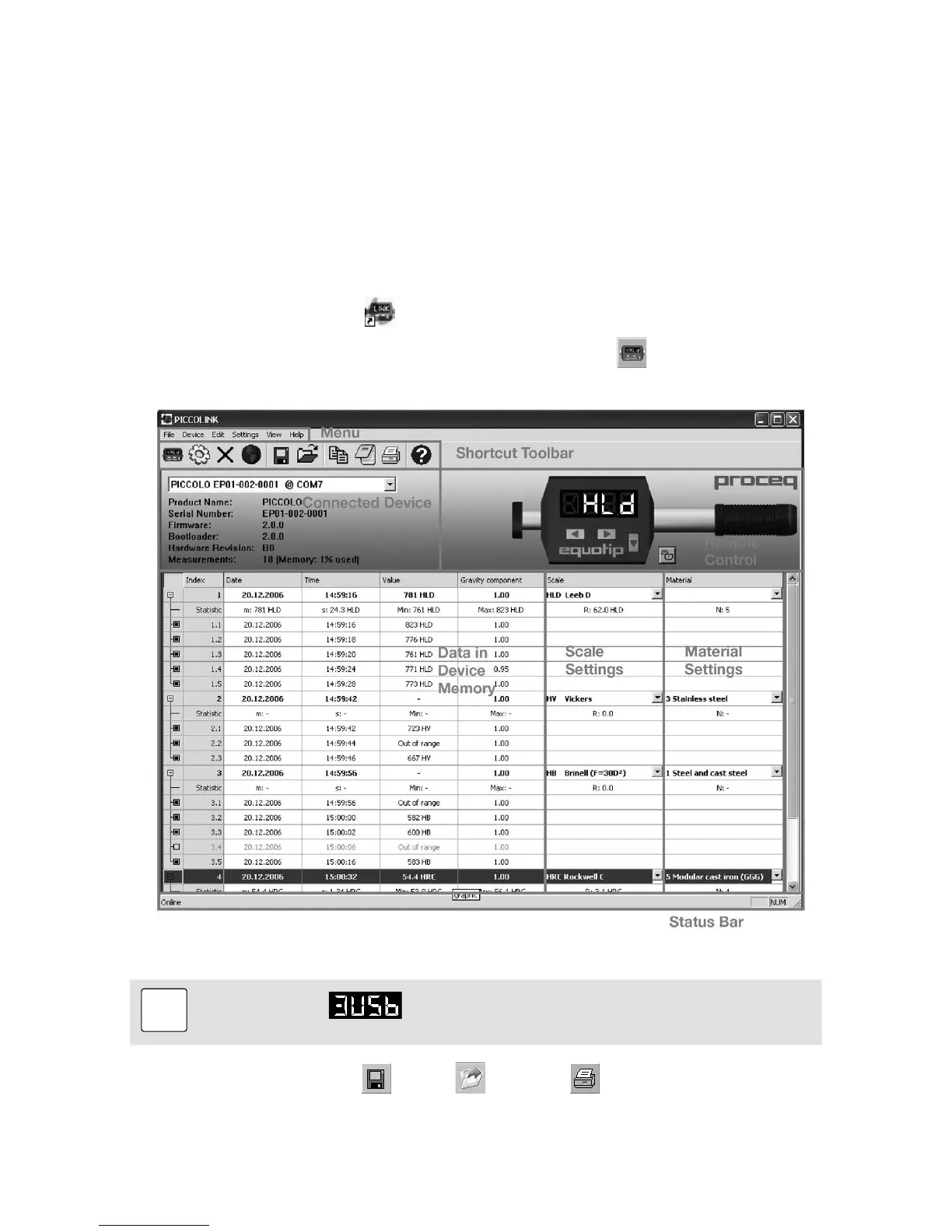
• Start Piccolink using the icon on the desktop, on the quick launch toolbar or start Piccolink
from Start menu. The Piccolink user interface will show up.
• Connect the Piccolo 2 to the computer and click the “Connect”
symbol in the toolbar to
connect and transfer the readings
Note:
The message
is briefly shown on the unit display when connecting the
device to the computer.
Most of the functions like “Save”
, “Open“ and “Print” can be used analogously to the
correspondent functions in most other Microsoft Windows applications.





 To Next Page