Usingtheremotecontrol- Learningaboutremotecontrol
,
_OWER EJ_,CT
©©
FREEZ_ CC
_TOP
®®®®
PN_V N_g,T F',R F_
ZOOM AoB DVD_ T_TLE
_ETUP R_PEA_ @U_-T AU#_O
I I:_.0 SC A N
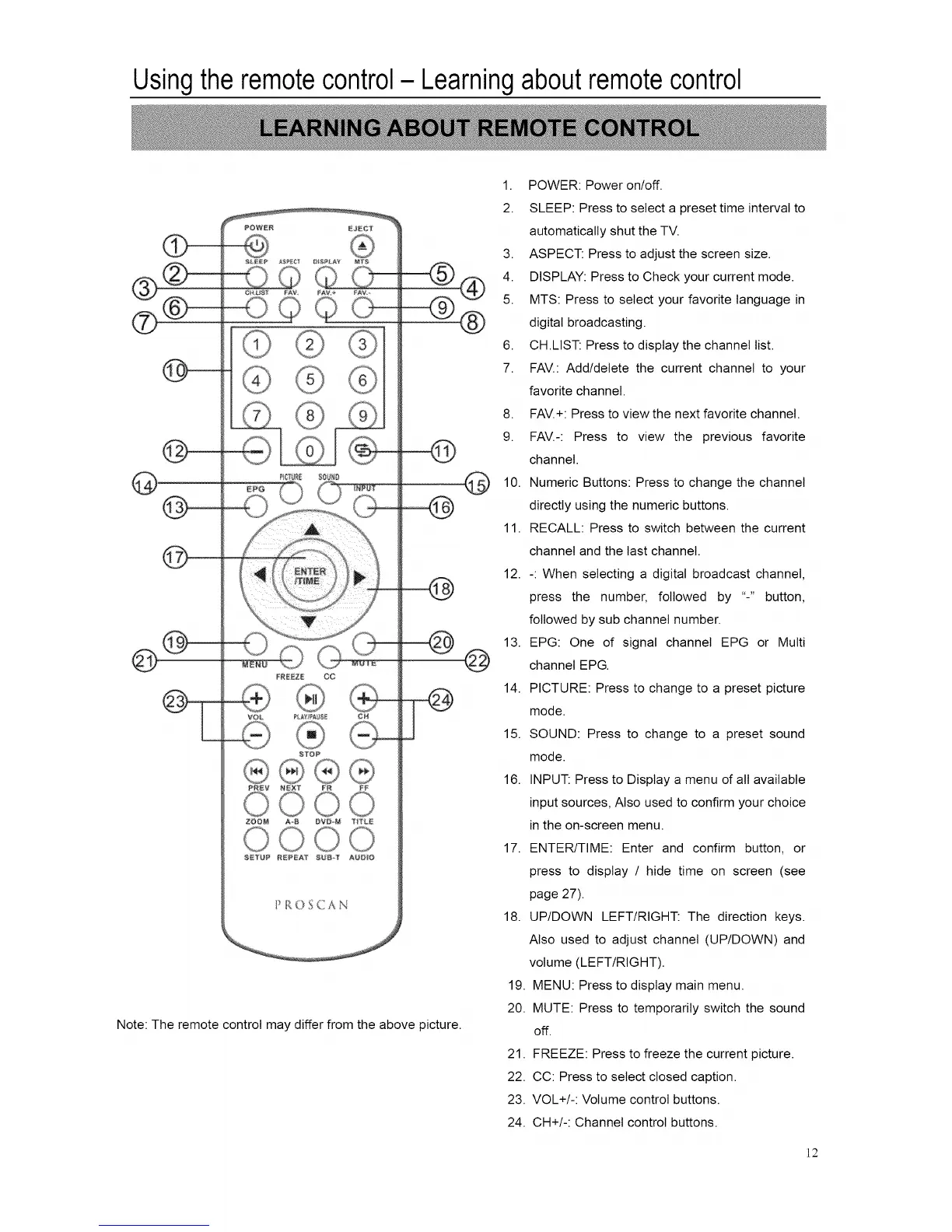
Note: The remote control may differ from the above picture.
@
1. POWER: Power on/off.
2. SLEEP: Press to select a preset time interval to
automatically shut the TV.
3. ASPECT: Press to adjust the screen size.
4. DISPLAY: Press to Check your current mode.
5. MTS: Press to select your favorite language in
digital broadcasting.
6. CH.LIST: Press to display the channel list.
7. FAV.: Add/delete the current channel to your
favorite channel.
8. FAV.+: Press to view the next favorite channel.
9. FAV.-: Press to view the previous favorite
channel.
10. Numeric Buttons: Press to change the channel
directly using the numeric buttons.
11. RECALL: Press to switch between the current
channel and the last channel.
12. -: When selecting a digital broadcast channel,
press the number, followed by "-" button,
followed by sub channel number.
13. EPG: One of signal channel EPG or Multi
channel EPG.
14. PICTURE: Press to change to a preset picture
mode.
15. SOUND: Press to change to a preset sound
mode.
16. INPUT: Press to Display a menu of all available
input sources, Also used to confirm your choice
in the on-screen menu.
17. ENTER/TIME: Enter and confirm button, or
press to display / hide time on screen (see
page 27).
18. UP/DOWN LEFT/RIGHT: The direction keys.
Also used to adjust channel (UP/DOWN) and
volume (LEFT/RIGHT).
19. MENU: Press to display main menu.
20. MUTE: Press to temporarily switch the sound
off.
21. FREEZE: Press to freeze the current picture.
22. CC: Press to select closed caption.
23. VOL+/-: Volume control buttons.
24. CH+/-: Channel control buttons.
]2



 To Next Page