EN
DE
VERBINDEN
CONNECT
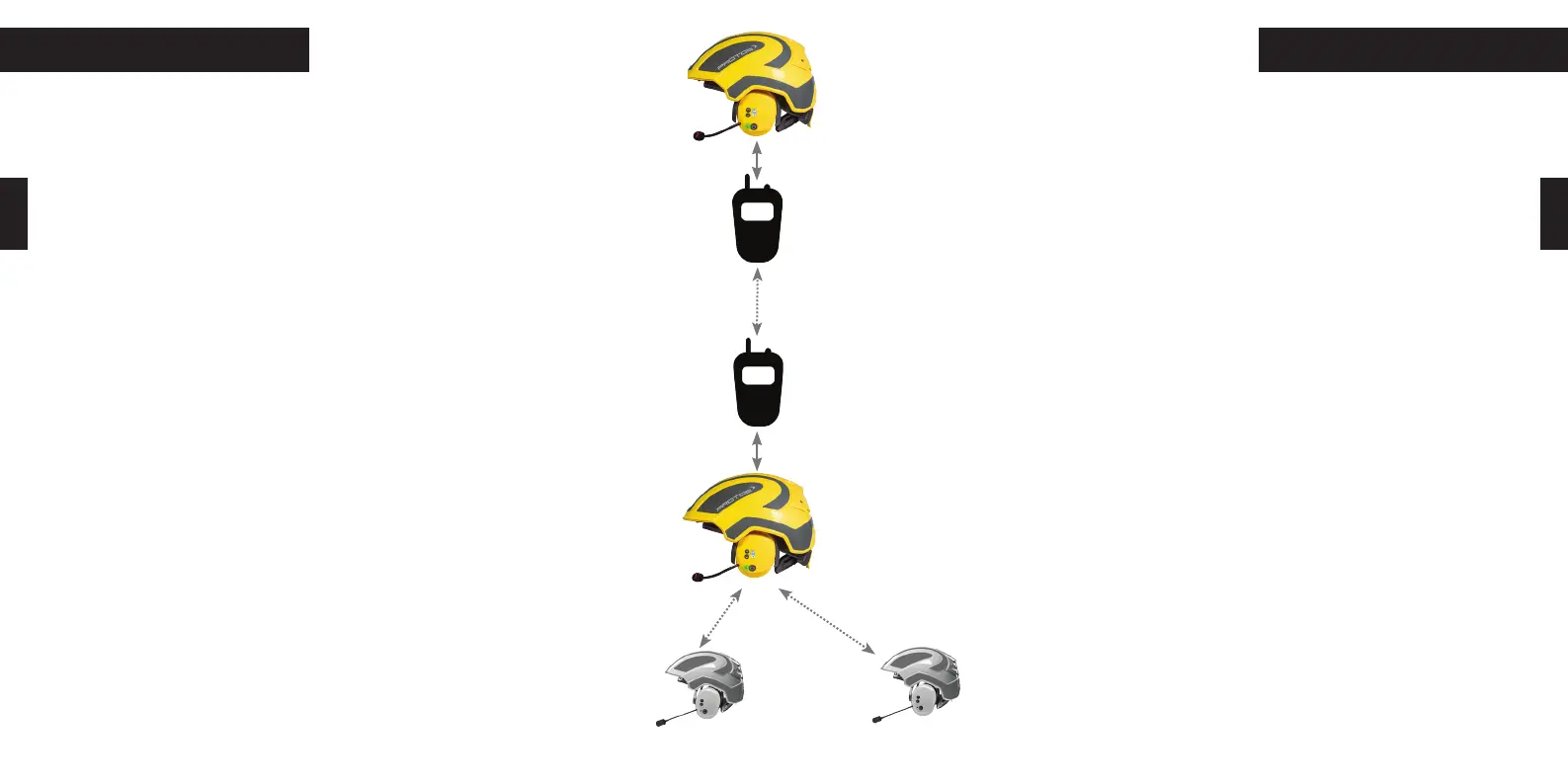
Verbindung mit einem zusätzlichen Gerät, z.B. Funkgerät
Sie können Ihren BT Com mit bluetoothfähigen Funkgeräten verbinden.
1.) Bitte prüfen Sie im App Store, ob auf Ihrem Smartphone die neueste App Versi-
on installiert ist. Vergewissern Sie sich anschließend mit Hilfe der Protos® Control
App, dass die Software Version Ihres BT Com‘s auf dem neuesten Stand ist.
2.) Stellen Sie sicher, dass Ihr BT Com angeschalten und mit der App verbunden ist
(siehe S.32).
3.) Gehen Sie in die Protos® Control App, wählen Sie in der Kachel „zusätzliches
Gerät“ im Auswahlmenü „Funkgerät“ die Marke und den Typ Ihres Funkgeräts aus.
4.) Aktivieren Sie den Koppelungsvorgang in Ihrem Funkgerät und drücken Sie die
Taste „Koppeln“ in der Protos® Control App. Eine Ansage bestätigt die erfolgreiche
Verbindung mit den Worten „radio connected“.
5.) Wenn Sie die Abwärtstaste lange drücken wechselt das Gerät in den Zweit-
gerätemodus, die LED leuchtet blau und die Ansage „radio mode“ ertönt.
6.) Durch erneutes langes Drücken der Abwärtstaste kommen Sie zurück in
den Erstgeräte Bedienmodus „primary mode”, die LED blinkt.
7.) Durch langes Drücken der Aufwärtstaste können Sie jederzeit in das Pro-
tos® Intercom Netzwerk zurückwechseln.
Im 2ten Geräte Modus dient die Multifunktionstaste als Push to talk Taste
(Ptt-Taste), d.h. nur bei Gedrückhalten wird der Sprachkanal geöffnet.
Connection with an additional bluetooth device, e.g. radio device
you can connect your BT Com with bluetooth compatible radio devices.
1.) Please check in the App Store that the newest version of the app is instaled on
your smarphone. Afterwards you can check with the Protos® Control App that you
have installed the most current software on your BT Com.
2.) Make sure that your BT Com is turned on and connected to the app (see p. 32)
3.) Select the BT Com and then the tile “additional device“ in the Protos® Control App.
There you will find a selection menu, choose “radio device“. Select the brand and the
type of your radio device there.
4.) Activate the pairing mode on your radio device and select “pairing” in the Protos®
Control App. The voice prompt “radio connected” confirms the successfull connection.
5.) By pressing the down button for 3 seconds the BT Com will switch to the second
device mode, the LED will flash blue and the voice prompt will state “radio mode“.
6.) If you press the down button for 3 seconds again you will go back to the operation
mode of the first device “primary mode“ and the LED flashes.
7.) By pressing the up button for 3 seconds you can switch back to the
Protos® Intercom Network .
In the additional device mode the multifunction button serves as Push
to talk button, this means that pushing the button opens the speaking
channel.
24 25


 To Next Page
 Loading...