2.4 Control with Mouse
2.4.1 Connect Mouse
It supports USB mouse through the ports on the rear panel.
If mouse is not detected or doesn't work, check below steps:
1. Make sure the mouse is plugged in the USB mouse port.
2. Try with a good know mouse.
2.4.2 Use Mouse
During live:
Double-click on any camera window to see the full screen. Double-click again to return to the previous
screen.
Right click to reveal the control menu on the screen. Right click again to hide the menu.
In Configuration:
Click to enter a particular option. Right click to cancel the option or to return to the previous menu.
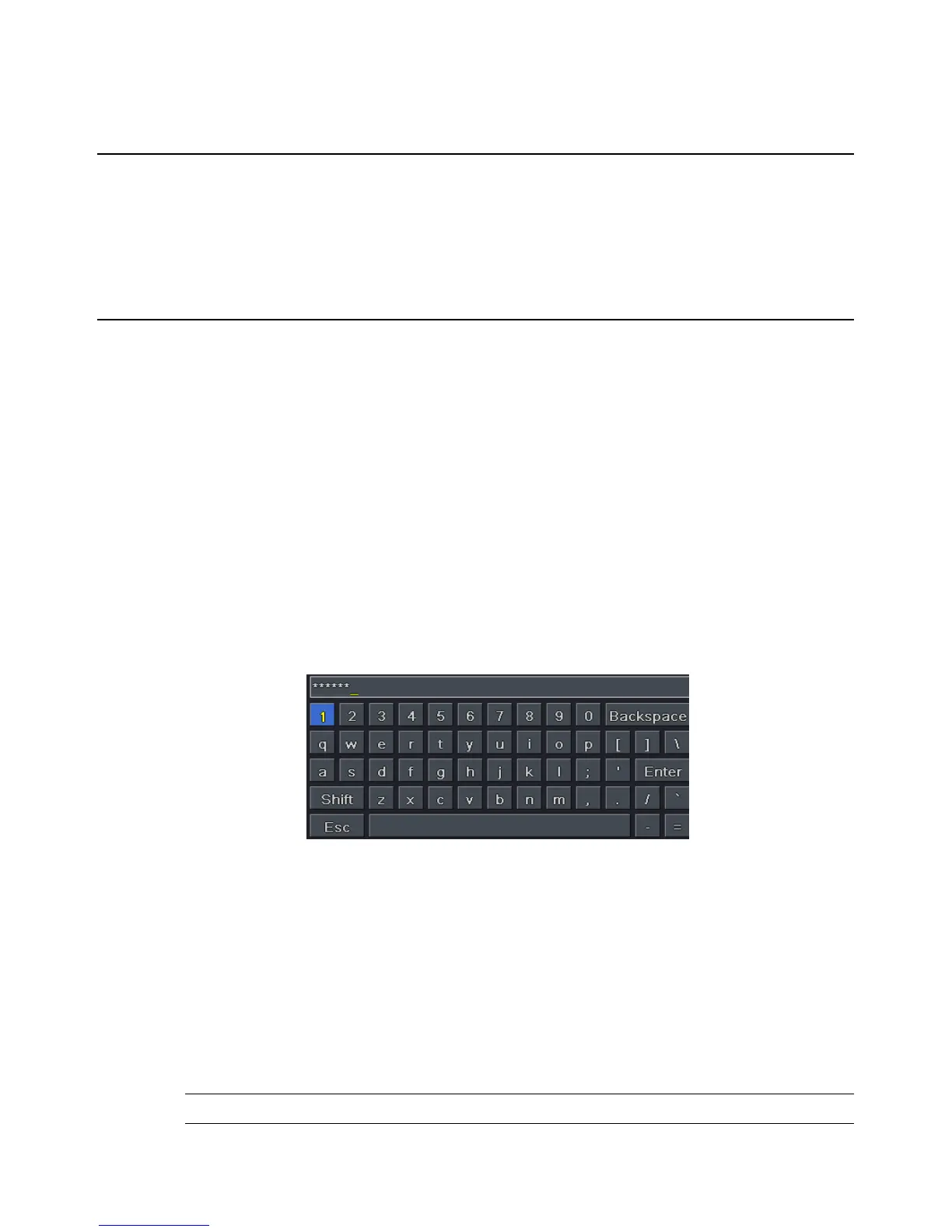
In order to input a value in a particular screen, move cursor to the input box and click. An input window
will appear as Fig 2-5. It supports digits, alphabets and symbols input. Click Shift button to input Capital
letters and symbols; click Shift button again to return.
It supports mouse drag. Take setting up motion detection area for example: Click customized, hold down
the left button and drag to set motion detection area.
Fig 2-5 Digital Numbers and Letters Input Window
In Playback:
Click to choose the options. Right click to return to live mode.
In Backup:
Click to choose the options. Right click to return to previous picture.
In PTZ Control:
Click left button to choose the buttons to control the PTZ. Click right button to return to live.
Note: Mouse is the default tool for all operations unless an exception, as indicated.


 To Next Page