EasyManua.ls Logo

Psion 3a Series - Rearranging and Grouping Icons

Psion 3a Series
288 pages
Print Icon
To Next Page IconTo Next Page
To Previous Page IconTo Previous Page
Loading...
ggf"
Even
if,
after
assigning
a
button
to
a
particular
application,
you
remove
its
icon,
the
button
will
still
move
to
that
application,
if
it
is
open.
Switching
between
open
applications
You
can
use
Shift
and
the
System
button
to
move
from
one
open
application
to
the
next.
In
this
way
you
can
see
all
of
the
applications
which
are
open,
one
by
one.
Psion-Shift-System
moves
around
them
in
the
opposite
direction.
Rearranging
and
grouping
icons
There
are
a
number
of
ways
in
which
you
can
rearrange
icons
and
file
lists
on
the
System
screen
to
make
them
more
conveniently
placed
for
your
particular
use.
Duplicating
icons
-
new
lists
of
files
If
you
create
a
large
number
of
files
in
any
of
the
applications,
you
may
find
it
useful
to
separate
the
files
into
related
groups.
You
might
have
created
a
number
of
files
in
the
Word
Processor,
for
example,
some
of
which
are
letters
and
some
reports.
You
could
group
all
the
letters
together
and
list
them
on
the
System
screen
under
the
Word
Processor
icon,
and
create
a
second
Word
Processor
icon
to
list
all
the
reports
under.
To
duplicate
the
Word
Processor
icon,
for
example:
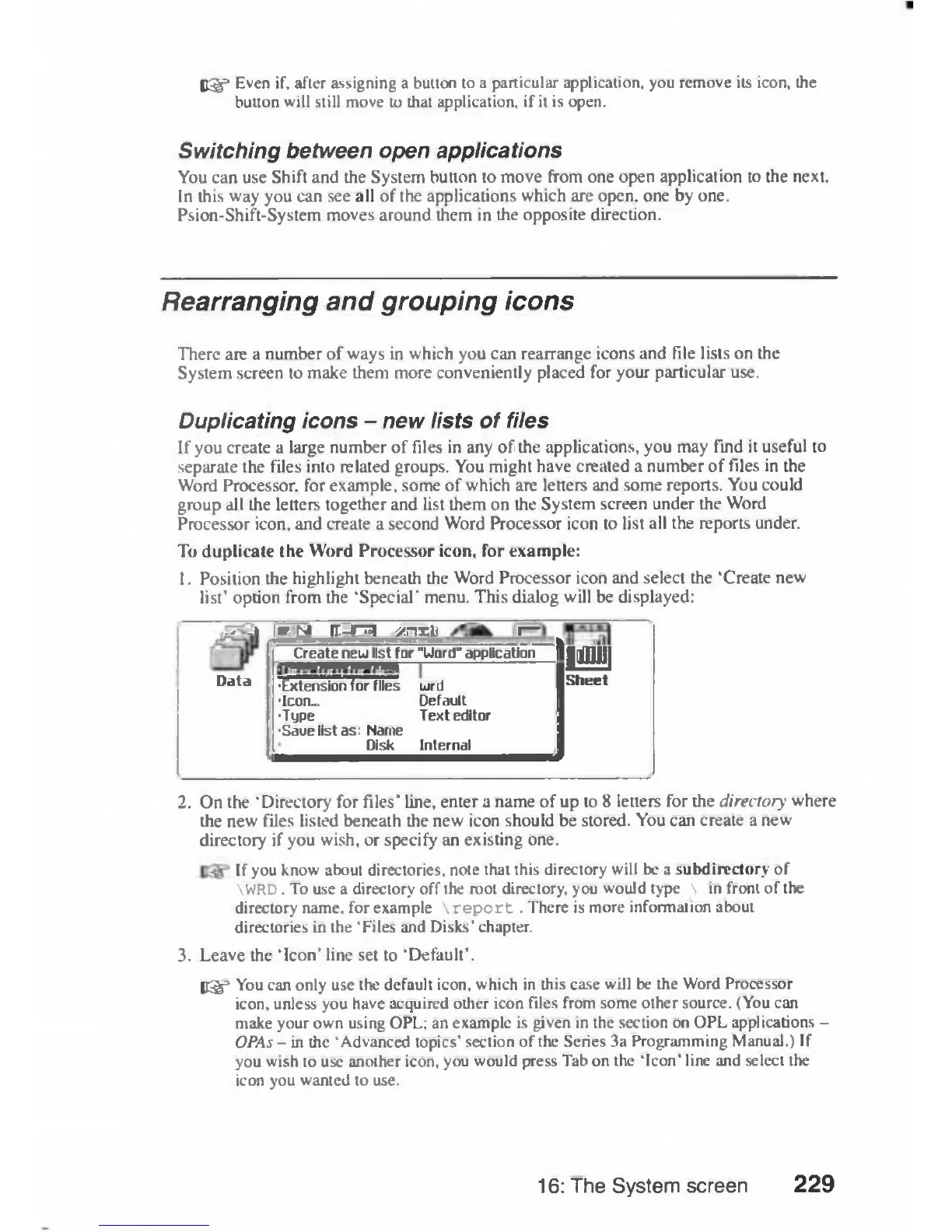
1.
Position
the
highlight
beneath
the
Word
Processor
icon
and
select
the
'Create
new
list'
option
from
the
'Special'
menu.
This
dialog
will
be
displayed:
...»
*tj
rr-r^i
xnxt
I—
Create
neu
list
tor
"Uord"
application
W
Data
•Extension
for
files
wrd
•Icon..
Default
•Type
Text
editor
•Sauelistas:
Name
Disk
Internal
Sheet
Data
2.
On
the
'Directory
for
files'
line,
enter
a
name
of
up
to
8
letters
for
the
directory
where
the
new
files
listed
beneath
the
new
icon
should
be
stored.
You
can
create
a
new
directory
if
you
wish,
or
specify
an
existing
one.
If
you
know
about
directories,
note
that
this
directory
will
be
a
subdirectory
of
\WRD.
To
use
a
directory
off
the
root
directory,
you
would
type
\
in
front
of
the
directory
name,
for
example
\
report.
There
is
more
information
about
directories
in
the
'Files
and
Disks'
chapter.
3.
Leave
the
'Icon'
line
set
to
'Default'.
!£§="
You
can
only
use
the
default
icon,
which
in
this
case will
be
the
Word
Processor
icon,
unless
you
have
acquired
other
icon
files
from
some
other
source.
(You
can
make
your
own
using
OPL;
an
example
is
given
in
the
section
on
OPL
applications
-
OPAs
-
in
the
'Advanced
topics'
section
of
the
Series
3a
Programming
Manual.)
If
you
wish
to
use
another
icon,
you
would
press
Tab
on
the
'Icon'
line
and
select
the
icon
you
wanted
to
use.
16:
The
System
screen
229

Table of Contents

Related product manuals