EasyManua.ls Logo

Psion 3a Series - The Year View

Psion 3a Series
288 pages
Print Icon
To Next Page IconTo Next Page
To Previous Page IconTo Previous Page
Loading...
If
you
choose
'As
normal",
and
you
have
entries
which
repeat
'Forever'
and
have
every
occurrence
shown,
this
may
slow
the
List
view
down.
The
Year
view
The
Year
view
displays
symbols
for
selected
entries
of
any
type.
Anniversaries
are
the
only
entries
which
automatically
appear
in
the
Year
view
(with
the
symbol
A).
For
all
other
entry
types
you
must
set
a
year
symbol
for
each
individual
entry.
H3P
You
can
set
a
different
year
symbol
for
each
individual
anniversary
when
you
enter
it.
Choose
the
symbol
in
the
'Year
symbol'
line
in
the
'Anniversary
details'
dialog.
If
you
don't
want
them
at
all,
use
'Set
preferences'
and its
suboplion
'Anniversary
defaults',
and
set
the
Year
symbol
to
be
off
by
default.
Press
the
•
key
until
the
Year
view
is
displayed,
or
press
Shift-Psion-Y
to
move
to
it
directly.
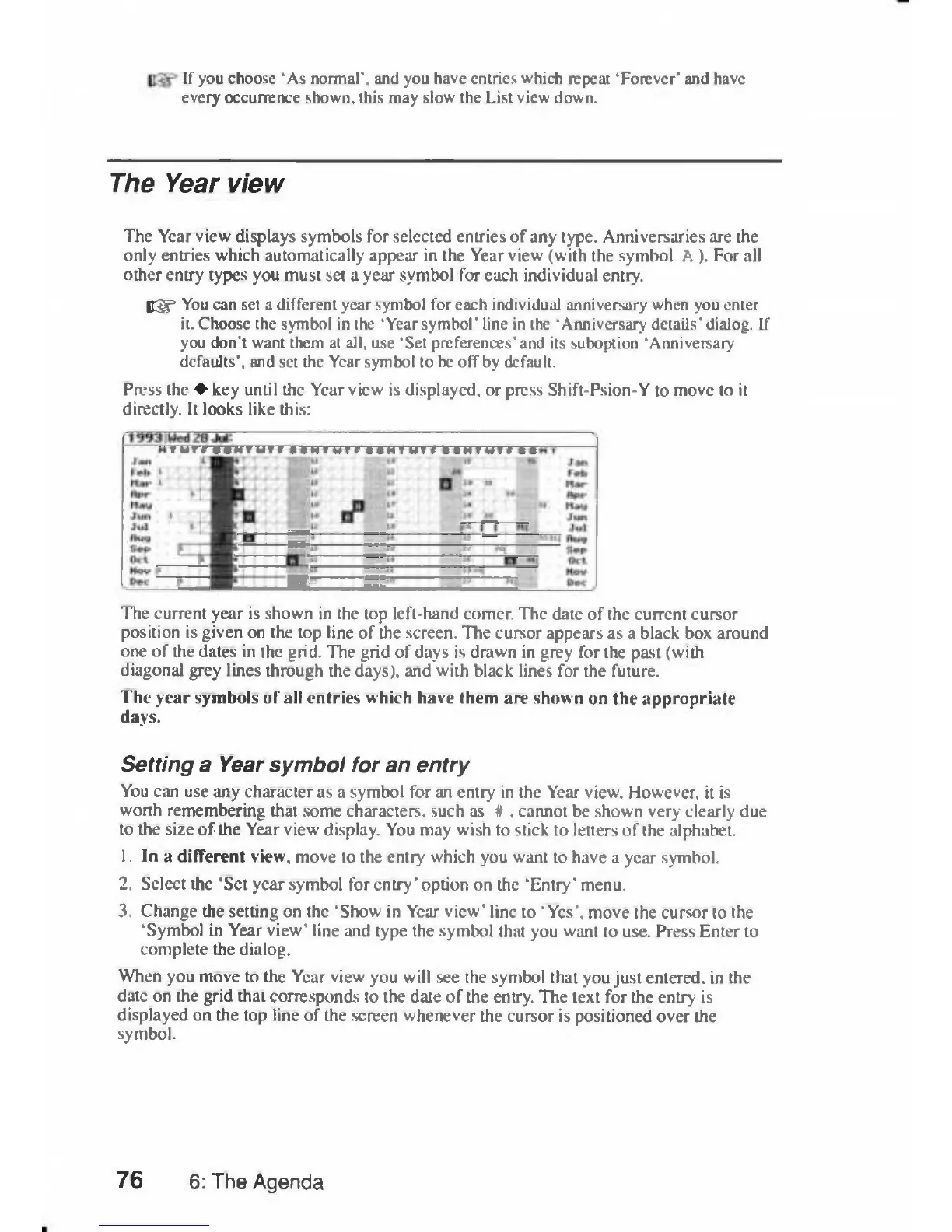
It
looks
like
this:
The
current
year
is
shown
in
the
lop
left-hand
comer.
The
date
of
the
current
cursor
position
is
given
on
the
top
line
of
the
screen.
The
cursor
appears
as
a
black
box
around
one
of
the
dates
in
the
grid.
The
grid
of
days
is
drawn
in
grey
for
the
past
(with
diagonal
grey
lines
through
the
days),
and
with
black
lines
for
the
future.
The
year
symbols
of
all
entries
which have
them
are
shown
on
the
appropriate
days.
Setting
a
Year
symbol
for
an
entry
You
can
use
any
character
as
a
symbol
for
an
entry
in
the
Year
view.
However,
it
is
worth
remembering
that
some
characters,
such
as
#
.
cannot
be
shown
very
clearly
due
to
the
size
of
the
Year
view
display.
You
may
wish
to
stick
to
letters
of
the
alphabet.
1.
In
a
different
view,
move
to
the
entiy
which
you
want
to
have
a
year
symbol.
2.
Select
the
'Set
year
symbol
for
entry'
option on
the
'Entry'
menu.
3.
Change
the
setting
on
the
'Show
in
Year
view'
line
to
'Yes',
move
the
cursor
to
the
'Symbol
in
Year
view'
line
and
type
the
symbol
that
you
want
to
use.
Press
Enter
to
complete
the
dialog.
When
you
move
to
the
Year
view
you
will
see
the
symbol
that
you
just
entered,
in
the
date
on
the
grid
that
corresponds
to
the
date
of
the
entry.
The
text
for
the
entry
is
displayed
on
the
top
line
of
the
screen
whenever
the
cursor
is
positioned
over
the
symbol.
76
6:
The
Agenda

Table of Contents

Related product manuals