EasyManua.ls Logo

Psion 3a Series - To-Do Lists and Other Lists

Psion 3a Series
288 pages
Print Icon
To Next Page IconTo Next Page
To Previous Page IconTo Previous Page
Loading...
3.
Type
the
number
of
months
that
you
want
to
display
on
the
screen
(1-4)
and
press
Enter
to
complete
the
dialog.
!£§=
You
can
use
the
'Find'
option (described
later)
to
show
a
list
of
all
anniversaries
lEg
5
Some
less
common
uses
of
anniversaries
are
described
in
the
note
on
"Anniversaries
and
repeats",
in
the
"Repeating
an
entry"
section
of
this
chapter.
To-do
lists
and
other
lists
You
can
use
the
To-do
view
to
enter
to-dos
and
other
lists,
for
example
shopping
lists,
rather
than
entering
them
as
untimed
day
entries.
The
Agenda
then
keeps
them
on
a
To-do
list
until
you
delete
them.
You
can
set
a
due
dale
for
a
to-do
entry,
if
you like.
When
you
enter
to-dos
you
give
each
one
a
priority
between
1
and
9,
where
1
is
the
highest
and
9
the
lowest.
Initially,
all
priority
1
entries
are
automatically
shown
in
the
Day/Week/List
views
as
well.
Lower
priority
entries
are
only
shown
on
their
to-do
list.
You
can
control
which
priority
entries
should
be
shown
in
other
views.
As
you'll
see,
to-do
lists
can
be
customised
in
many
ways.
'Set
preferences'
has
a
'To-do
view'
suboption
for
any
overall
settings
for
the
To-do
view,
and
a
'To-do
entry
defaults'
option
for
setting
the
values
suggested
when
you
enter
each
to-do
entry.
There
is
also
a
'To-do
list
settings'
option
on
the
'To-do
lists'
menu,
which
controls
the
way each
of
the
lists
work.
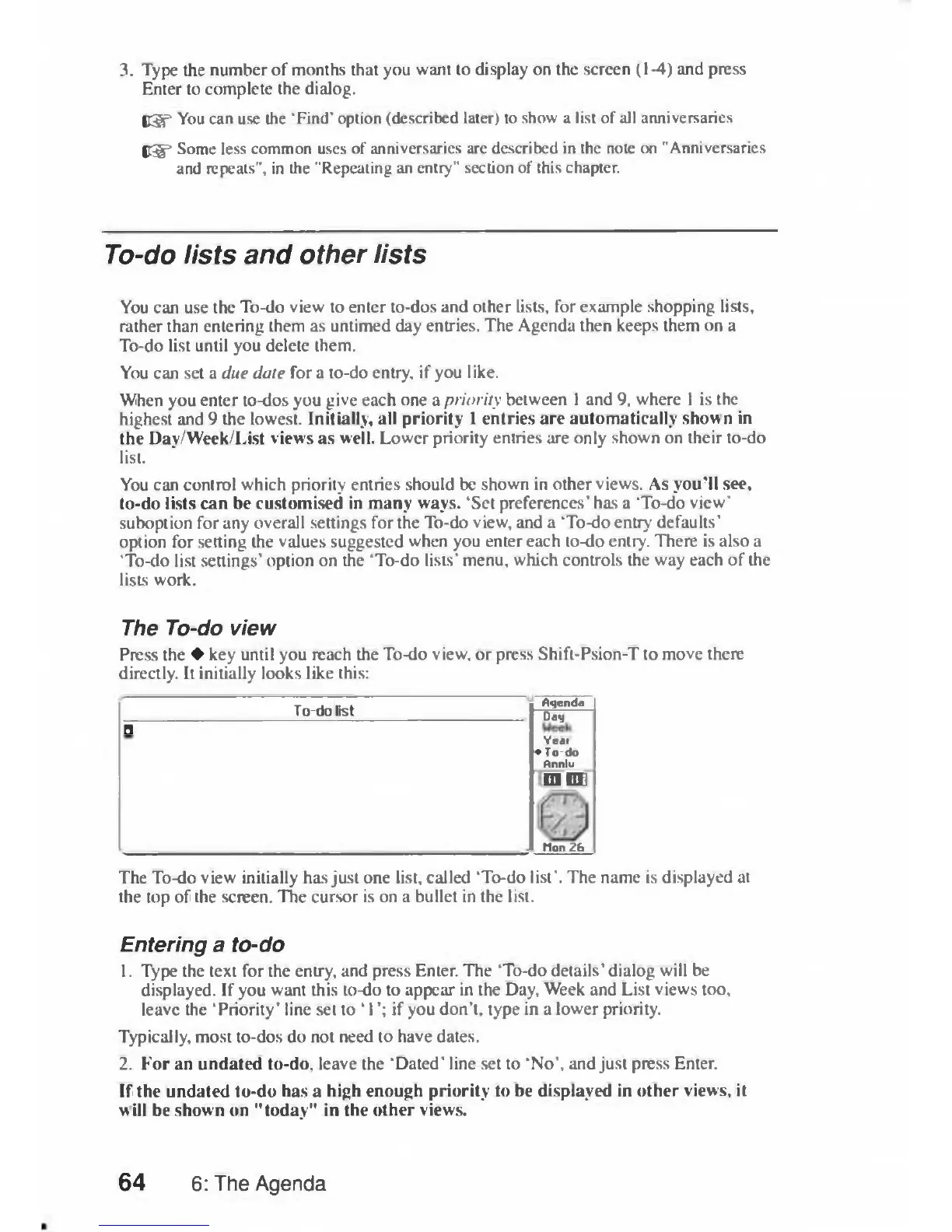
The
To-do
view
Press
the
•
key
until
you
reach
the
To-do
view,
or
press
Shift-Psion-T
to
move
there
directly.
It
initially
looks
like
this:
To-do
list
Agenda
To-do
list
Dag
0
Dag
Ycat
•
To-do
Anniu
•
0]
Hon
Zb
The
To-do
view
initially
has
just
one
list,
called
'To-do
list'.
The
name
is
displayed
at
the
top
of
the
screen.
The
cursor
is
on
a
bullet
in
the
list.
Entering
a
to-do
1.
Type
the
text
for
the
entry,
and
press
Enter.
The
'To-do
details'
dialog
will
be
displayed.
If
you
want
this
to-do
to
appear
in
the
Day,
Week
and
List
views
too,
leave
the
'Priority'
line
set
to
'1';
if
you
don't,
type
in
a
lower
priority.
Typically,
most
to-dos
do
not
need
to
have
dates.
2.
For
an
undated
to-do,
leave
the
'Dated'
line
set
to
'No',
and
just
press
Enter.
If
the
undated
to-do
has
a
high
enough
priority
to
be
displayed
in
other
views,
it
will
be
shown
on
"today"
in
the
other
views.
64
6:
The
Agenda

Table of Contents

Related product manuals