EasyManua.ls Logo

Psion 3a Series - Adding and Changing Information

Psion 3a Series
288 pages
Print Icon
To Next Page IconTo Next Page
To Previous Page IconTo Previous Page
Loading...
Adding
and
changing
information
Adding
a
city
If
your
own
home
town
or
city
is
not
known
by
World,
you
can
add
it
with
the
'Add
city'
option.
You'll
be asked for
longitude
and
latitude.
GMT
offset
(the
hours
ahead of
or
behind
London's
"Greenwich
Mean
Time")
and
zone
for
summer
times.
Don't
worry
if
you
don't
know
all
of
these
—
before
you
choose
'Add
city',
you
can
estimate
these
from
the
settings
of
a
city
near
yours.
1.
Find
a
city
near
to
your
own
which
World
does
know
about.
2.
Select
the
'Add
city'
option
on
the
'Edit'
menu.
The
dialog
suggests
the
longitude
and
latitude
(etc.)
of
the
city
you've
just
found,
and
this
should
be
approximately
right.
It's
worth
entering
the
longitude
and
latitude
because they
are
used
to
calculate
distances
and
sunrise/sunset
times.
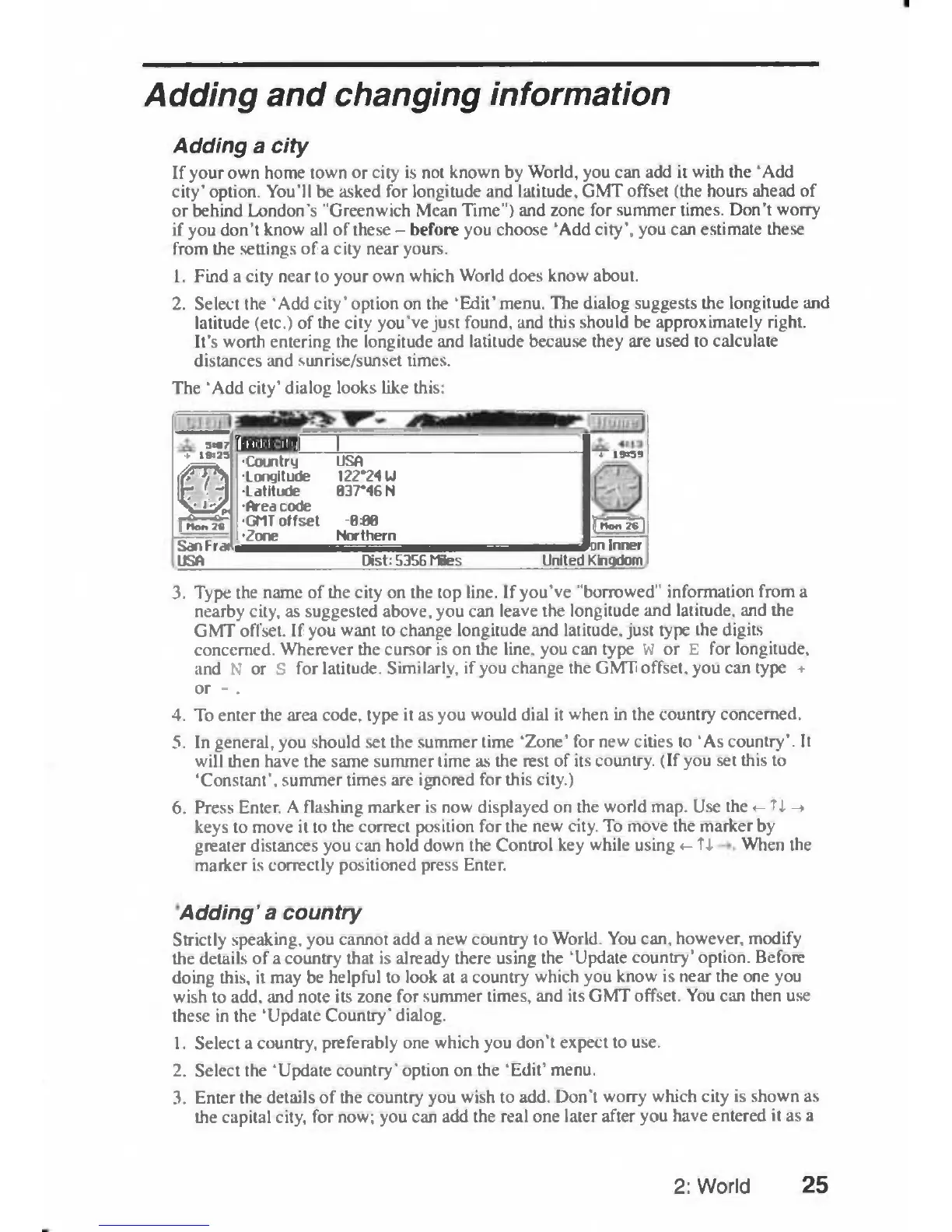
The
'Add
city'
dialog
looks
like
this:
S!87
+
19325
©
[Add
city
1
1
S!87
+
19325
©
•Country
USA
•Longitude
122*24U
•Latitude
837*46
N
•Area
code
•GMT
offset
-8:08
•Zone
Northern
*
19x59
|
Iton
26
•Country
USA
•Longitude
122*24U
•Latitude
837*46
N
•Area
code
•GMT
offset
-8:08
•Zone
Northern
|
lion
re)
San
Fran
USA
•Country
USA
•Longitude
122*24U
•Latitude
837*46
N
•Area
code
•GMT
offset
-8:08
•Zone
Northern
on
Inner
Kingdom
San
Fran
USA
Dist:
5356
Miles
United
on
Inner
Kingdom
3.
Type
the
name
of
the
city
on
the
top
line.
If
you've
"borrowed"
information
from
a
nearby
city,
as
suggested
above,
you
can
leave
the
longitude
and
latitude,
and
the
GMT
offset.
If
you
want
to
change
longitude
and
latitude,
just
type
the
digits
concerned.
Wherever
the
cursor
is
on
the
line,
you
can
type
W
or
E
for
longitude,
and
N
or
S
for
latitude.
Similarly,
if
you
change
the
GMT
offset,
you
can
type
+
or
-
,
4.
To
enter
the
area
code,
type
it
as
you
would
dial
it
when
in
the
country
concerned.
5.
In
general,
you
should
set
the
summer
time
'Zone'
for
new
cities
to
'As
country'.
It
will
then
have
the
same
summer
time
as
the
rest
of
its
country.
(If
you
set
this
to
'Constant',
summer
times
are
ignored
for
this
city.)
6.
Press
Enter.
A
flashing
marker
is
now
displayed
on
the
world
map.
Use
the
<-
tJ.
-t
keys
to
move
it
to
the
correct
position
for
the
new
city.
To
move
the
marker
by
greater
distances
you
can
hold
down
the
Control
key
while
using
<-
Tf
When
the
marker
is
correctly
positioned
press
Enter.
Adding'
a
country
Strictly
speaking,
you
cannot
add
a
new
country
to
World.
You
can,
however,
modify
the
details
of
a
country
that
is
already
there
using the
'Update
country'
option.
Before
doing
this,
it
may
be
helpful
to
look
at
a
country
which
you
know
is
near the
one
you
wish
to
add,
and
note
its
zone
for
summer
times,
and
its
GMT
offset.
You
can
then
use
these
in
the
'Update
Country'
dialog.
1.
Select
a
country,
preferably
one
which
you
don't
expect
to
use.
2.
Select
the
'Update
country'
option
on
the
'Edit'
menu.
3.
Enter
the
details
of
the
country
you
wish
to
add.
Don't
worry
which
city
is
shown
as
the
capital
city,
for
now;
you
can
add
the
real
one
later
after
you
have
entered
it
as
a
2:
World
25

Table of Contents

Related product manuals