EasyManua.ls Logo

Psion 3a Series - Help Information; Notes on Menus and Dialogs

Psion 3a Series
288 pages
Print Icon
To Next Page IconTo Next Page
To Previous Page IconTo Previous Page
Loading...
Help
information
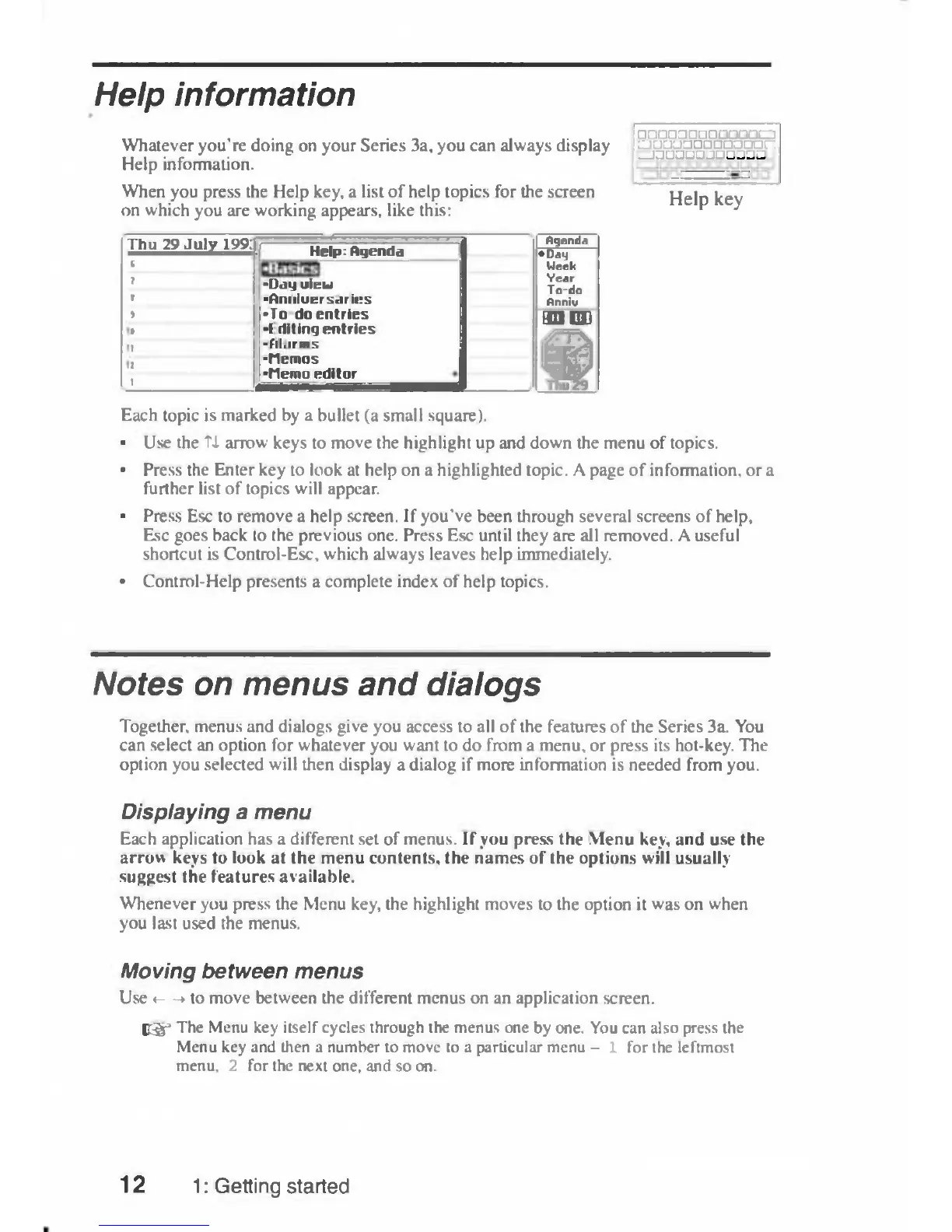
Whatever
you're
doing
on
your
Series
3a,
you
can
always
display
Help
information.
When
you
press
the
Help
key,
a
list
of
help
topics
for
the
screen
on
which
you
are
working
appears,
like
this:
••••••••••••a
••••••maaaon
—aujnc
:)•••••
Help
key
Thu
29
July
199:
r
Help:
rtqenda
-Day
oieu
•Aniiiuers«irit;s
•To
do
entries
•I
(lit
iny
entries
-fil.irms
•Memos
•Memo
editor
Agenda
•
Dag
Week
Year
To-do
Anniv
naon
f§
Each
topic
is
marked
by
a
bullet
(a
small
square).
•
Use
the
Tf
arrow
keys
to
move
the
highlight
up
and
down
the
menu
of
topics.
•
Press
the
Enter
key
to
look
at
help
on
a
highlighted
topic.
A
page
of
information,
or
a
further
list
of
topics
will
appear.
•
Press
Esc
to
remove
a
help
screen.
If
you've
been
through
several
screens
of
help,
Esc
goes
back
to
the
previous
one.
Press
Esc
until
they
are
all
removed.
A
useful
shortcut
is
Control-Esc,
which
always
leaves
help
immediately.
•
Control-Help
presents
a
complete
index
of
help
topics.
Notes
on
menus
and
dialogs
Together,
menus
and
dialogs
give
you
access
to
all
of
the
features
of
the
Series
3a.
You
can
select
an
option
for
whatever
you
want
to
do
from
a
menu,
or
press
its
hot-key.
The
option
you
selected
will
then
display
a
dialog
if
more
information
is
needed
from
you.
Displaying
a
menu
Each
application
has
a
different
set
of
menus.
If
you
press
the
Menu
key,
and
use
the
arrow
keys
to
look
at
the
menu
contents,
the
names
of
the
options
will
usually
suggest
the
features
available.
Whenever
you
press
the
Menu
key,
the
highlight
moves
to
the
option
it
was
on
when
you
last
used
the
menus.
Moving
between
menus
Use
<—»to
move
between
the
different
menus
on
an
application
screen.
Bg
3
The
Menu
key
itself
cycles
through
the
menus
one
by
one.
You
can
also
press
the
Menu
key
and
then
a
number
to
move
to
a
particular
menu
-
1
for
the
leftmost
menu,
2
for
the
next
one,
and
so
on.
12
1:
Getting
started

Table of Contents

Related product manuals