EasyManua.ls Logo

Psion 3a Series - Page 23

Psion 3a Series
288 pages
Print Icon
To Next Page IconTo Next Page
To Previous Page IconTo Previous Page
Loading...
Hot
keys
You
can
find
out
which
hot-keys
go
with
which
options
by
displaying
the
menus,
then
pressing
a
hot-key
without
holding
down
the Psion
key.
The
menu
and
option
which
goes
with
the
key
you
press
will
be
highlighted.
Selecting
on
dialog
lines
Many
dialog
lines,
such
as
'Time
format',
have
little
arrows
around
the
setting,
and
can
be
changed
by
using
<—».
You
can
also
type
the
first
letter
of
the
setting
you
require.
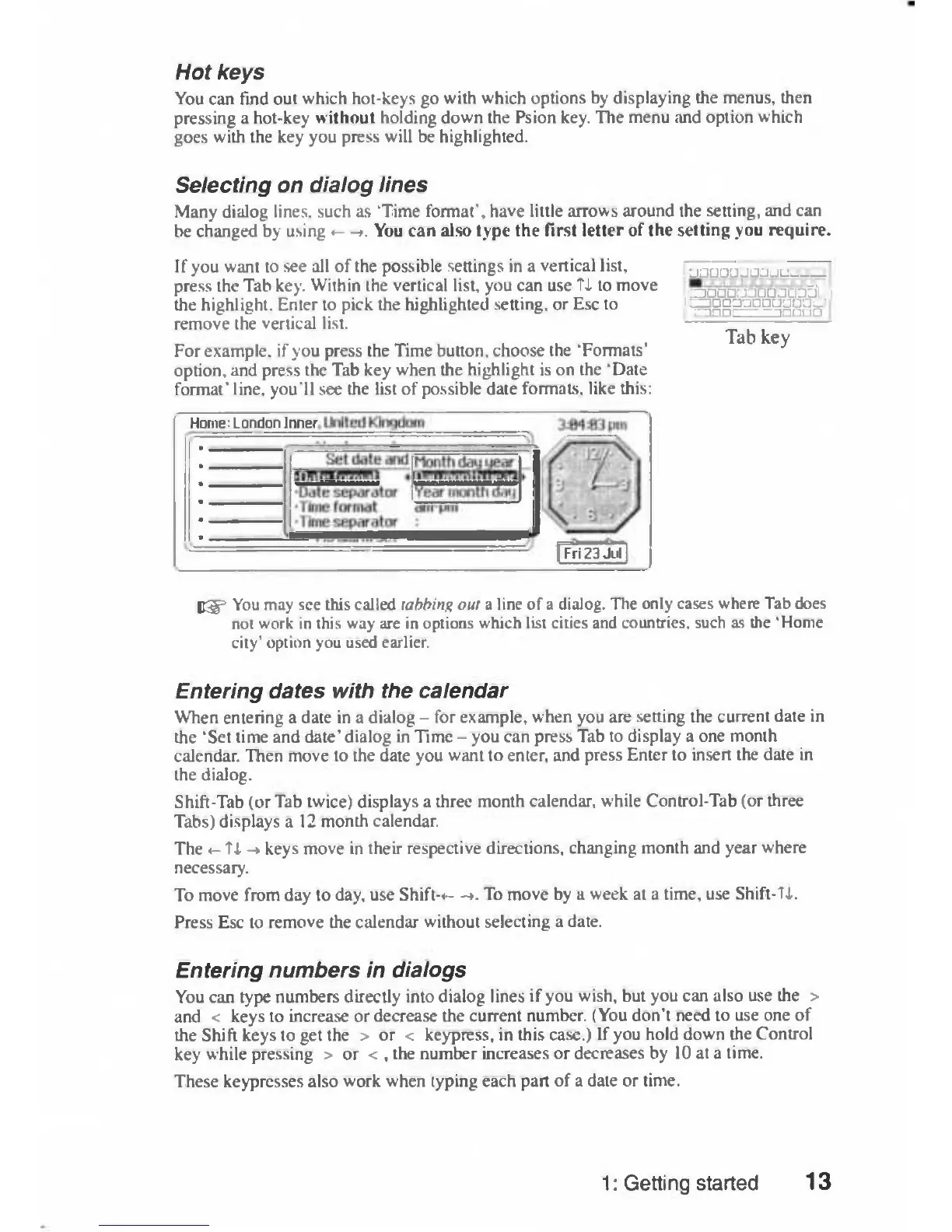
If
you
want
to
see
all
of
the possible
settings
in
a
vertical
list,
press
the
Tab
key.
Within
the
vertical
list,
you
can
use
TX
to
move
the
highlight.
Enter to
pick
the
highlighted
setting,
or
Esc
to
remove
the
vertical
list.
For
example,
if
you
press
the
Time
button,
choose
the
"Formats'
option,
and
press
the
Tab
key
when
the
highlight
is
on
the
'Date
format'
line,
you'll
see
the
list
of
possible
date
formats,
like
this:
jauiJLIJJJJL:.
,
t^aaatxtcraacadL
i
i
^ncaaaauLiaac-'
r-inni
innrin
Tab
key
Home:
London
Inner
|
Fri
23
Jiiil
B3f=
You
may
see
this
called
tabbing
out
a
line
of
a
dialog.
The
only
cases
where
Tab
does
not
work
in
this
way
are
in
options
which
list
cities
and
countries,
such
as
the
'Home
city'
option
you
used
earlier.
Entering
dates
with
the
calendar
When
entering
a
date
in
a
dialog
-
for
example,
when
you
are
setting
the
current
date
in
the
'Set
time
and
date'
dialog
in
Time
-
you
can
press
Tab
to
display
a
one
month
calendar.
Then
move
to
the
date
you
want
to
enter,
and
press
Enter
to
insert
the
date
in
the
dialog.
Shift-Tab
(or
Tab
twice)
displays
a
three
month
calendar,
while
Control-Tab
(or
three
Tabs)
displays
a
12
month
calendar.
The
<-
TX
->
keys
move
in
their
respective
directions,
changing
month
and
year
where
necessary.
To
move
from
day
to
day,
use
Shift-*—>.
To
move
by
a
week
at
a
time,
use
Shift-TX.
Press
Esc
to
remove
the
calendar
without
selecting
a
date.
Entering
numbers
in
dialogs
You
can
type
numbers
directly
into
dialog
lines
if
you
wish,
but
you
can
also
use
the
>
and
<
keys
to
increase
or
decrease
the
current
number.
(You
don't
need
to
use
one
of
the
Shift
keys
to
get
the
>
or
<
keypress,
in
this
case.)
If
you
hold
down
the
Control
key
while
pressing
>
or
<
,
the
number
increases
or
decreases
by
10
at
a
time.
These
keypresses
also
work
when
typing
each
part
of
a
date
or
time.
1:
Getting
started
13

Table of Contents

Related product manuals