EasyManua.ls Logo

Psion 3a Series - Page 71

Psion 3a Series
288 pages
Print Icon
To Next Page IconTo Next Page
To Previous Page IconTo Previous Page
Loading...
cgf
You
cannot
enter
tinted
appointments
that
span
more
than
one
day.
If
you
want
an
entry
to
go
across
midnight,
enter
it
as
more
than
one
entry,
or
as
a
repeating
entry
(described
later).
You
can
also
type day
entries
into
the
Week,
Year
and
List
views.
Enter
the
'Day
entry
details'
in
the
dialog
as
you
would
in
the
Day
view.
The
Agenda
as
a
"plain
paper"
Agenda
If
you
intend
to
use
your
Agenda
as
a
"plain
paper"
agenda,
you
should
first
change
the
'Day
entry
preferences'
so
that
day
entries
arc
untimed
by
default:
1.
Select
the
'Set
preferences'
option
on
the
'Special'
menu.
A
new
submenu
is
shown.
2.
Select
the
"Day
entry
defaults'
suboption
on
the
'Entry
preferences'
menu.
Then
change
the
'Day
entries
timed
by
default'
line
to
'No',
and
press
Enter.
You
are
now
ready
to
enter
notes
and
appointments:
1.
Position
the
cursor
to
an
appropriate
place
on
the
screen.
(You
can
put
it
in
the
corresponding
"time
slot",
if
you
like,
or
you
can
choose
to
ignore
time
slots
altogether.)
Type
the
text
(and
the
time,
if
it
is
an
appointment)
For
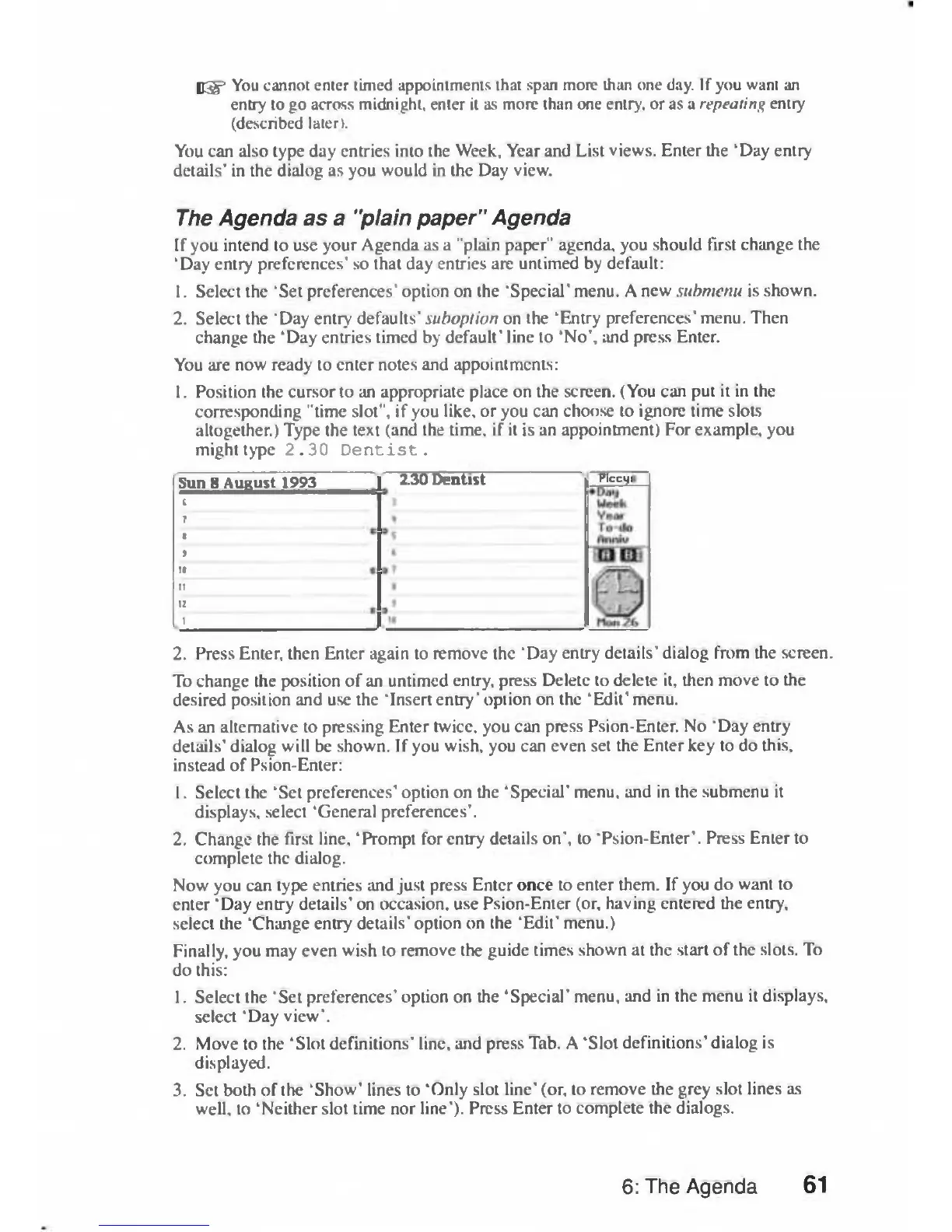
example, you
might
type
2.30
Dentist.
Sun_8August_^993^
1
I
I
2.
Press
Enter,
then
Enter
again
to
remove
the
'Day
entry
details'
dialog
from
the
screen.
To
change
the
position
of
an
untimed
entry,
press
Delete
to
delete
it,
then
move
to
the
desired
position
and
use
the
'Insert
entry'
option
on
the
'Edit'
menu.
As
an
alternative
to
pressing
Enter
twice,
you
can
press
Psion-Enter.
No
'Day
entry
details'
dialog
will
be
shown.
If
you
wish,
you
can
even
set
the
Enter
key
to
do
this,
instead
of
Psion-Enter:
1.
Select
the
'Set
preferences'
option
on
the
'Special'
menu,
and
in
the
submenu
it
displays,
select
'General
preferences'.
2.
Change
the
first
line,
'Prompt
for
entry
details
on",
to
'Psion-Enter'.
Press
Enter
to
complete
the
dialog.
Now
you
can
type
entries
and
just
press
Enter
once
to
enter
them.
If
you
do
want
to
enter
'Day
entry
details'
on
occasion,
use
Psion-Enter
(or,
having
entered
the
entry,
select
the
'Change
entry
details'
option
on
the
'Edit'
menu.)
Finally,
you
may
even
wish
to
remove
the
guide
times
shown
at
the
start
of
the
slots.
To
do
this:
1.
Select
the
'Set
preferences'
option
on
the
'Special'
menu,
and
in
the
menu
it
displays,
select
'Day
view'.
2.
Move
to
the
'Slot
definitions'
line,
and
press
Tab.
A
'Slot
definitions'
dialog
is
displayed.
3.
Set
both
of
the
'Show'
lines
to
'Only
slot
line'
(or,
to
remove
the
grey
slot
lines
as
well,
to
'Neither
slot
time
nor
line').
Press
Enter
to
complete
the
dialogs.
2.30
Dentist
Plcctji
6:
The
Agenda
61

Table of Contents

Related product manuals