SECTION 3
OPERATING PRINTER
52
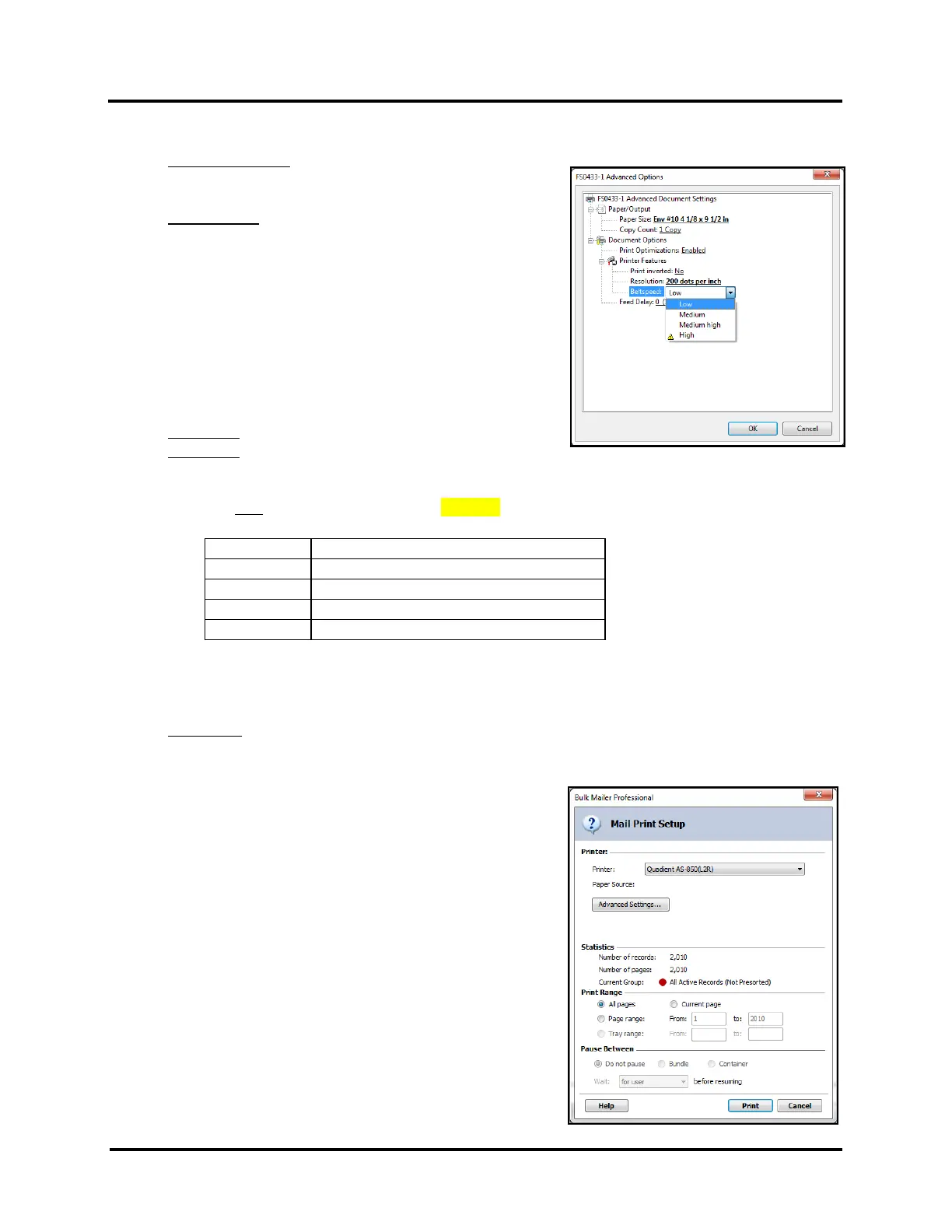
b. Select your desired Document Options and Printer Features.
Print Optimizations: Enabled, Disabled
Make sure Enabled is selected.
Print inverted: No, Yes
No = normal
Yes = inverted (rotate 180°)
AS-850 (left to right feed model) with AS-850(L2R) Printer Driver
Print inverted: No = “normal” – print up-side-down to operator
Print inverted: Yes = “inverted” – print right-side-up to operator
AS-850R (right to left feed model) with AS-850(R2L) Printer Driver
Print inverted: No = “normal” – print right-side-up to operator
Print inverted: Yes = “inverted” – print up-side-down to operator
Resolution: 150, 200, 300, 600 DPI (print quality)
Belt Speed: Low, Medium, Medium High, High
NOTE: Belt Speed selections are limited by the current Resolution selection.
Do NOT select choices marked with CAUTION symbol.
Compatible Belt Sped Selections
Low, Medium and Medium High, High
Low, Medium and Medium High
TIP: Compatible Belt Speeds can also be selected at the printer, after sending the job. Pause printer
before selecting a new Belt Speed.
Feed Delay:
Feeder pause time (1/10 of a second). 10 = 1 second.
Printer will pause feeder, for set value, between each piece of media that is fed/printed. Use to provide
more dry-time between pieces.
Click on OK to close the above windows.
9. Click on “Print” to send job to the printer.
NOTE: Make sure the printer is powered up and ready, before
clicking on the "Print" button.
TIP: Start by choosing “Current Page” to print a single piece, to
check print locations.
Please contact BCC Software (Customer Support: 800-624-5234) or
visit their web site (www.bccsoftware.com) for additional help on
using Bulk Mailer.



 To Next Page