EasyManua.ls Logo

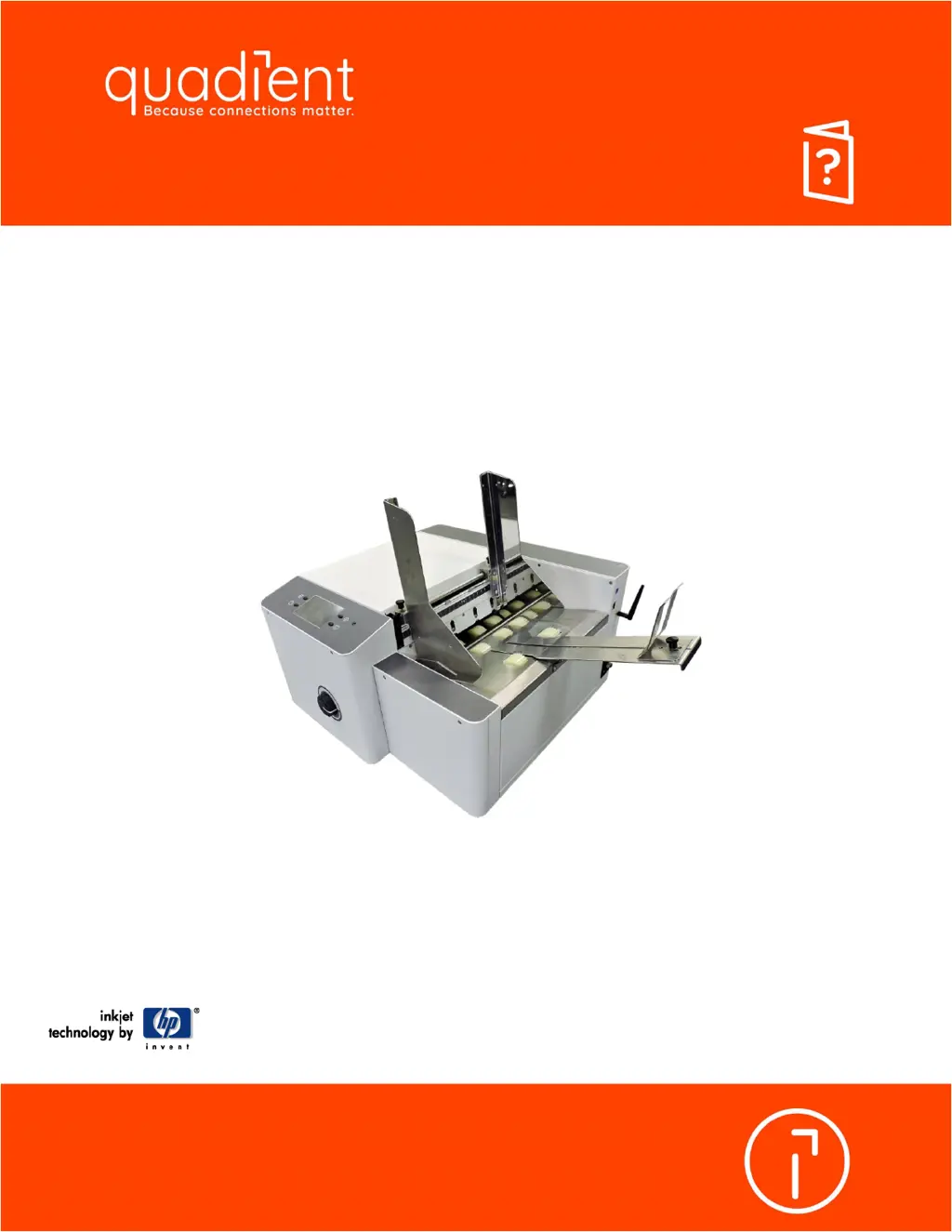
quadient AS-650 - User Manual

quadient AS-650
78 pages
Print Icon
To Next Page IconTo Next Page
Loading...
1
Inkjet Printer
AS-650
User Guide

Table of Contents

Other manuals for quadient AS-650

Questions and Answers

  • S
    Shawna GrahamSep 23, 2025
    What to do if quadient AS-650 has no communication?
    • A
      Anthony GutierrezSep 23, 2025
      If your Quadient Printer has no communication, it could be due to improper settings or connection. Check the interface settings and connections. Remove and reload the printer driver.
  • W
    williamsandrewAug 23, 2025
    How to wake up quadient AS-650 Printer when the touchscreen is black but the power light is on?
    • K
      Kelly OrtegaAug 23, 2025
      If your Quadient Printer's touchscreen is black but the power indicator light is on, the printer might be in sleep mode. Try waking it by pressing any of the four mechanical keys or tapping the touchscreen. If that doesn't work, turn the main power switch off, wait 20 seconds, and then turn it back on.
  • S
    scottrobinAug 25, 2025
    How to fix black streaks in text from Quadient Printer?
    • T
      Tony YatesAug 25, 2025
      To resolve the issue of black streaks in text from your Quadient Printer, the likely cause is lint or paper dust on the printhead. You should clean and purge the cartridge nozzles as described in the section titled “Ink Cartridge (Printhead) Care”.
  • T
    Taylor RichardsonAug 27, 2025
    What to do if Quadient Printer touchscreen is white or showing splash screen?
    • G
      gwalkerAug 27, 2025
      If your Quadient Printer displays a white screen or the product brand splash screen and doesn't proceed, it could be due to a power-up issue caused by an improper shutdown. Allow it to sit for 60 seconds. If the white screen persists, turn off the main power switch, disconnect any communication cables (USB, Network), wait 20 seconds, and then power it back on.
  • J
    Jennifer McdonaldAug 27, 2025
    Why does my quadient AS-650 have white streaks in text or graphics?
    • S
      Sandra WoodsAug 27, 2025
      To address white streaks in text or graphics from your Quadient Printer, the issue may stem from clogged or damaged nozzles, lint or dust blocking the nozzles, or poor contact between the printhead and the printhead pen stall. You should clean and purge the cartridge nozzles as described in the section titled “Ink Cartridge (Printhead) Care”. Also, try removing and reinserting the ink cartridge into the pen stall. Clean and dry the cartridge contacts. If the problem persists, swap positions with a known-good cartridge to determine if it's a cartridge issue. If the problem follows the cartridge, insert a new print cartridge; otherwise, contact technical support.
  • M
    Mike RoweSep 18, 2025
    How to fix split line of type issue on quadient AS-650 Printer?
    • M
      Mr. Vincent ThomasSep 18, 2025
      If your Quadient Printer is splitting a line of type, it means the line of type is placed across two printheads. Reposition the text in the layout so that it does not print across printheads. Adjust the positioning of the printheads in relation to each other using Head Alignment in the Quick Menu on the Control Panel.
  • J
    Jason HallSep 15, 2025
    What does 'STOP TIME OUT (ERROR 06)' mean on my quadient AS-650 Printer and how to resolve it?
    • R
      Robin DanielSep 15, 2025
      If your Quadient Printer displays 'STOP TIME OUT (ERROR 06)', it means the printer transport was left running, and the automatic 5-minute timeout has started. Press OK to restart the transport before continuing to print.
  • K
    Keith MillerSep 16, 2025
    Why are characters/lines ghosting and shifting on my quadient AS-650 output?
    • J
      justinhopkinsSep 16, 2025
      If your Quadient Printer is showing characters or lines ghosting and shifting, it is likely due to the media slipping or hesitating. Check the media thickness setting. If the carriage is set too high, it will cause the media to slip as it passes under the heads.
  • B
    Brett WilliamsSep 6, 2025
    How to resolve 'FEEDER EMPTY (ERROR 03)' error on Quadient Printer?
    • D
      darylfloresSep 7, 2025
      If your Quadient Printer displays 'FEEDER EMPTY (ERROR 03)', it means there is no media in the feeder or there is hesitation in the media feed. Check and adjust the feeder’s sheet separators, side guides, and rear wedge. Reload the media and press OK to continue.
  • C
    Cindy ClarkSep 3, 2025
    How to fix a paper jam (ERROR 01) on my quadient AS-650?
    • M
      Mary FarrellSep 3, 2025
      If your Quadient Printer displays 'PAPER JAM (ERROR 01)', it's due to a paper jam. This can happen if the media is curled, bent, too thin, too thick, sticking together, overlapping, or if there's no gap between pieces. Clear the media from the feeder and/or print transport area. Ensure media thickness is within the range of 0.008" (0.2 mm) to 0.5" (12.7 mm), or a maximum of 0.375” thick for AS-FDR14 feeders. Adjust the feeder's sheet separators, check/adjust media thickness, and reduce feeder speed to create a 1-2” gap between pieces. Press OK to continue. Use Reprint (on Quick Menu screen) to retrieve/restore any missing or misprinted pages in the print job.

quadient AS-650 Specifications

General IconGeneral
Brandquadient
ModelAS-650
CategoryPrinter
LanguageEnglish

Related product manuals