SECTION 2
INSTALLING PRINTER
13
Install Printer Driver
Download the latest Printer Driver from the Printer manufacturer's website. Make sure the printer is powered-up.
Make sure the desired interface connections have been established between printer and computer.
• If you wish to use the wired Network (LAN, Ethernet) connection, see “Network Settings” to establish this
connection before installing the Printer Driver.
• If you wish to use the WiFi connection, see “WiFi Setup” to establish this connection before installing the
Printer Driver.
• The Printer can be connected to a USB 2.0 or USB 3.0 port. The USB 3.0 connection is preferred, because
it is faster. See “How to identify USB 3.0 Cables and Connections” for more information.
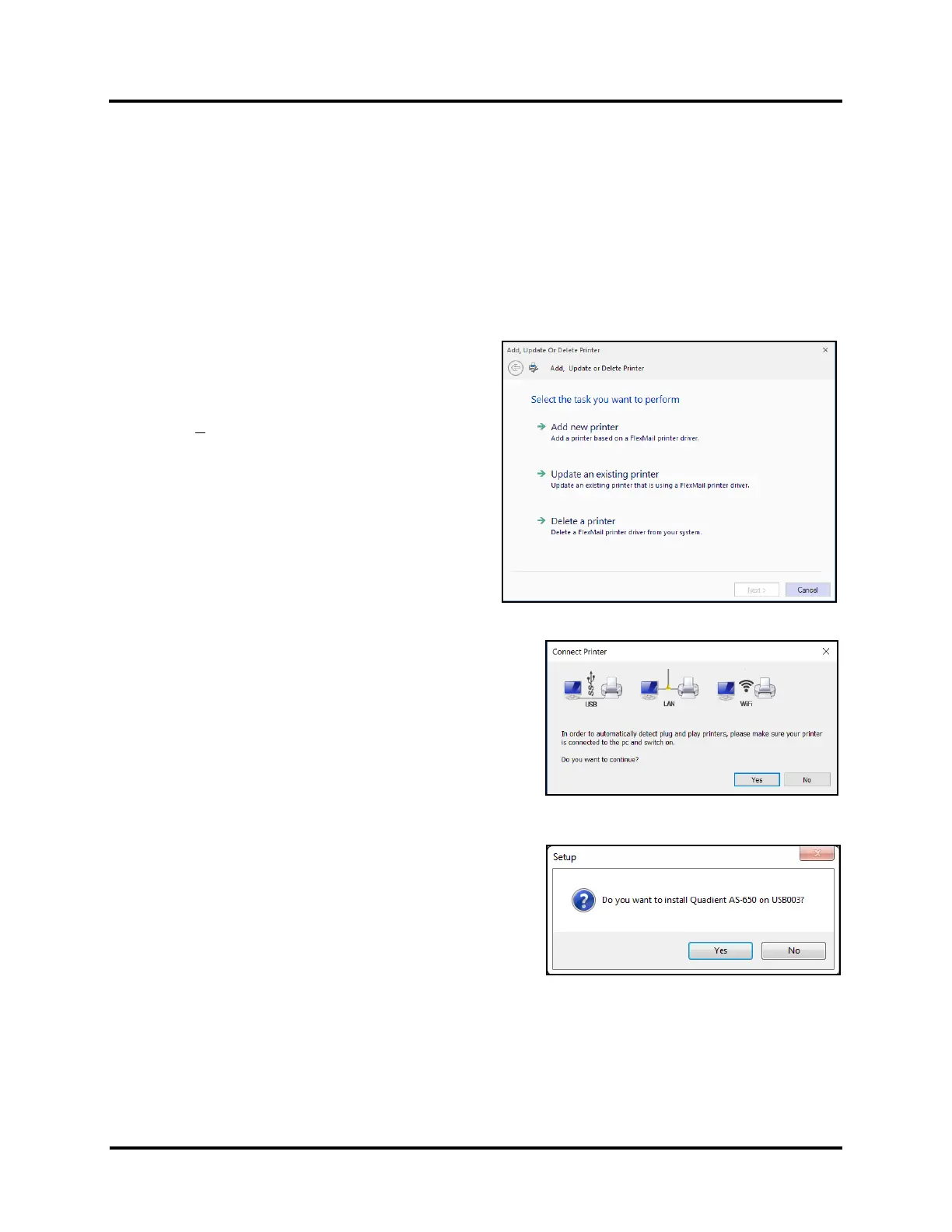
1. Open the downloaded Printer Driver Folder:
Select and double-click “Setup.exe”.
2. “Add, Update or Delete Printer” window opens.
Click “Add New Printer”.
Click Next>.
3. The “Connect Printer” window opens. Make sure the
Printer is plugged in, powered up and the desired
communications cable USB, wired Network (Ethernet,
LAN) or WiFi connection has been established.
Click “Yes” to continue.
4. The Driver installer should auto-recognize established
connections and present a “Setup” window asking
“Do you want to install AS-650 on ...”.
If more than one connection has been established, the
installer will identify the fastest connection and present
this choice to you first.
Click on “Yes” to accept this choice.
Click on “No” to use a different choice.
NOTE: Be sure the appropriate model, reflecting your printer, is presented/selected.
If the Driver installer doesn’t present the appropriate model, please contact your support representative.



 To Next Page