SECTION 4
MAINTENANCE
65
Jams in Printer
If a jam occurs and the printer does not stop automatically, press PAUSE to STOP the Printer.
Some possible reasons for jamming are:
• Media size (length in direction of feed) does not match Driver/Software setting.
• Double Feeding Media (More than one piece of media is fed under separators and into printer at a time).
Commonly caused by improper Sheet Separation adjustment or poor media stacking.
• Damaged media, such as dog-eared (turned down corners).
• Media that is not stiff enough may not be usable. Media that meets Postal stiffness requirements for
automated feeding is acceptable in the Printer.
• Nested Envelopes (envelope caught under the flap of another) or stuck to one another.
• Media hesitating or slipping as it travels through the printer. Commonly caused by improper Media Thickness
adjustment.
Removing Jammed Media
1. If necessary, raise the Printhead Carriage using the “Media Thickness Knob”.
2. It necessary, move Print Unit(s) to gain access to jammed media.
3. Take care when removing jammed media to avoid damaging machine.
All pieces of jammed media must be removed from the feed path.
4. Return Media Thickness Adjustment and Print Unit to desired positions.
5. Reprint lost record(s). Follow instructions, Section 3 – Operating Printer, Quick Menu, “Reprint”.
Replace Sheet Separators
Sheet Separators ensure separation of pieces as they are fed. They wear and must be replaced periodically.
If you experience double sheet feeding and cannot adjust Separators to prevent it, replace them.
1. Turn OFF and unplug Printer.
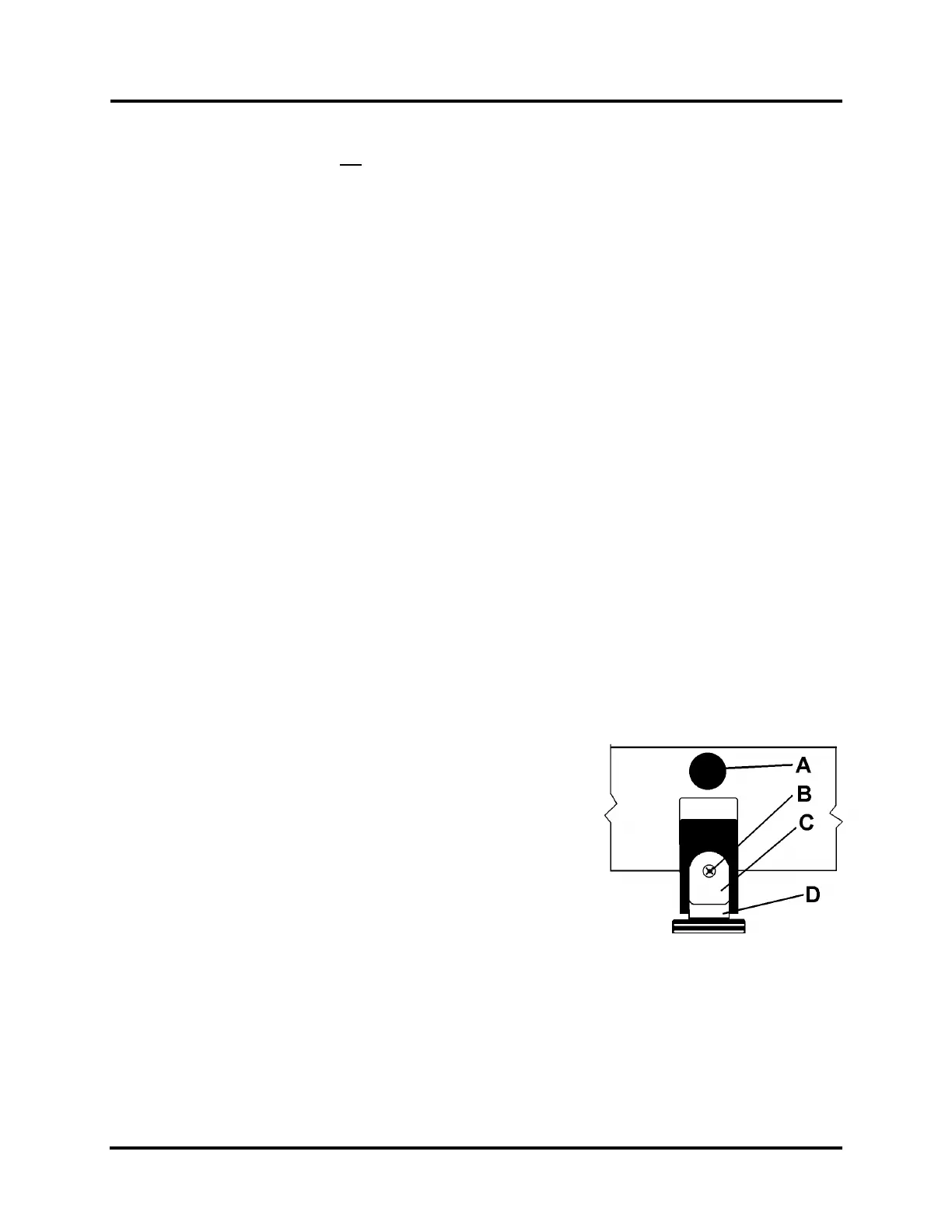
2. Release Separator by loosening knob [A] and move Media Side
Guides to maximum opened position.
3. Lower Separators so they touch Feed Roller.
4. Remove screw [B] and Separator Support [C]. Then remove
Separator [D] by prying it out of
the Holder.
5. Install a new Separator and reinstall Separator Support and
screw.



 To Next Page