SECTION 3
OPERATING PRINTER
43
Printing from Bulk Mailer
This section describes the process for opening a mailing list, designing a Template (Layout) and printing to the
AS-650 printer model. This section does not
provide information on using other Bulk Mailer functions, such as
Address Quality, Mail Sort and other features. Please contact BCC Software (www.bccsoftware.com) for help with
Bulk Mailer features/functions that are not outlined in the following procedure.
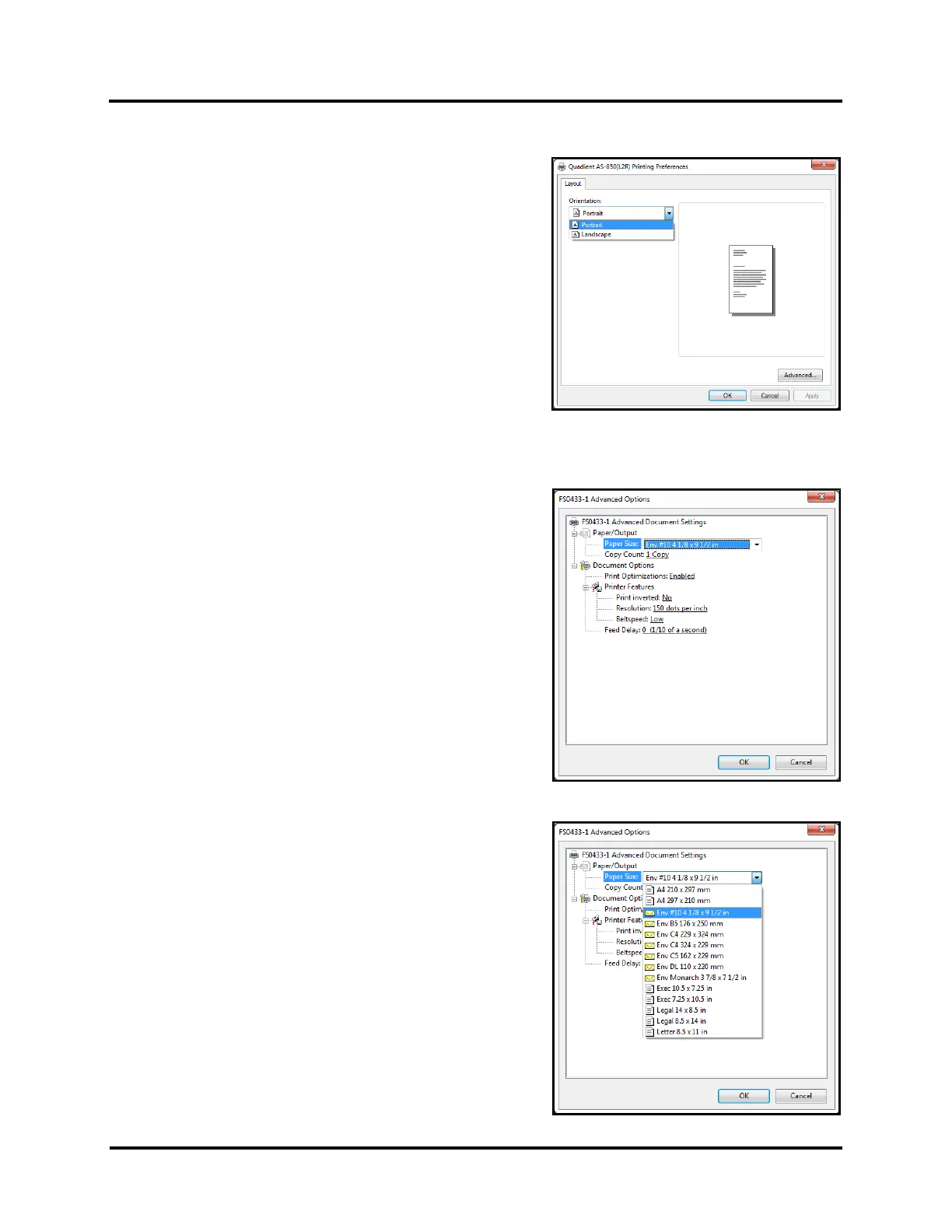
Known Printer Driver/Bulk Mailer Limitations: For operators who may be accustomed to changing printing
features such as “Orientation”, “Print Quality”, “Belt Speed” and “Feed Delay” from the Bulk Mailer Designer
screen; please note that this is not
currently possible. This is due to the fact that BCC Software has not developed
an AS-650 Printer Driver, for use with Bulk Mailer. Because of this there is no integration between the current
AS-650 Printer Driver (developed by FlexSystems) and the Bulk Mailer Software. Therefore you must access
“Advanced Settings”, in the Print Dialog box, to make changes to these features.
This process will be explained in the following steps.
1. Open Bulk Mailer.
2. From the “Home” tab, select and open (double-click on) the mailing list of
your choice.
3. From the “Print Mail” tab, select and open the "Print Mail Wizard", which
will guide you through the envelope design and Layout process. Click
NEXT to continue.
Please be sure to make the following selections within the “wizard”.
a. From the “Print Mail Template Type” window, select
“Envelopes – Graphical Output” as the Template Type.
Click NEXT to continue.
b. From the “Graphical Envelope Options” window select the
appropriate choices for your “Printer Type:”.
Printer: Printer Driver selection. Select the AS-650 Driver
Brand may be shown as Neopost, Quadient or RENA. You can use any
of these Brand choices.
Select “Direct Impression”.
Locate and select the AS-650 choice from the list.
Brand may be shown as Neopost, Quadient or RENA, in a future Bulk
Mailer release. You can use any of these Brand choices.
Click NEXT to continue.



 To Next Page