SECTION 3
OPERATING PRINTER
19
Using the Touchscreen
The Touchscreen turns ON after the Printer’s Main Power Switch is Turned ON.
NOTE: It takes about 60 seconds, after the Printer is switched ON, for the Printer to fully initialize.
By default, the Touchscreen will turn OFF (go into sleep mode) if it isn’t pressed for 60 minutes.
Touch/tap the Touchscreen, or press a Printer Control Panel key, to wake the Touchscreen.
Use the Touchscreen and/or Printer Control Panel keys to access various functions that help you control or
customize Printer operation.
BASIC TOUCHSCREEN INFORMATION
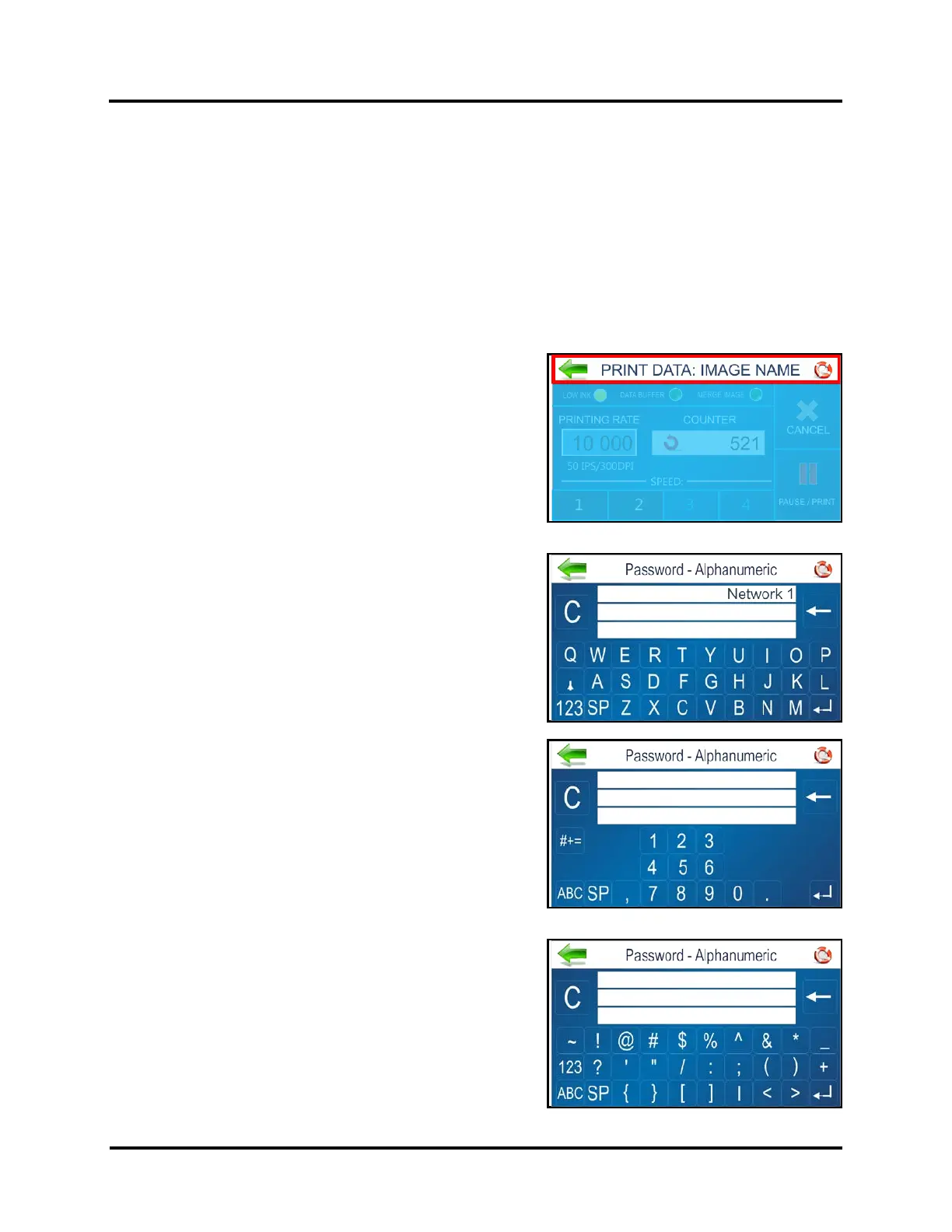
Green Arrow (Back): Tap to return to the previous screen.
Help Icon (Life Preserver): Tap the icon to open a short
description of the features found on that screen.
Cleaning: See “Cleaning the Touchscreen” in the
Maintenance section.
TOUCHSCREEN KEYBOARDS
Use the Touchscreen Keyboards when entering or editing
information in entry boxes in features such as Network Settings.
The appropriate keyboard opens when you tap on an Edit Box
and/or tap within a data entry box on the Touchscreen.
• “C” to the left of the white entry box clears the box.
• “Arrow” to the right of the white entry box deletes last
character entered.
• Press “Enter Arrow” on lower right of keyboard to save
your entry.
• Press “Up Arrow” to toggle between upper and lower
case letters.
• “SP” is the Space Bar.
• “123” opens the numeric keyboard.
• “#+=” on the numeric screen opens the symbols
keyboard.



 To Next Page