SECTION 3
OPERATING PRINTER
25
PRINTER PREFERENCES Menu
This menu is also available by pressing Quick Menu key on
the Control Panel.
Press
>>> to go to Next screen.
Press
<<< to return to the Previous screen.
NOTICE: Some Printer Preference features are not accessible
when there is job data in the printer.
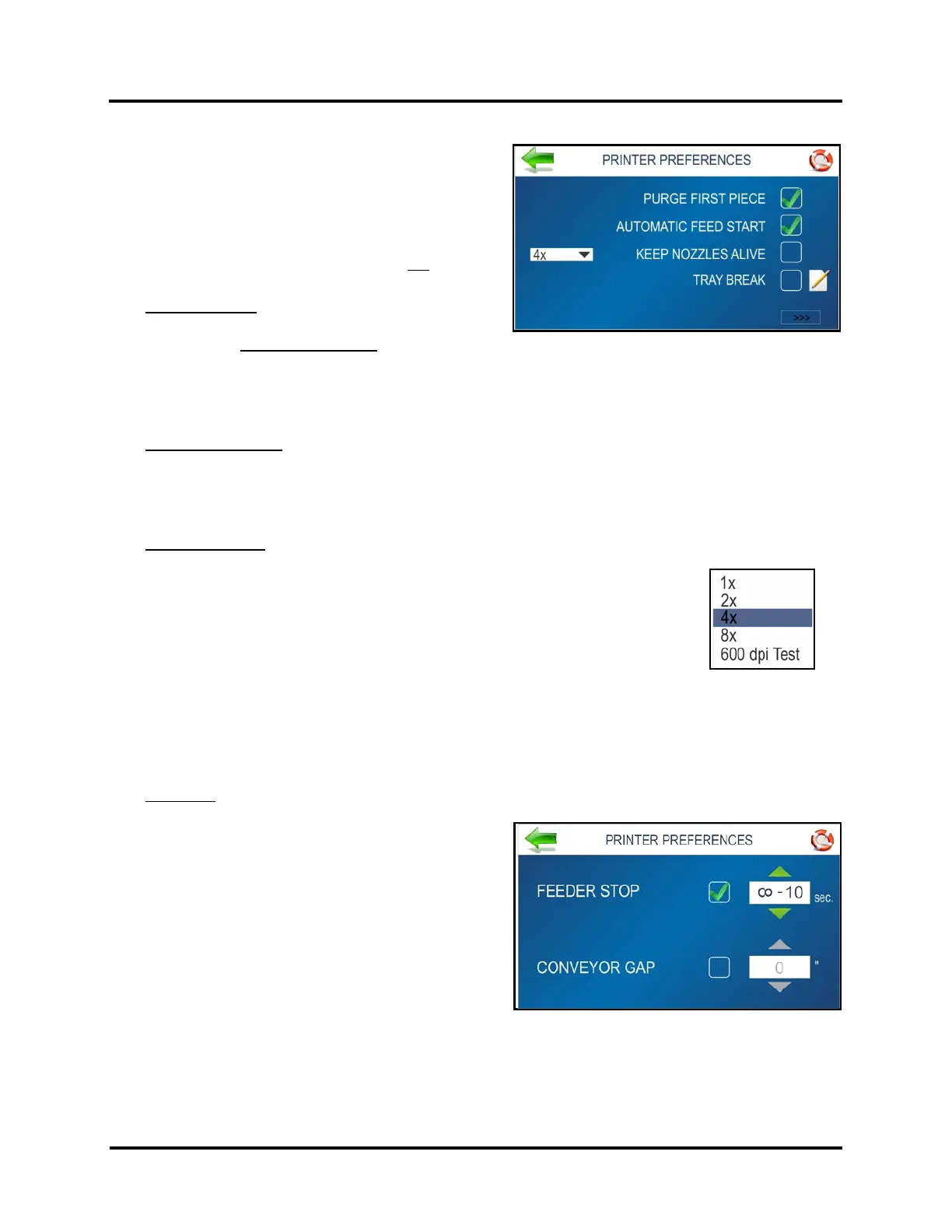
Purge First Piece: By default, this feature is ON.
When a job is received the Printer will feed and print a
purge pattern, to clear inkjet nozzles
. Then, after a short pause, it will start feeding and printing the job.
Turn this feature OFF if you don’t want a purge pattern automatically printed, before the first piece of the job
is printed.
Select = Purge First Piece ON.
Deselect = Purge First Piece OFF.
Automatic Feed Start: By default, this feature is ON. When a job is received, the Printer will automatically
start feeding and printing. Turn this feature OFF to use the Print button on Touchscreen (or Pause/Resume
Key on Control Panel) to start feeding and printing.
Select = Auto Feed Start ON.
Deselect = Auto Feed Start OFF.
Keep Nozzles Alive: Since the nozzles used to print ascender and descender sections of characters are not
fired as frequently as other areas, this may result in missing sections of some
characters (examples: g, j, p, q, y). This feature can be used to help reduce dehydration
of nozzles that are used to print ascender and descender sections of characters.
Select = Keep Nozzles Alive ON (spitting occurs). A sequence of dots will be printed
across the media surface.
Deselect = Keep Nozzles Alive OFF (no spitting).
Pull-down List: Select the spitting frequency: 1x, 2x, 4x (default), and 8x.
The lower the selection value, the more frequently nozzles (dots) are fired (spit) onto the media in the areas
identified by the printer to be possible ascender or descender positions.
Selecting 600 dpi Test spits both rows of printhead nozzles, in sequence, creating a pattern of diagonal lines
on each piece of printed media. This test pattern may be useful when troubleshooting nozzle-firing issues,
but it would not be desirable to use during live printing.
Tray Break: Set how you want printer to react when it receives a Tray Break command from the software
application. Select “Tray Break” to use this feature.
Edit box = Select and set the Feeder Stop (number of
seconds feeder should pause) or Select the Conveyor
Gap (AS-850 only).
Feeder Stop: Select and set the countdown timer to
pause/stop the feeder, for x number of seconds, when
the printer receives a Tray Break command.
Enter time in seconds (1-60).
Conveyor Gap (AS-850 only): When this feature is
activated, Printer responds to the Tray Break command
by sending a signal, to an “interfaced” conveyor, to
momentarily speed-up. This creates an obvious gap between end of one set of pieces and beginning of the
next. Enter the distance between the Media Sensor and the Conveyor. The Printer sends a delayed signal to
the “interfaced” conveyor, based on the distance value set for “Conveyor Gap”, and continues to print/feed.
NOTE: At the time of publication, an “interfaced” conveyor was not available.



 To Next Page