SECTION 3
OPERATING PRINTER
26
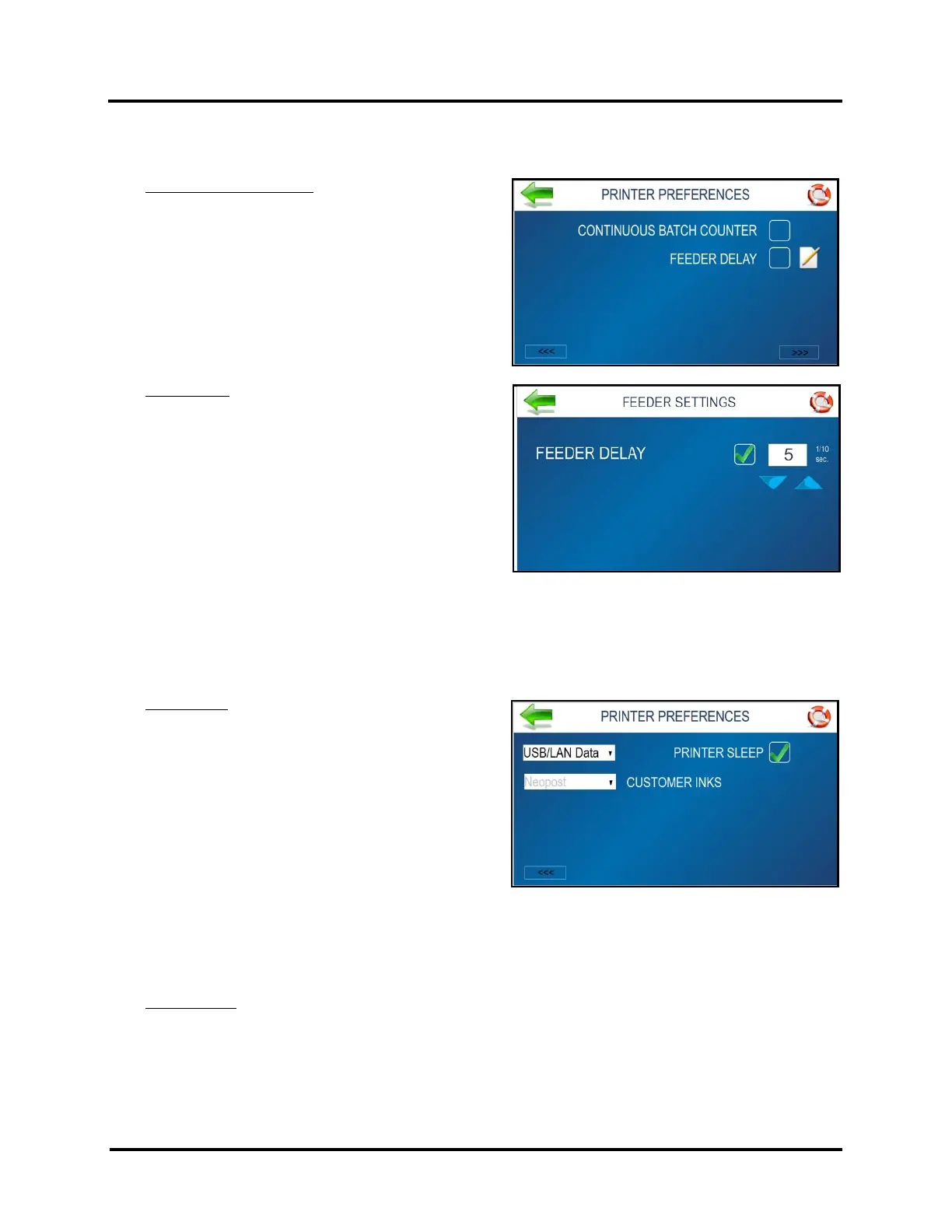
NOTE: Use the <<< (Previous) or >>> (Next) buttons, located at the bottom of the PRINTER PREFERENCES
screen, to access additional Printer Preferences features.
Continuous Batch Counter: Allows operator to select if
they want the counter, on the Print Data screen, to
automatically reset to zero with each new job that is
received or not (add job counts together).
Unchecked = Batch Counter resets before each job.
Checked = Batch Counter will not reset before each
job.
Feeder Delay: Used to lengthen the time between
pieces being printed and ejected from printer.
(Example: Printing multiple copies of a stored Print
Image that requires longer drying time before next
piece drops onto previous piece.)
NOTE: This feature applies only to internal Test Prints
and Print Images within the Printer such as Test Print,
Purge Print and Print Image stored in the Printer Image
Library. When printing a Job from your software
application, use the Printer Drivers “Feed Delay”
feature.
Unchecked = No Feeder Delay.
Checked = Feeder Delay activated.
Edit Box: Set the amount of time the Feeder will pause in tenths of a second when printing internal Test
Prints and Print Images.
Printer Sleep: Used to select if you do or do NOT want
printer to go to “sleep” when it is not being used.
Unchecked = Printer will never enter “sleep mode”.
Checked (default) = Printer will enter “sleep mode”
after it has sat idle for 60 minutes (default value).
TIP: Value can be adjusted, by a technician, via the
Service Menu, Sleep Timeout feature.
With this feature enabled, you can choose which
port(s), if any, will automatically “wake” printer from
“sleep mode” when data is received.
No Data = Printer will not “wake” when data is received.
USB Data = Printer will “wake” when data is received on USB port.
LAN Data = Printer will “wake” when data is received on LAN (wired or wireless) port.
USB/LAN Data (default) = Printer will “wake” when data is received on USB or LAN (wired or wireless) port.
Customer Inks
: Displays the Ink Set that the printer will recognize. This choice cannot be changed.
Neopost = Only proprietary EASYInk cartridges, sold by Neopost (now Quadient) can be used in printer.
See section titled “Supplies – Compatible Inkjet Cartridges (Printheads)” for list of compatible cartridges.
NOTE: Use the <<< (Previous) button, located at the bottom of the PRINTER PREFERENCES screen, to access
additional Printer Preferences features.



 To Next Page