SECTION 3
OPERATING PRINTER
53
Printing from FlexMail 4.3
This section describes the process of designing a Template (Layout) and printing to the AS-850/850R printer
models. This section does not
provide information on using other FlexMail functions, such as Importing a Mailing
List, Validating/Cleaning records or other FlexMail features. Please contact FlexSystems (www.flex-systems.com)
for help with FlexMail features/functions that are not outlined in the following procedure.
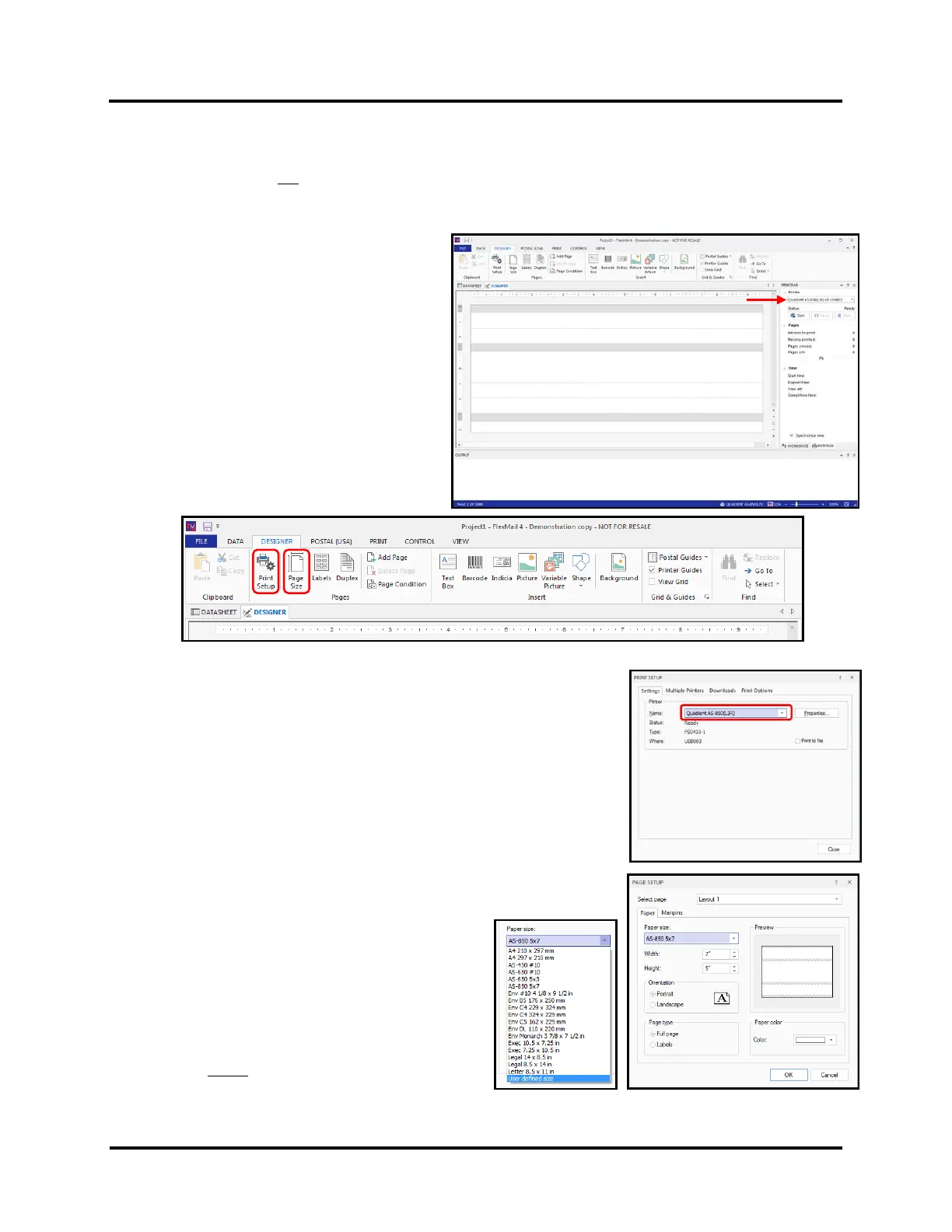
1. Open FlexMail
A new “Project” window will open in the
“Designer” view, displaying a Layout
representing the current “default” Printer and
“default” page size.
TIP: If you want FlexMail to open with a
Layout representing the AS-850 printer and a
specific page size; right-click on the AS-850, in
the “Devices and Printers” folder, and choose
“Set as default printer”. Also be sure to select
and apply your desired Printing Preferences in
the driver.
2. If the AS-850 is not the selected model, click on “Print Setup” button and
select the appropriate Printer AS-850(L2R) or AS-850(R2L) from the list.
NOTE: Brand may be shown as Neopost, Quadient or RENA. You can use
any of these Brand choices.
3. Click on “Page Size” button, to change the page size.
If your desired page size is not available in the pull-down list,
select “User defined size” from the list. Then type the “Width” (length in
direction of feed) and “Height” of the page size you want to use for this
Project and Layout.
TIP: As an alternative to creating a
“User defined size”, please see section titled “Adding
New Form Size (Paper Size)”.
For this example a New Form Size (Paper Size)
“AS-850 5x7” was added and selected.
IMPORTANT: The page “Width” value must match
the media length (in direction of feed) that you plan
to feed and print onto.



 To Next Page