SECTION 5
TROUBLESHOOTING
74
Printer (continued)
Paper Jam
Printer has detected a Paper
jam.
Double Feed
Printer has detected a double-
feed or wrong Paper Size
selected in driver.
and printer does NOT count
pieces being fed.
Media not passing through
Media Sensor.
Media Sensor dirty.
Adjust media feed position (side
guides) so media is centered in
printer.
Clean Media Sensor
but printer counts pieces being
fed.
Ink Cartridges not installed.
Ink Cartridges clogged.
Ink Cartridges not being
recognized.
Incompatible Ink Cartridges
Media not running under
Printheads.
Improper Software settings
Clean/replace Ink Cartridges
Use “Ink Status” feature, in “Quick
Start” menu, to verify that printer is
recognizing ink cartridges.
Install compatible Ink Cartridges
Adjust Print Unit(s) position.
Select correct paper size, Adjust
margin settings and position of data in
software layout.
Properly Shutdown and Restart
Printer.
Media Thickness adjustment set too
high. Adjust Printhead closer to the
media.
Install new Ink Cartridge.
Line of type is placed across
two Printheads.
Reposition text in layout so that it
does not print across Printheads.
Adjust positioning of Printheads in
relation to each other using Head
Alignment in Quick Menu on the
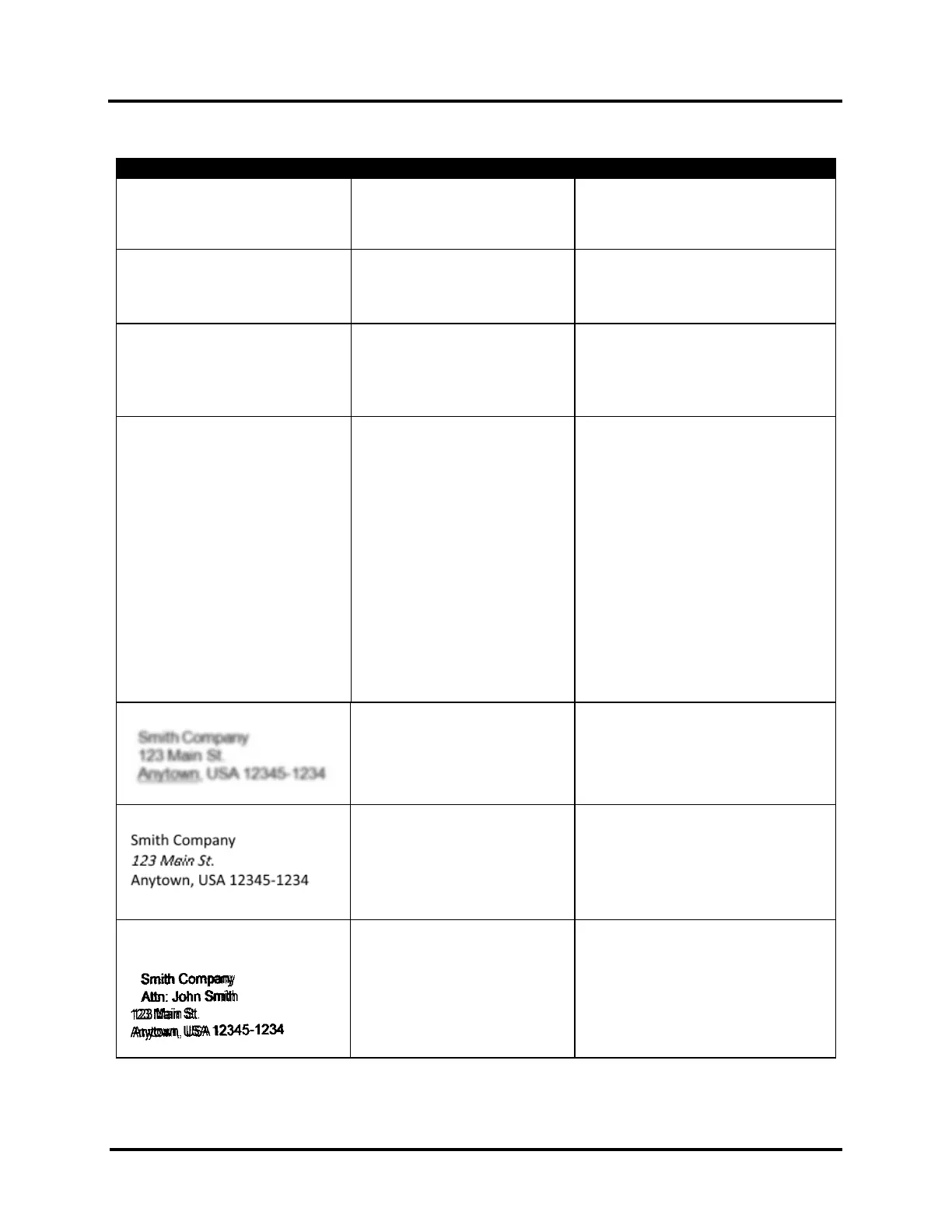
Characters/lines ghosting and
shifting
Media slipping/hesitating.
Check Media Thickness. Carriage set
too high will cause media to slip as it
passes under Heads.



 To Next Page