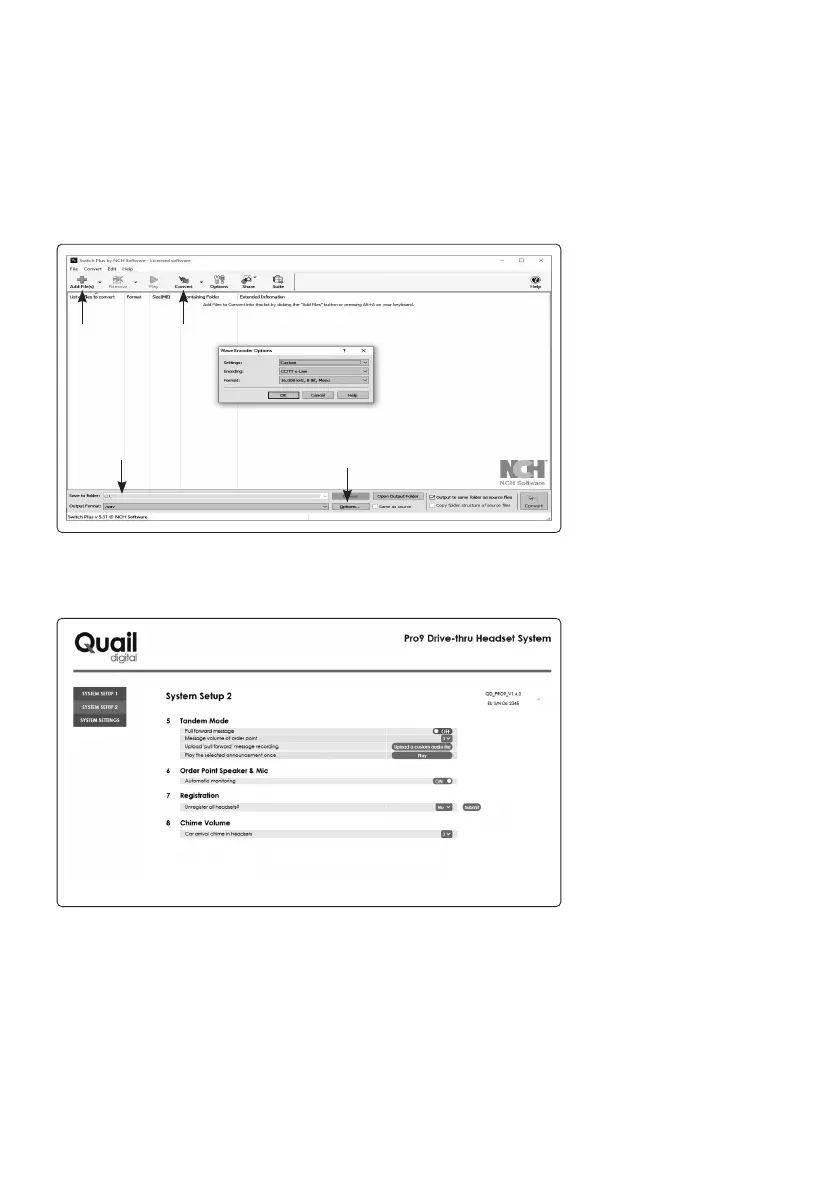
b. Select ‘Options’ and choose custom settings: CCITT u-Law, 16,000 KHz, 8 Bit, Mono
c. Click ‘Add File(s)’ - using the browser, select all the message files (in any format) to be converted
to the correct type
d. Select ‘Browse’ and choose a preferred output location
e. Click ‘Convert’ - the converted files will automatically appear in the folder chosen in ‘c.’
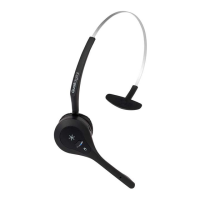
4. Once connected to the Quail Pro9 base station (see Appendix G) use the link in ‘System Setup 2’,
Section 5, ‘Tandem Mode’ to upload your file to the base station.
5. Using the link ‘Play’, check that your message is operating. You will hear the message coming from
speaker post 2 when the link is activated.
Please note, messages must be recorded in this format and be under six seconds in length. This
message is the operational ‘Pull forward’ message for a tandem operation drive-thru lane and is not
intended as a greet message.
d.
b.
c.
e.
page 24



 To Next Page