Operation
LF-100 User Guide 24
Cut Blank Labels
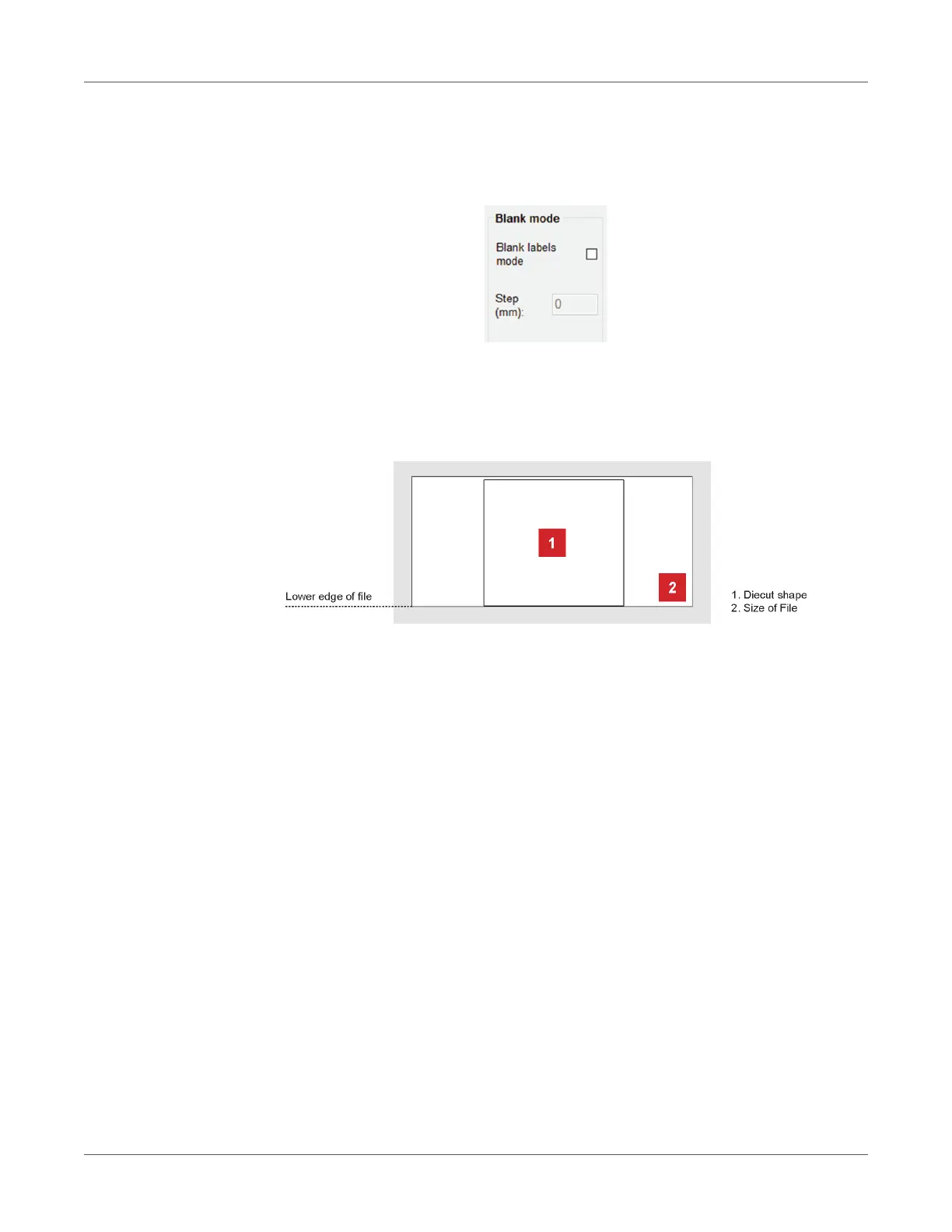
To use the “Blank Label Mode” feature to cut blank labels (without a registration mark), follow
these steps:
1. Import the cut file (without a registration mark) into the software.
2. Select the “blank label” feature from the software and enter the number of copies that you
wish to cut.
3. Click “Start”.
The die-cut shape must be attached to the bottom edge of the file. The distance you leave
will automatically be added to the gap that you will enter in the “STEP” box.
Warning: Please note that enabling the blank label feature will disable both the cut test
and Y offset adjustment.
Update Software
1. Go to Panel control.
2. Uninstall Virgo Cutting Manager.
3. Download from the website the new Cutting Manager release and run the installation.
Restore Plotter Settings
1. Turn off the plotter.
2. Turn on the plotter while keeping pushed the UP arrow on the panel.



 To Next Page