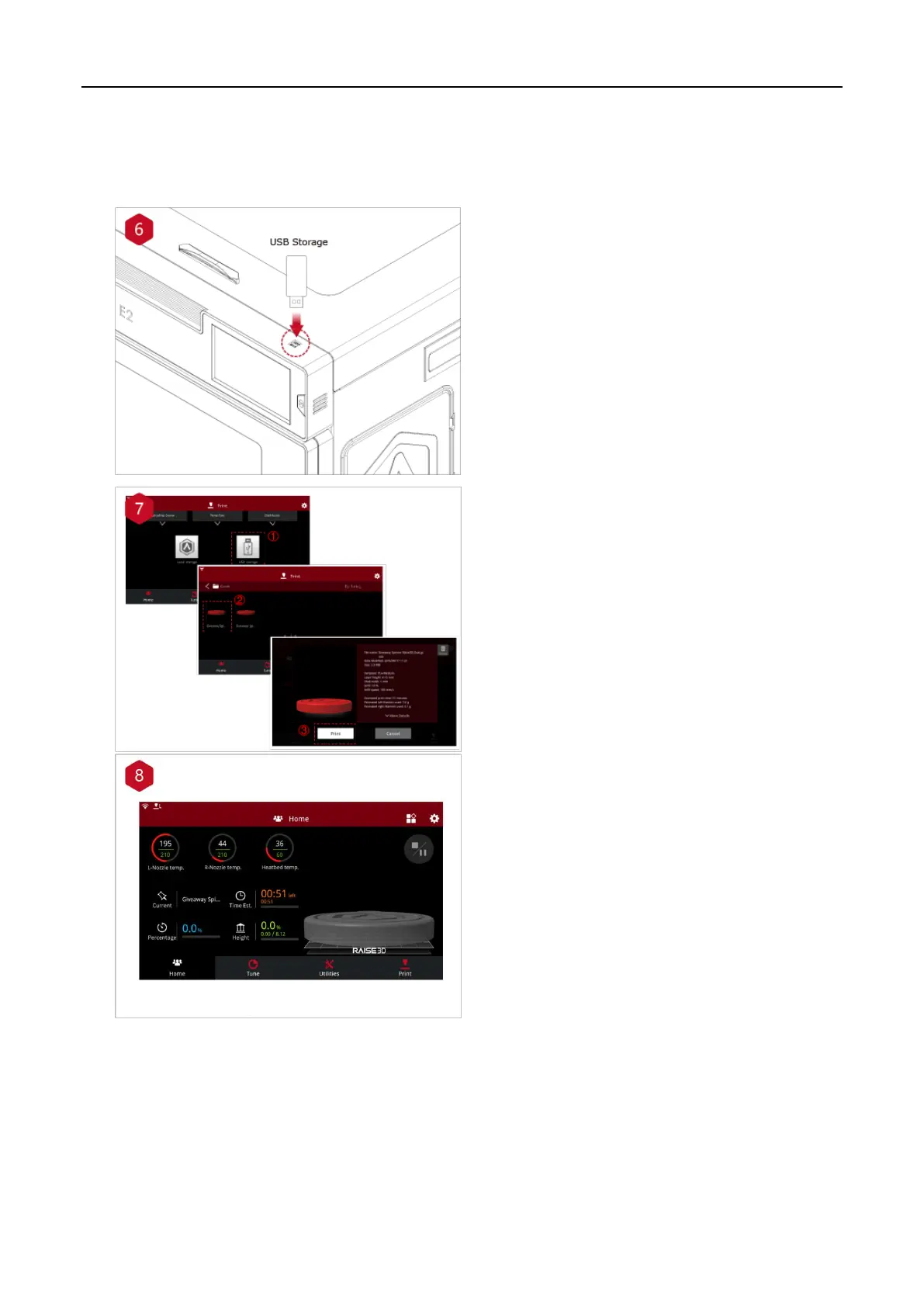
Select the "Print" tab, and choose "USB Storage".
Select the file and check the printing parameters
and settings. Press "Print" to start printing the
test file.
During printing, you can check the status of your
printing, including printing time and other
parameters, from the touch screen in the "Home"
interface.
NOTE: The touch screen will display an image of
your model on-screen during printing. This image
will only be shown when the file is sliced by
ideaMaker before being uploaded to the printer.


 To Next Page