V4.1.0R
5
4.Logging into the Gateway through SSH
There are 3 possible cases depending on the OS you are using:
4.1.Windows
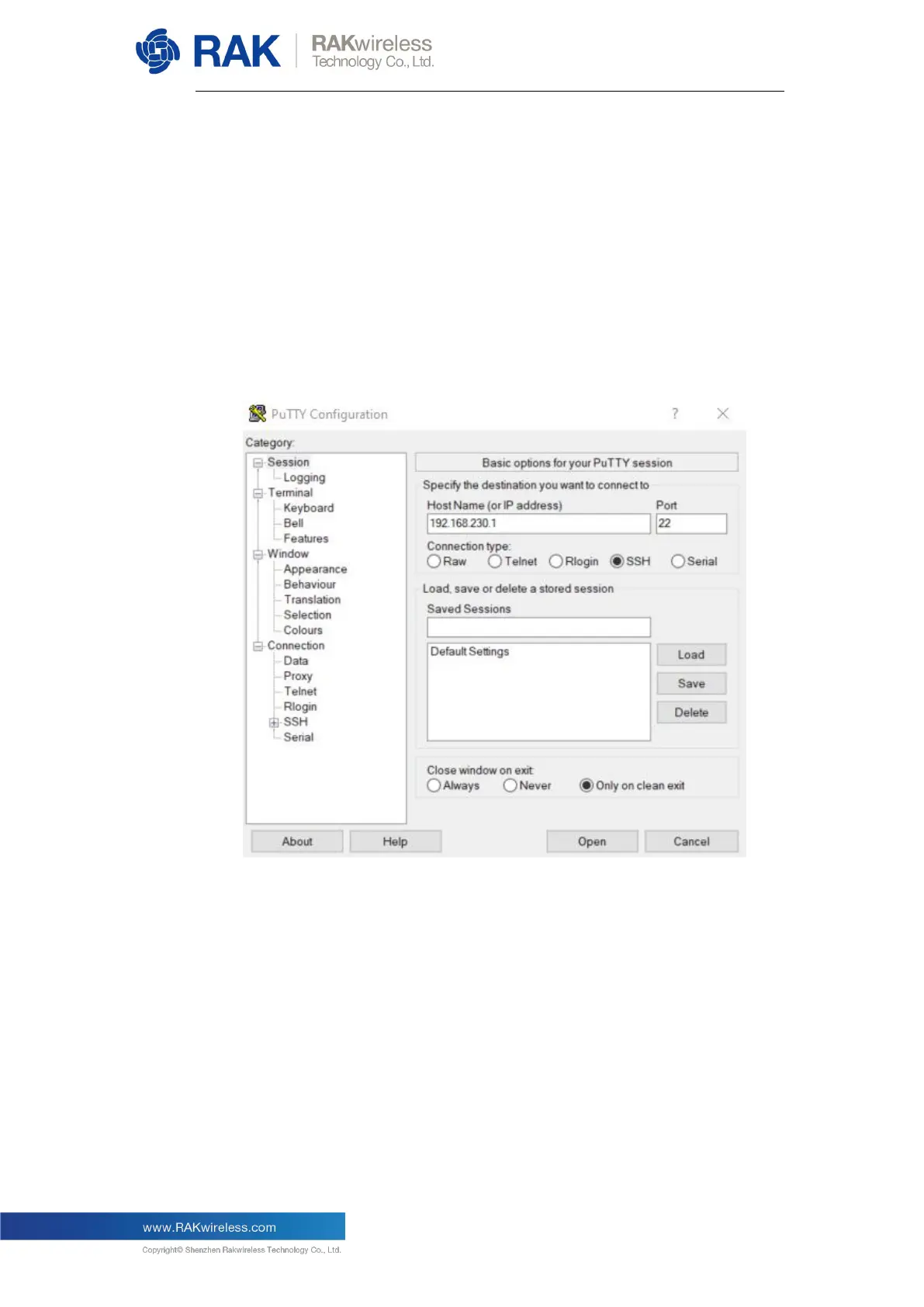
Open the SSH tool on your PC (in this document, we assume you are using
Putty) and connect with the LoRaWAN Gateway through Wi-Fi AP mode
which means the IP address is 192.168.230.1, as the following picture
shows:
Note: If you connect with the LoRaWAN Gateway through an Ethernet cable,
the IP address of should be 192.168.10.10.
Next enter the username and password:
The default username is “pi”, and the default password is “raspberry”.


 To Next Page